Opencart Preorder Pro
Using product pre-order module, the store owners can add pre-order functionality to their Opencart store. Pre-orders are essential for doing marketing of upcoming products which will be added soon. Also, if an existing product's stock is depleted, the store owner can still accept new orders for that out of stock product and manage them efficiently.


Use Case
Pre-orders are basically used for attracting buyer's attention for upcoming products that'll be added to the online store soon. Pre-orders are mostly used for products such as - mobile phones, movies, video-games, e-books, etc.
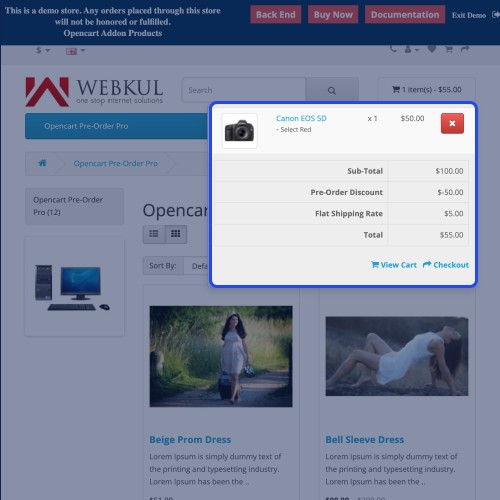
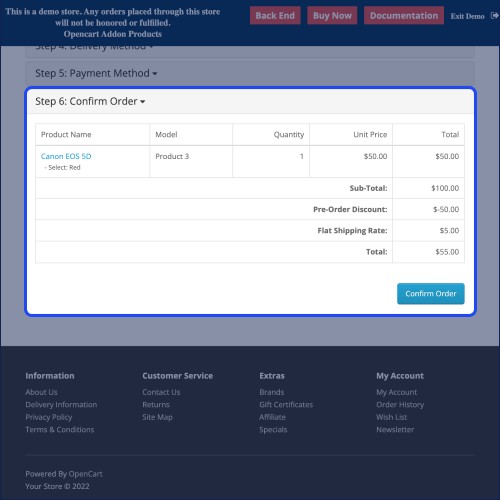
Using this extension, the admin can allow the customers to make a full or partial payment for purchasing the preorder products. Apart from that, the customers can add multiple preorder products to the shopping cart and make a check out thereafter. Discounts can also be applied to the preorder products and thus the customers can enjoy even lower prices for the products they want to purchase.
Whenever a preorder product gets purchased over the store, the admin receives a push notification for the same letting know of the preorder product sale. The customers can also enquire about the preorder products via the preorder product page itself.
Opencart Pre Order Pro Features -
Workflow
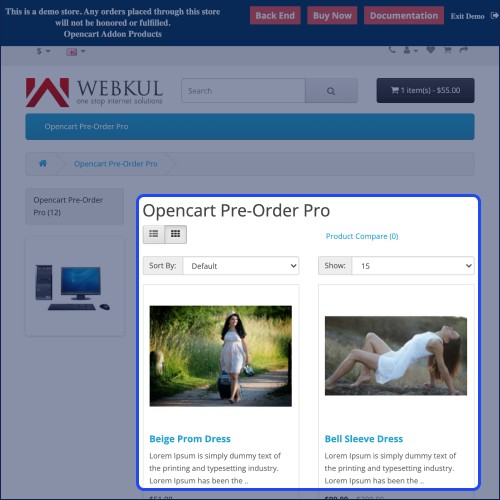
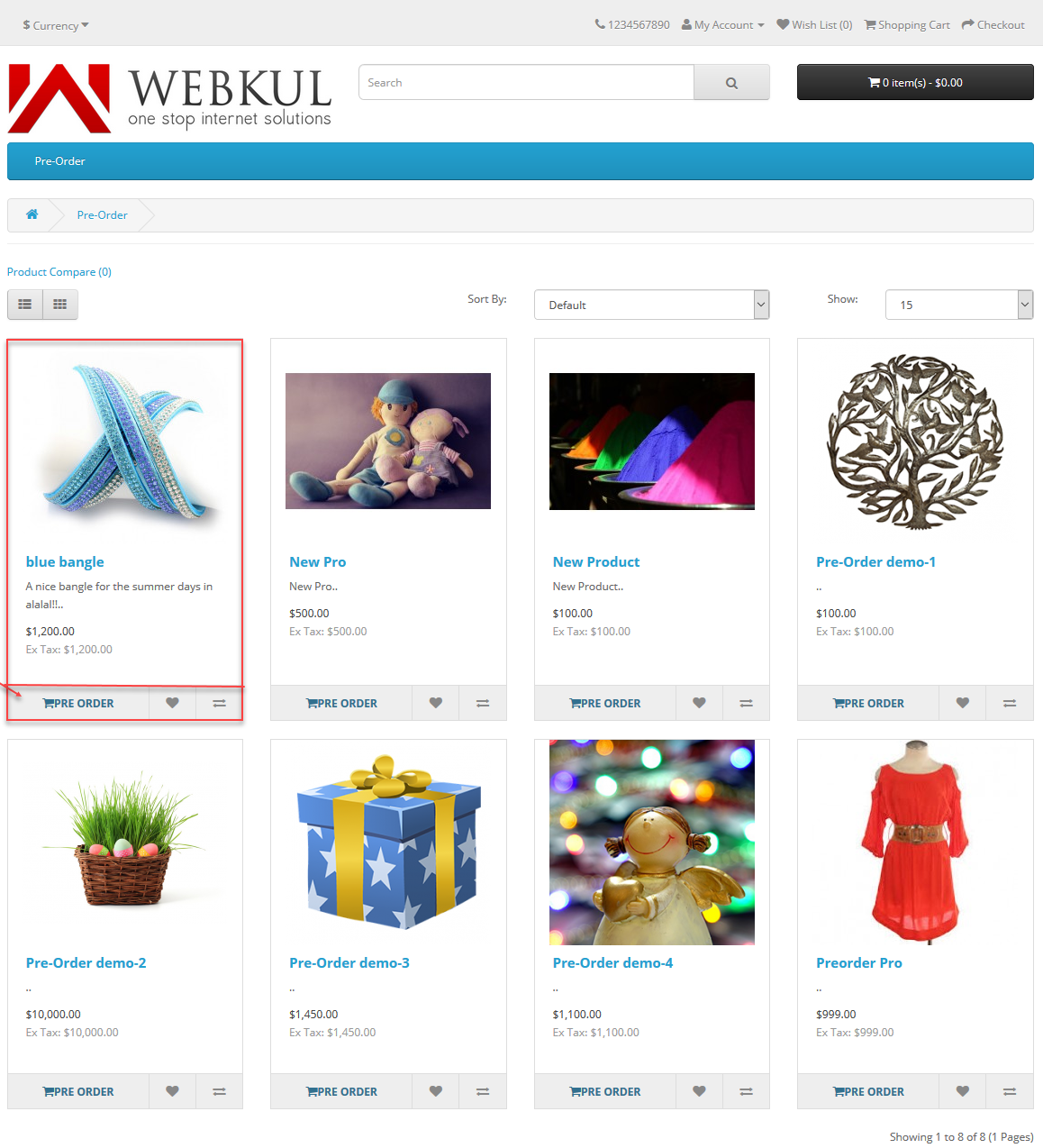
After the successful installation of the plugin, the admin needs to configure the module options for using the plugin with complete functionality. After the complete configuration, the customers can see the complete list of products on which the preorder has been applied.
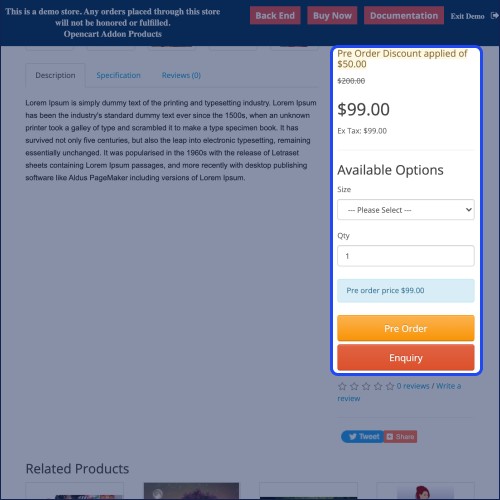
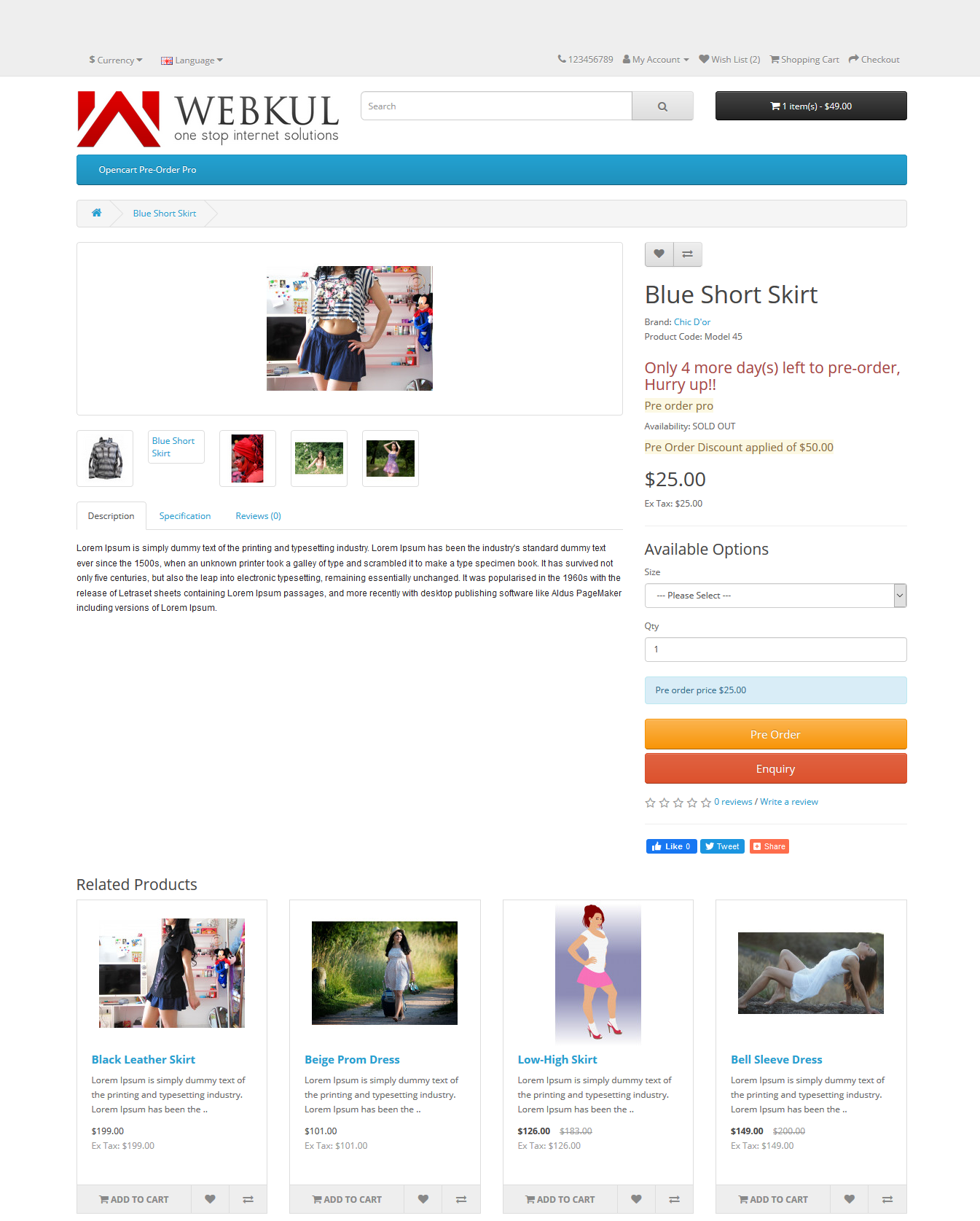
The customers can see complete details of the preorder product on the product page.
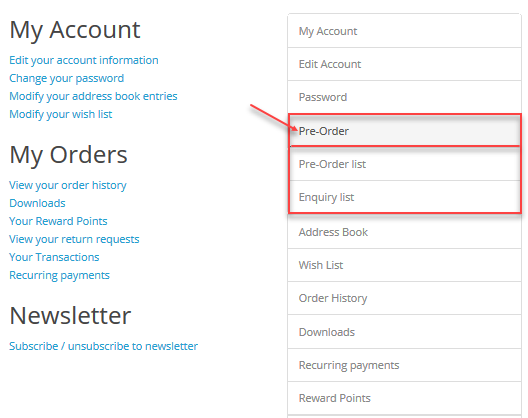
The customers get 2 sub-menu options for managing their preorder products - Pre Order List & inquiries.
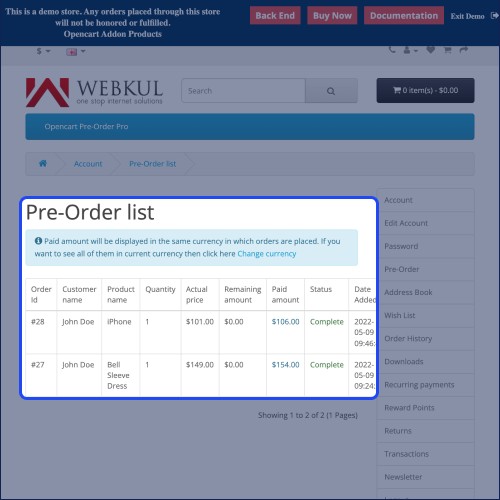
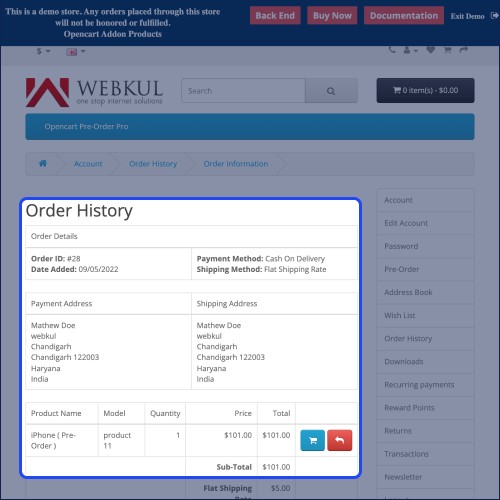
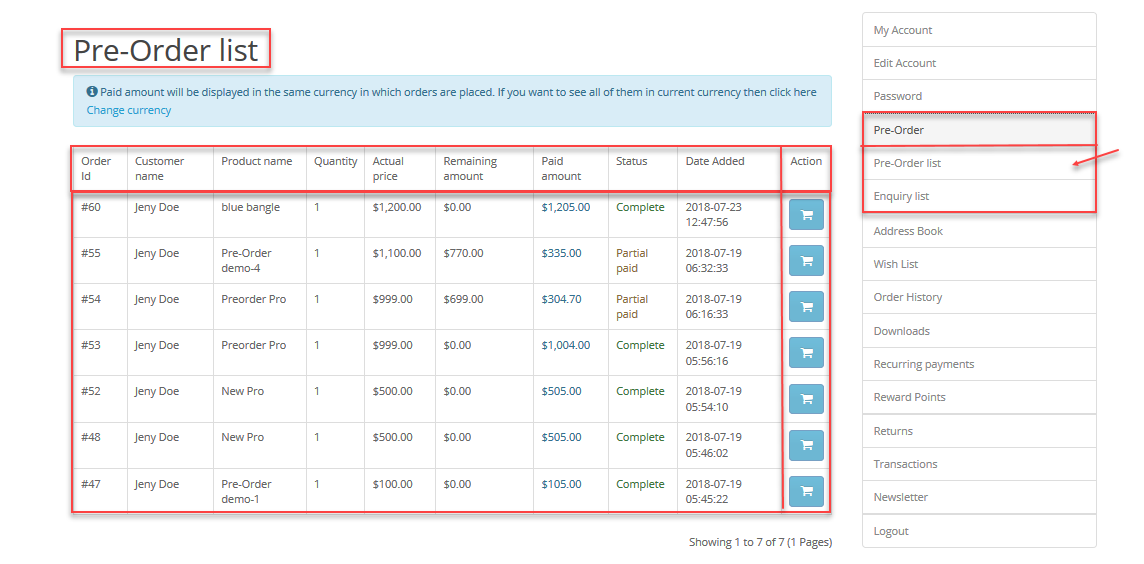
Under the preorder list, the customers can see a complete list of preorder products for which the customer has placed the orders.
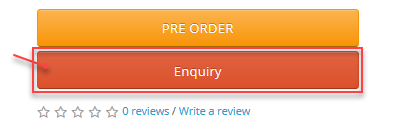
The customers can make inquiries from the preorder product page by tapping the inquiry button.
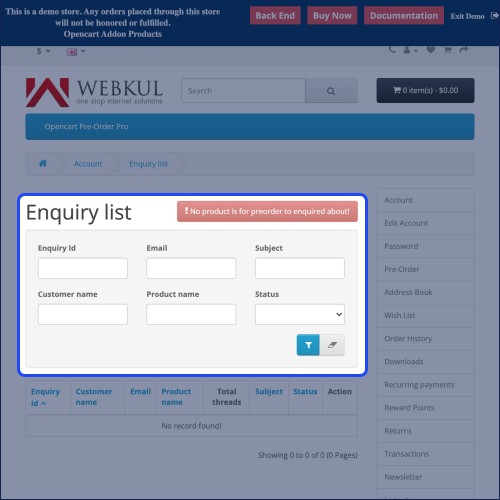
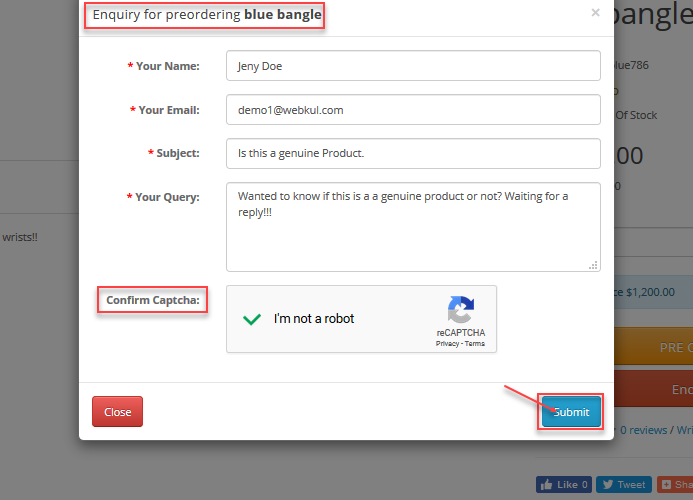
The customer can enter the required details for making an inquiry for the preorder product.
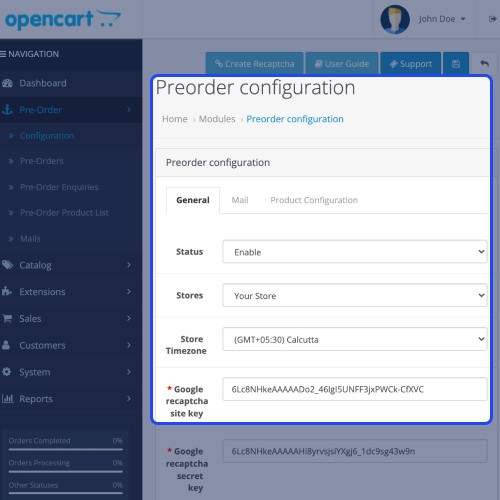
Moving towards the admin section, the admin will set up the store's time zone, enter the Google Recaptcha site, secret, and server-key.
Apart from that, the admin will setup the messenger ID(for sending push notifications to admin on PreOrder product purchase), the PreOrder text and message(displayed on the preorder product page), setup the notification mode(automatic/manual), enable/disable discount on the PreOrder products, and much more.

To add PreOrder to the products, the admin navigates to the PreOrder Product list section. Here, the admin can add preorder to the products one by one or in bulk and can delete the added preorder products as well.

To add preorder on products with the payment mode as full, the admin will - search and select the product, select preorder mode as full, set the preorder quantity, set the quantity per order, set the number of orders that can be placed by the customers, enter the discount fro preorder product, enable one IP one order, select the start and end date, and select the status for the preorder product as enabled/disabled as required.

Similarly, the admin can add a preorder product with a partial payment option by selecting the preorder mode as partial payment.

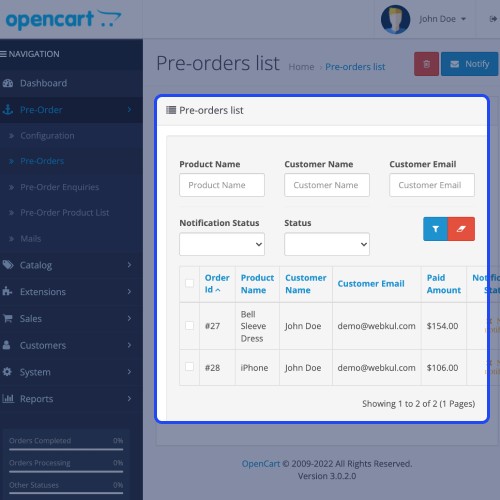
The admin can find all of the customers who have placed preorders under the preorder list section. Here, the admin can delete and filter the preorders as required.

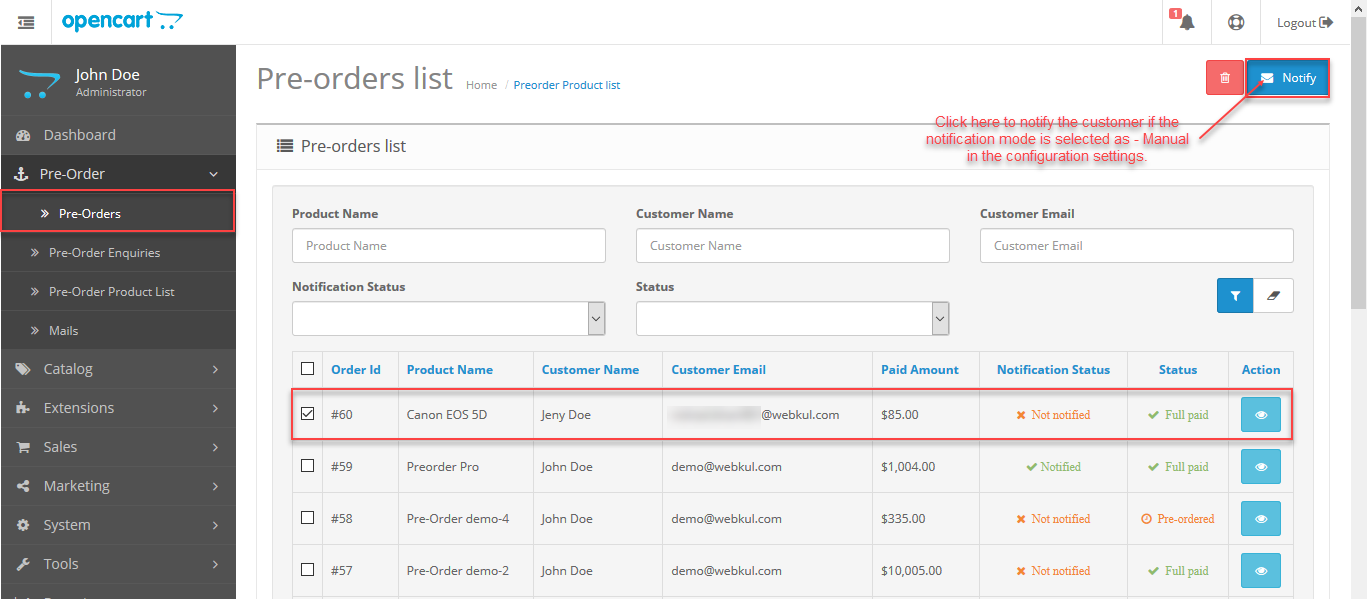
The admin can also view the details of any of the pre-order by clicking the View button. Clicking the View button brings up the details of the particular pre-order which includes – Order, Payment, shipping details, and products along with the history of comments that have been made for the respective preorder.
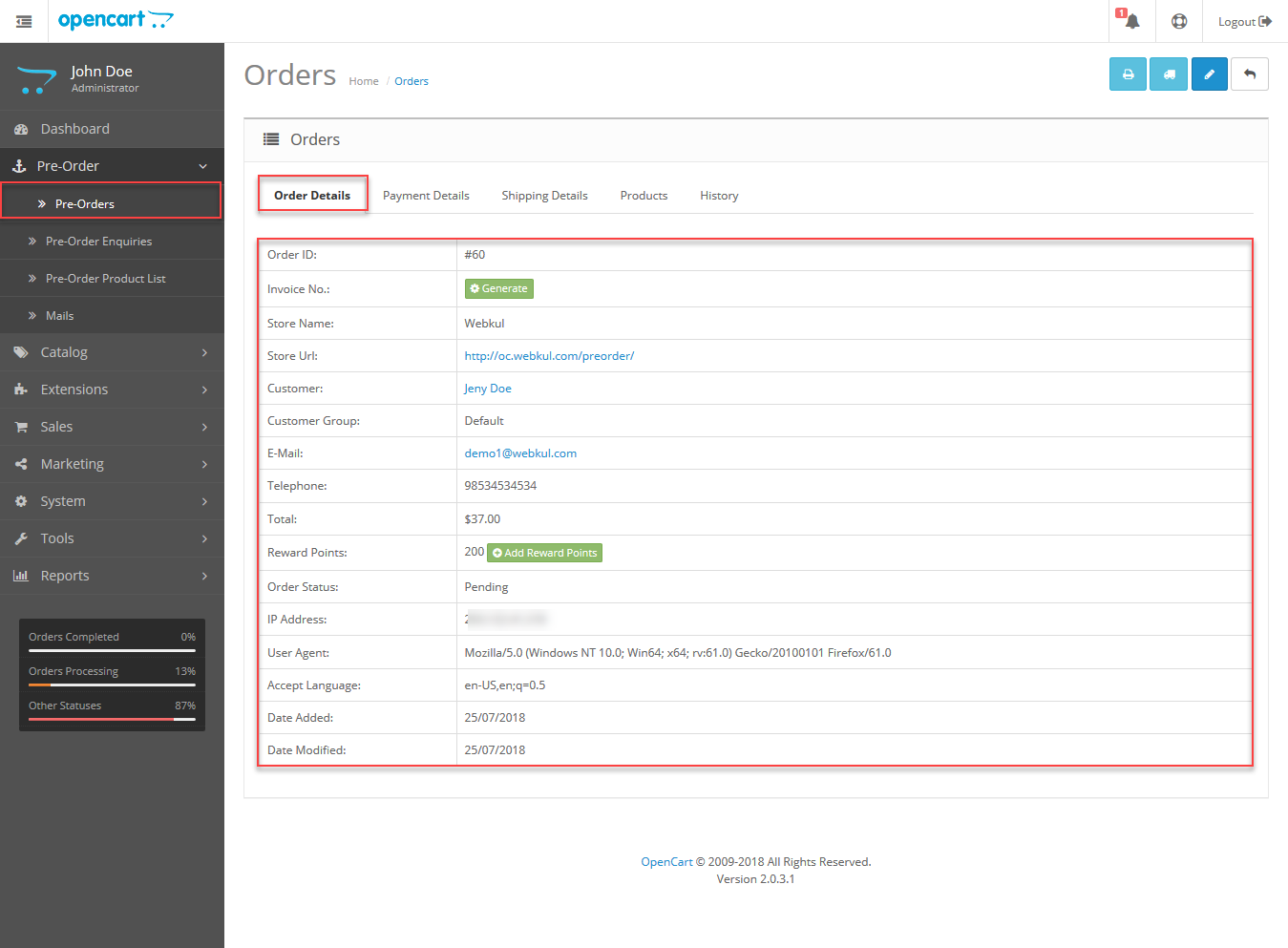
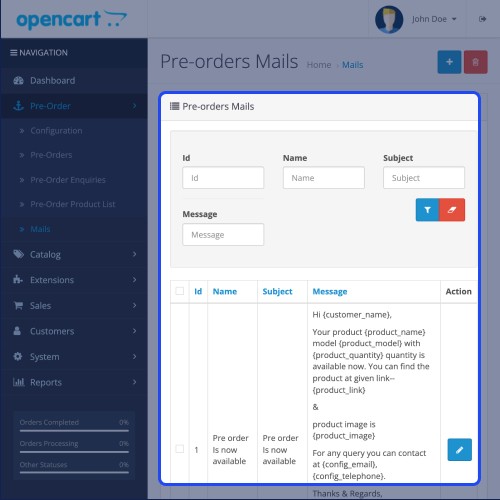
The admin can choose the mode of notification as manual or automatic to send notifications to the customers on various events within the system.
The admin can check the preorder queries that have been raised by the customers via the preorder product page inquiry button. Apart from that, the admin can also delete the asked queries as required.




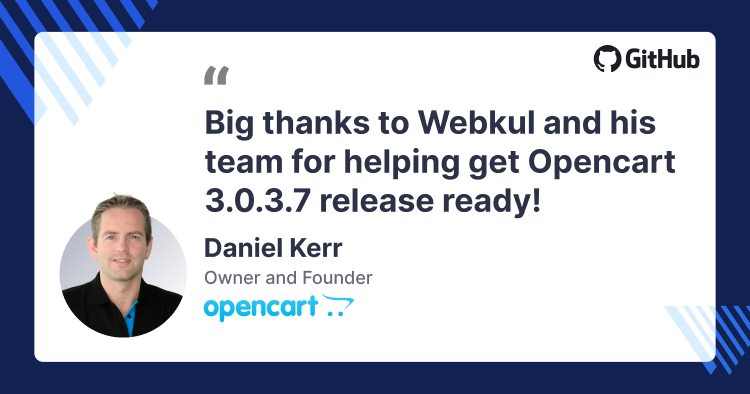
Some Moments Of Appreciation


Support Policy
Use Case
Pre-orders are basically used for attracting buyer's attention for upcoming products that'll be added to the online store soon. Pre-orders are mostly used for products such as - mobile phones, movies, video-games, e-books, etc.
Using this extension, the admin can allow the customers to make a full or partial payment for purchasing the preorder products. Apart from that, the customers can add multiple preorder products to the shopping cart and make a check out thereafter. Discounts can also be applied to the preorder products and thus the customers can enjoy even lower prices for the products they want to purchase.
Whenever a preorder product gets purchased over the store, the admin receives a push notification for the same letting know of the preorder product sale. The customers can also enquire about the preorder products via the preorder product page itself.
Opencart Pre Order Pro Features -
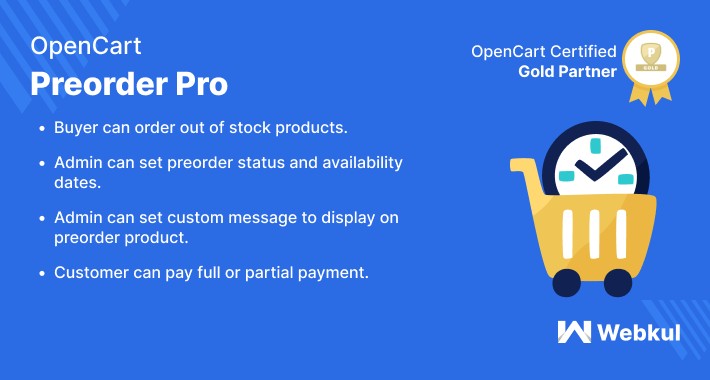
- Buyer can order out of stock products.
- Admin can set a custom message to display on the preorder product.
- Admin can set preorder status and availability date.
- Admin Can set custom percentage of the amount to be paid for the pre-ordered product.
- Using this module customers can pay the full or partial payment.
- Admin can check Pre-order and Pre-order inquire in the admin panel.
- Admin can select Preorder Button. Like, Redirect to contact page, Add to Preorder cart, and Add to cart.
- Admin and customer can receive notification mail.
- Admin can set the mode of notification like Automatic or Manual.
- Add only one PreOrder product at a time
- Customer Login is essential for the Preorder of any product.
- When admin will add any product for PreOrder then it will become out of stock automatically.
- Customers can add multiple preorder products to the cart at a time for checkout.
- The customers can see the Order status for the PreOrder status.
- The admin can apply the discount to the PreOrder Products.
- The admin will get a push notification for the purchase of PreOrder products.
- A counter is available to display the amount of left days for the preorder product.
- The admin can make out of stock products as PreOrder products Manually & Automatically.
Workflow
After the successful installation of the plugin, the admin needs to configure the module options for using the plugin with complete functionality. After the complete configuration, the customers can see the complete list of products on which the preorder has been applied.
The customers can see complete details of the preorder product on the product page.
The customers get 2 sub-menu options for managing their preorder products - Pre Order List & inquiries.
Under the preorder list, the customers can see a complete list of preorder products for which the customer has placed the orders.
The customers can make inquiries from the preorder product page by tapping the inquiry button.
The customer can enter the required details for making an inquiry for the preorder product.
Moving towards the admin section, the admin will set up the store's time zone, enter the Google Recaptcha site, secret, and server-key.
Apart from that, the admin will setup the messenger ID(for sending push notifications to admin on PreOrder product purchase), the PreOrder text and message(displayed on the preorder product page), setup the notification mode(automatic/manual), enable/disable discount on the PreOrder products, and much more.
To add PreOrder to the products, the admin navigates to the PreOrder Product list section. Here, the admin can add preorder to the products one by one or in bulk and can delete the added preorder products as well.
To add preorder on products with the payment mode as full, the admin will - search and select the product, select preorder mode as full, set the preorder quantity, set the quantity per order, set the number of orders that can be placed by the customers, enter the discount fro preorder product, enable one IP one order, select the start and end date, and select the status for the preorder product as enabled/disabled as required.
Similarly, the admin can add a preorder product with a partial payment option by selecting the preorder mode as partial payment.
The admin can find all of the customers who have placed preorders under the preorder list section. Here, the admin can delete and filter the preorders as required.
The admin can also view the details of any of the pre-order by clicking the View button. Clicking the View button brings up the details of the particular pre-order which includes – Order, Payment, shipping details, and products along with the history of comments that have been made for the respective preorder.
The admin can choose the mode of notification as manual or automatic to send notifications to the customers on various events within the system.
The admin can check the preorder queries that have been raised by the customers via the preorder product page inquiry button. Apart from that, the admin can also delete the asked queries as required.
Some Moments Of Appreciation
Support Policy
Price
$79.00
- Developed by OpenCart Partner
- 3 Months Free Support
- Documentation Included
Rating
Compatibility
3.0.0.0, 3.0.1.0, 3.0.1.1, 3.0.1.2, 3.0.1.3, 3.0.2.0, 3.0.3.0, 3.0.3.1, 3.0.3.2, 3.0.3.3, 3.0.3.5, 3.0.3.6, 3.0.3.7, 3.0.3.8, 3.0.3.9, 3.0.4.0, 3.0.4.1
Last Update
27 Jun 2025
Created
14 May 2014
73 Sales
42 Comments

Login and write down your comment.
Login my OpenCart Account