Opencart Admin Buyer Chat
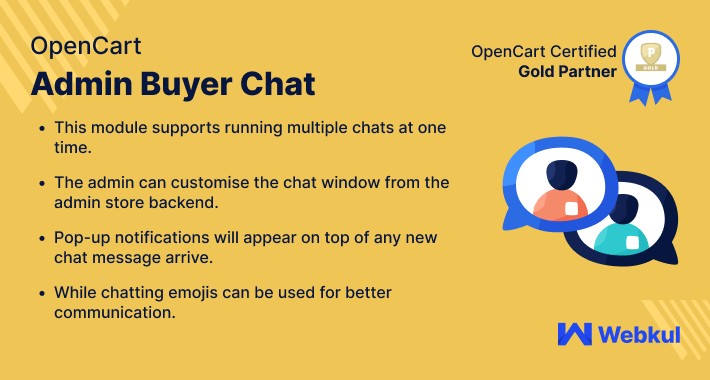
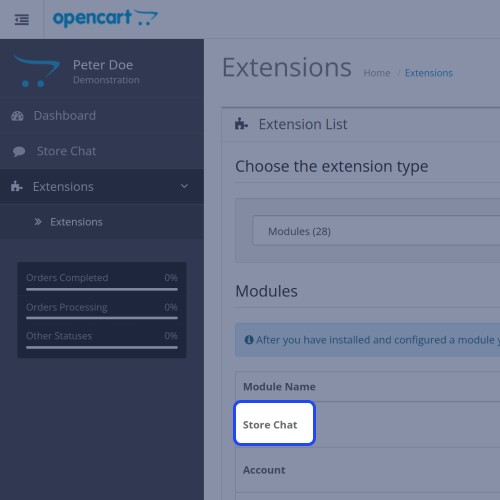
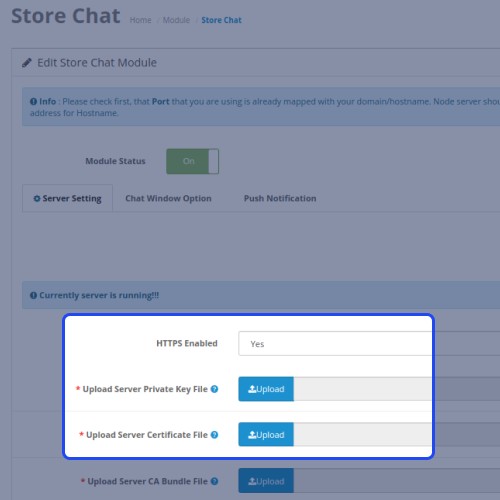
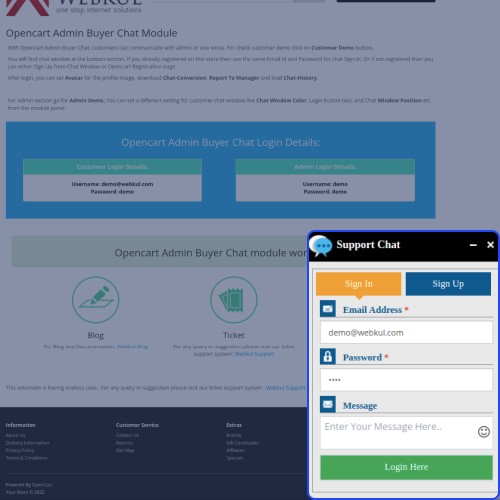
Opencart Admin Buyer Chat- Opencart Admin Buyer Chat module establishes real-time direct communication between the admin and the buyers. This chat module is socket-based hence is very fast and responsive. Admin can chat with multiple buyers at the same time. This module will help the customers in an effective manner allowing them to directly chat with the store admin for their queries.



Use case:
It is very essential for business entrepreneurs to keep in regular touch which the customers. Where this creates the brand’s goodwill amongst the customers, it also develops a trust factor in a customers’ mind that you’ve got their back.
One such way is through OpenCart’s Admin Buyer Chat System. The customers can directly contact the store owner and clear out doubts and queries associated with the products. As customers get to reach out to the store owner at any time of the day, there is no charge applicable for the same.
This also gives a great user experience to the customers and makes them come back for their buying needs, thus affecting the sales and revenue of a store.
Features
How Module Works:
Front End
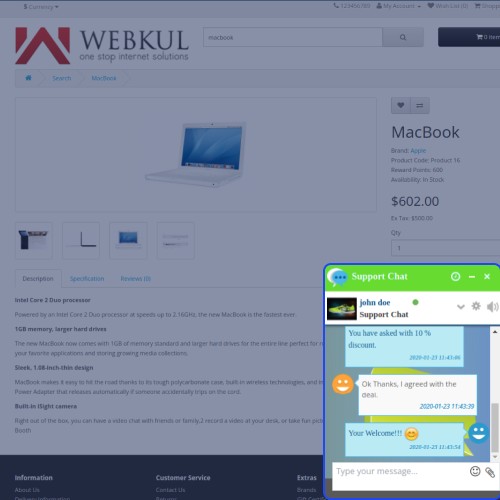
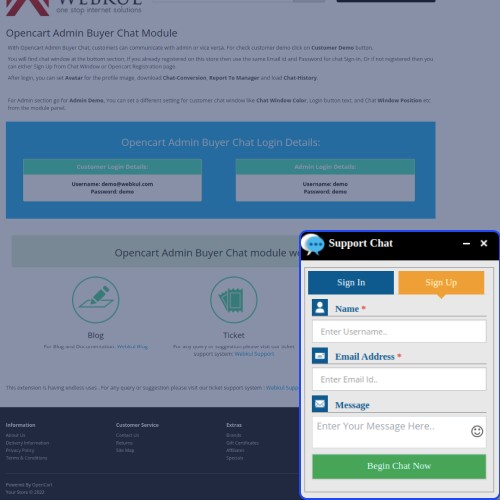
On logging in, both registered and non-registered customers will find a chat window where they can initiate a conversation with the admin of the site.
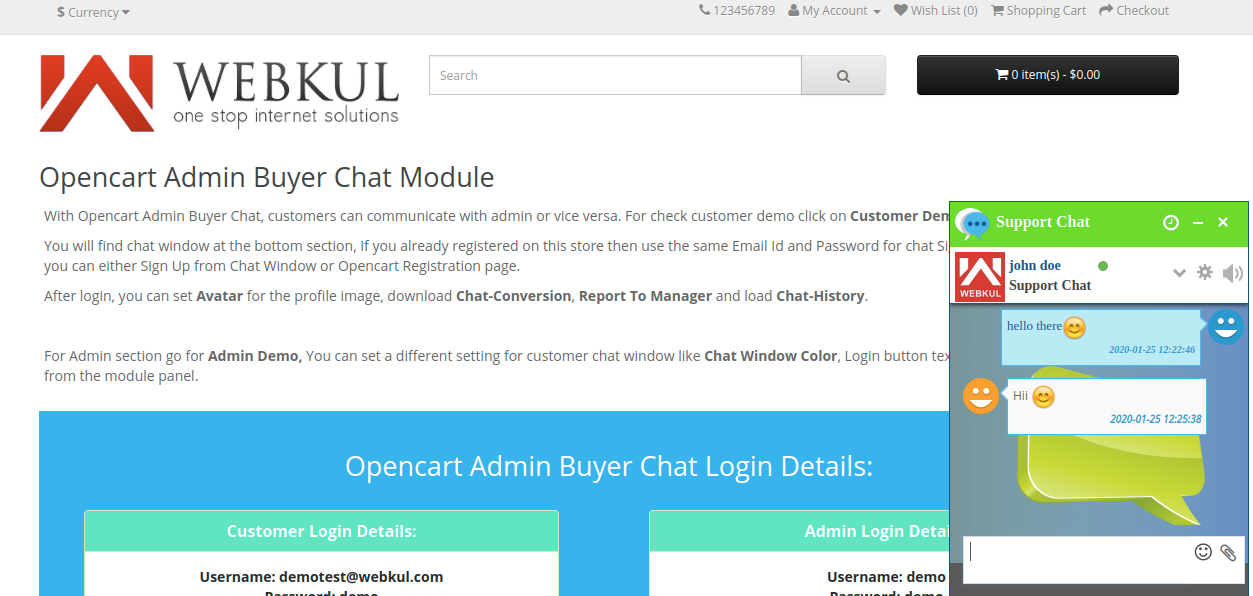
In the chat window itself, the customers can set their chat status as busy or offline.

If the admin sets the status as offline, and the admin sends a text to the offline customer, the chat window will display a message Receiver is Offline as shown below.
Further, the customers can configure the chat window settings such as - Email Transcripts, Report to Manager, End Chat and Profile settings.
Email Transcript: On clicking the same, a transcript including a complete history of the conversation between the customer and admin which can be downloaded or printed by the customers.
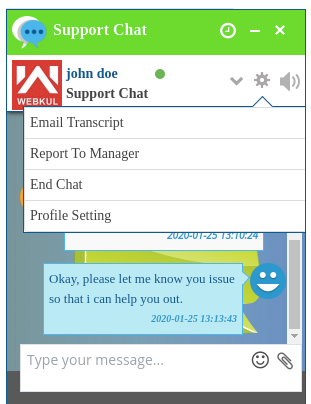
Report to Manager: On clicking this, the customers can directly message the manager regarding issues with the chat.

End Chat: The customers can even choose to end the chat whenever there is a need by clicking End Chat. In doing so, the chat window will minimize. The chat can be initiated anytime.

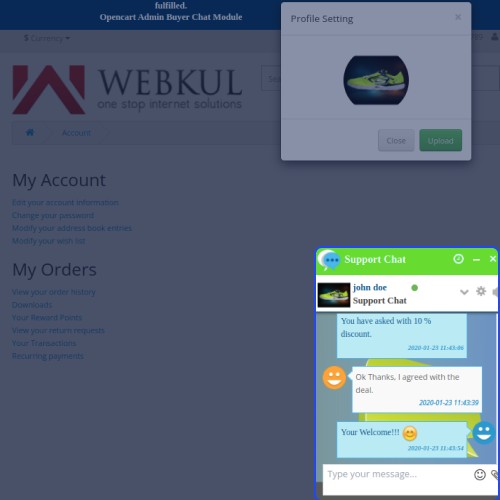
Profile Settings: The customers can even change their chat window profile pictures as well.

Attachments and Emojis:
The admin as well as the customers can send attachments across their respective chat windows.

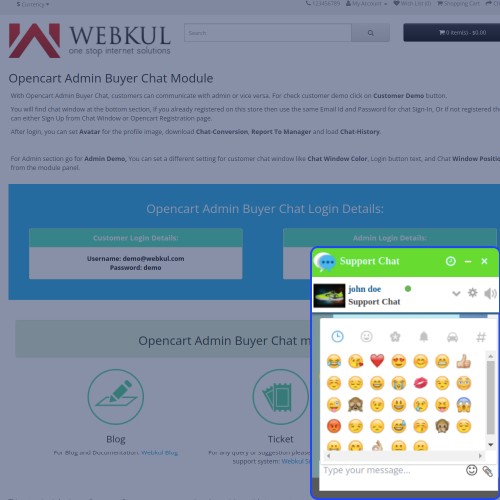
Also, the admin and customers can use emojis while having a conversation across the chat windows.

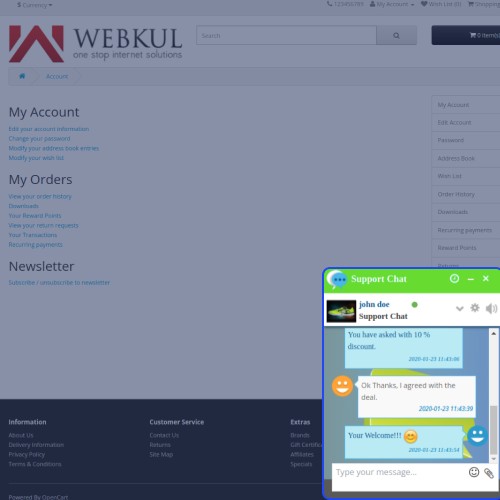
Furthermore, the customers will be able to see the conversation history.

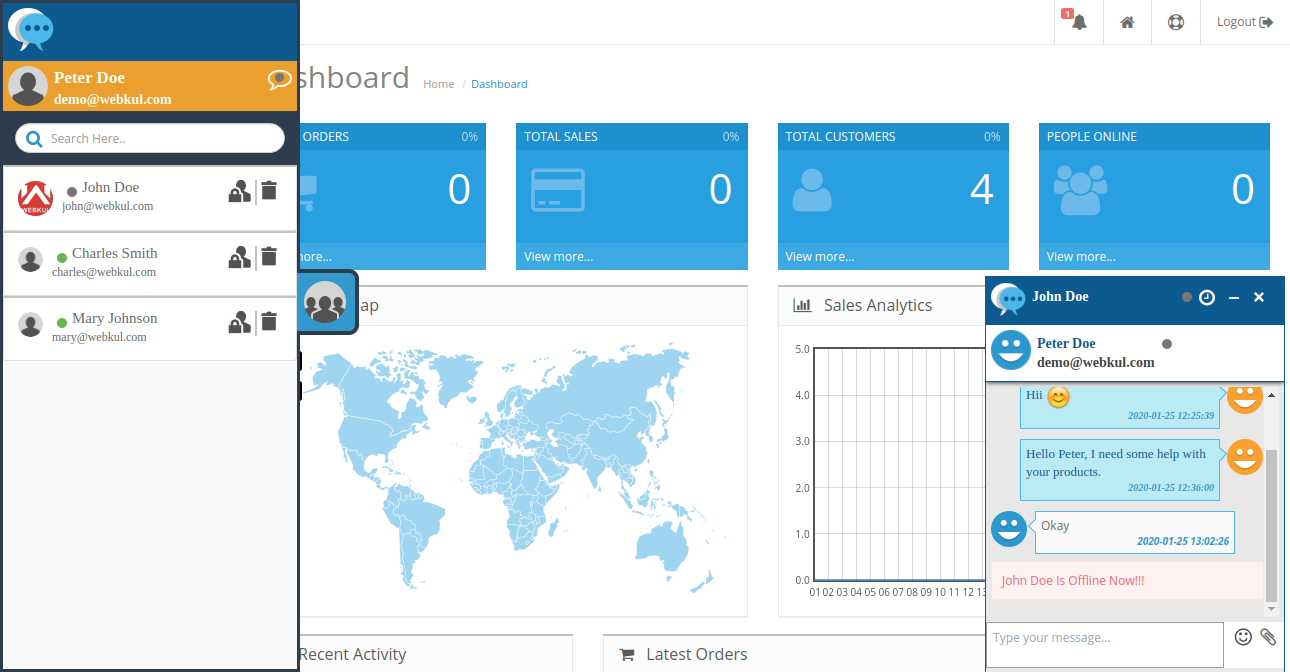
The admin will be able to see a complete customer list who is online and chat with multiple customers at one time.

A notification message will display on the top right corner of the admin dashboard as the customers send messages to the admin.

Push notifications are also visible in the admin dashboard as shown in the image below.

The admin can even search for customers by simply typing the customer’s name in the admin panel.

Also, the chat history of any customer can be deleted as shown in the image below.

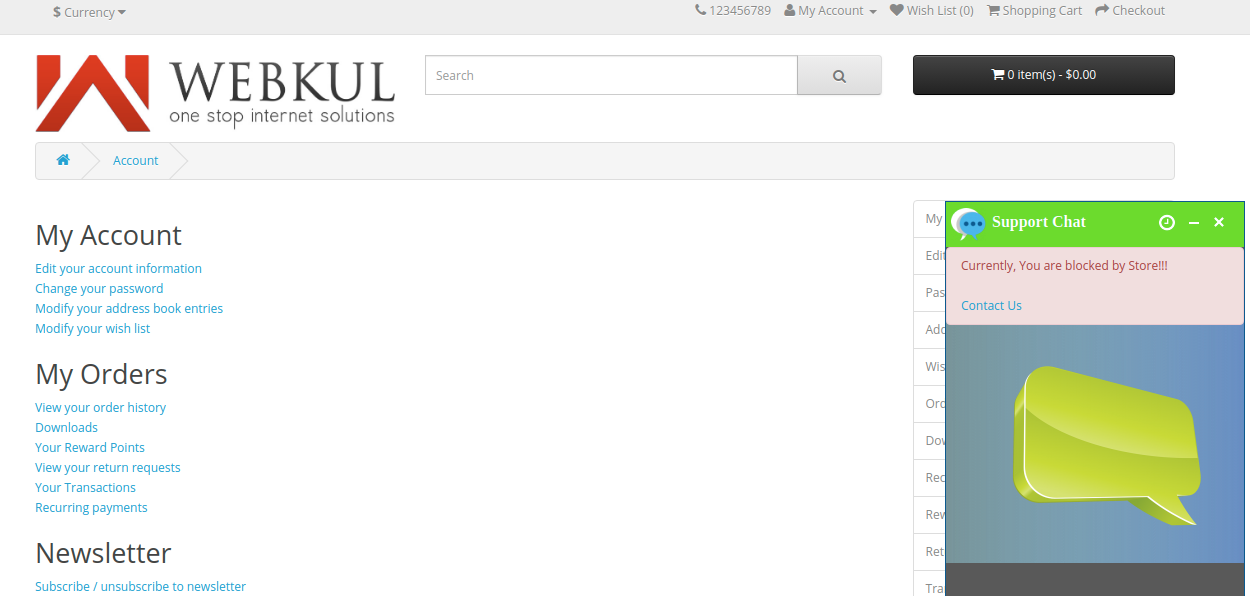
The customers can also be blocked/ unblocked by the admin by clicking the Block the Customer option.

A message, "Currently, You are Blocked by Store!!" will display on a blocked customer’s chat window.

Some Moments Of Appreciation


Support Policy
Use case:
It is very essential for business entrepreneurs to keep in regular touch which the customers. Where this creates the brand’s goodwill amongst the customers, it also develops a trust factor in a customers’ mind that you’ve got their back.
One such way is through OpenCart’s Admin Buyer Chat System. The customers can directly contact the store owner and clear out doubts and queries associated with the products. As customers get to reach out to the store owner at any time of the day, there is no charge applicable for the same.
This also gives a great user experience to the customers and makes them come back for their buying needs, thus affecting the sales and revenue of a store.
Features
- This chat module is socket-based and is very fast and responsive on the server.
- Template-based using handlebar.js.
- Multiple chat instances at the same time for the admin chat window interface.
- The admin can customize the customer's chat window.
- The customers can download and print their email transcripts.
- Both the admin and customers can add attachments in their respective chat windows.
- Also, emojis can be sent along with the messages at both the admin and customer end.
- Also, customers can report a manager in case they find any issue with the chat.
- Customers can set an avatar, chat status as busy, offline.
- Customers get an automated mail after registration with their password.
- A message notification icon pops up to let you know that chat is still active.
- The admin can remove the chat conversations for any buyer history at any time.
- Also, the admin can block/unblock a customer from chatting.
- The admin can search a customer by typing his name within the search box provided on the top of his chat-box.
How Module Works:
Front End
On logging in, both registered and non-registered customers will find a chat window where they can initiate a conversation with the admin of the site.
In the chat window itself, the customers can set their chat status as busy or offline.
If the admin sets the status as offline, and the admin sends a text to the offline customer, the chat window will display a message Receiver is Offline as shown below.
Further, the customers can configure the chat window settings such as - Email Transcripts, Report to Manager, End Chat and Profile settings.
Email Transcript: On clicking the same, a transcript including a complete history of the conversation between the customer and admin which can be downloaded or printed by the customers.
Report to Manager: On clicking this, the customers can directly message the manager regarding issues with the chat.
End Chat: The customers can even choose to end the chat whenever there is a need by clicking End Chat. In doing so, the chat window will minimize. The chat can be initiated anytime.
Profile Settings: The customers can even change their chat window profile pictures as well.
Attachments and Emojis:
The admin as well as the customers can send attachments across their respective chat windows.
Also, the admin and customers can use emojis while having a conversation across the chat windows.
Furthermore, the customers will be able to see the conversation history.
The admin will be able to see a complete customer list who is online and chat with multiple customers at one time.
A notification message will display on the top right corner of the admin dashboard as the customers send messages to the admin.
Push notifications are also visible in the admin dashboard as shown in the image below.
The admin can even search for customers by simply typing the customer’s name in the admin panel.
Also, the chat history of any customer can be deleted as shown in the image below.
The customers can also be blocked/ unblocked by the admin by clicking the Block the Customer option.
A message, "Currently, You are Blocked by Store!!" will display on a blocked customer’s chat window.
Some Moments Of Appreciation
Support Policy
What customers say about Opencart Admin Buyer Chat

This is a very, very good extension,This extension has almost no errors, thanks to webkul team,They always help me,I appreciate it!!!!
~big loy
~big loy
Price
$299.00
- Developed by OpenCart Partner
- 3 Months Free Support
- Documentation Included
Rating
Compatibility
3.0.0.0, 3.0.1.0, 3.0.1.1, 3.0.1.2, 3.0.1.3, 3.0.2.0, 3.0.3.0, 3.0.3.1, 3.0.3.2, 3.0.3.3, 3.0.3.5, 3.0.3.6, 3.0.3.7, 3.0.3.8, 3.0.3.9, 3.0.4.0, 3.0.4.1
Last Update
25 Jun 2025
Created
6 May 2016
3 Sales
11 Comments

Login and write down your comment.
Login my OpenCart Account