[OCMOD] Alexa Traffic Ranking PRO for Opencart 2.x/3.x
![[OCMOD] Alexa Traffic Ranking PRO for Opencart 2.x/3.x](https://image.opencart.com/cache/584f060d11567-resize-710x380.jpg "[OCMOD] Alexa Traffic Ranking PRO for Opencart 2.x/3.x")
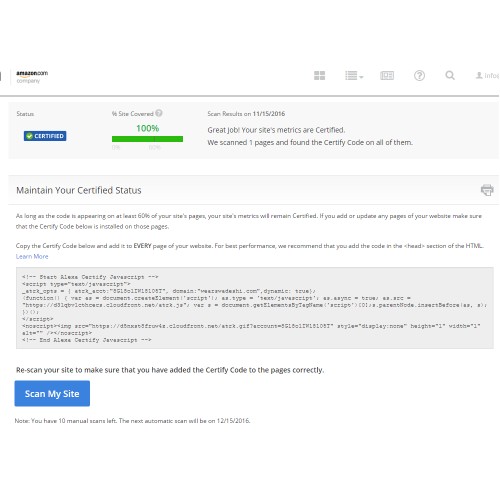
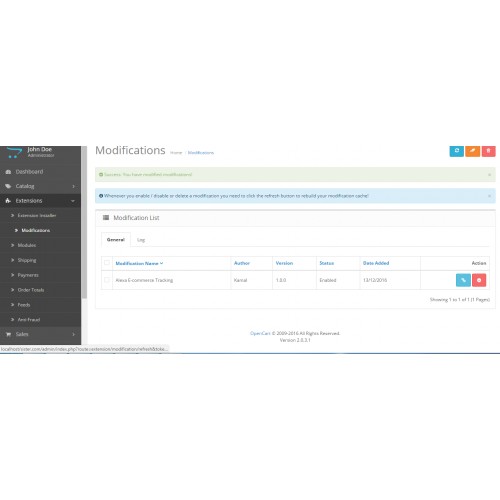
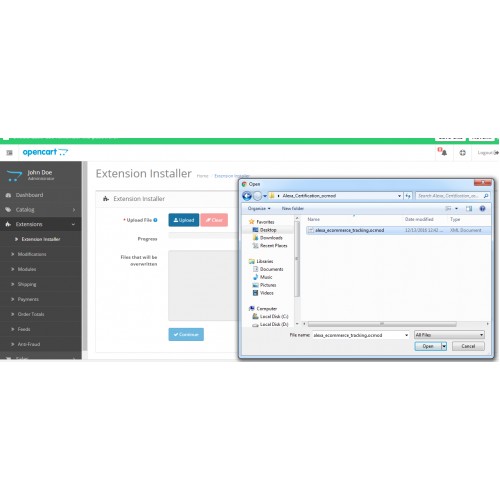
Alexa Certification is by far one of the most important tools you need to use when running an ecommerce store - without it, you miss out on vital information about your store and visitors. As it’s so important, we’ve made it really quick and simple to add your Alexa Certification code to your OpenCart store - without the need of a web developer!
Firstly, you’ll need to create a Alexa Certification account and generate a tracking code for your website. If you already have a Alexa Certification account set up for your website then skip to step 3 to see how to add your tracking code to your OpenCart store.
What You Get
SEO Tools
Keyword Research
On-Page SEO Checker
Site Audits
Competitive Intelligence Tools
Audience Overlap Tool
Site Screener
Historical Traffic Trends
Traffic Metrics
Engagement Metrics
Reputation Metrics
Audience Demographics
On-Site Analytics
Certified Metrics
Uptime Monitor
Step 1: Sign up to Alexa Certification & fill out the details of your website
To sign up to Alexa Certification, simply visit the Sign up for a Basic, Insight, Advanced, or Advanced High Traffic subscription and follow their sign up steps. For your new account, you’ll be asked to choose the plan along with the following basic details:
• First Name
• Last Name
• Email
• Job Function
• Industry
• Company Size
Once you’ve completed done the Payment go to Account Management > Site Setting to add your website. once done get the Alexa Certification Code.

Step 2: Copy your Alexa Certification Code
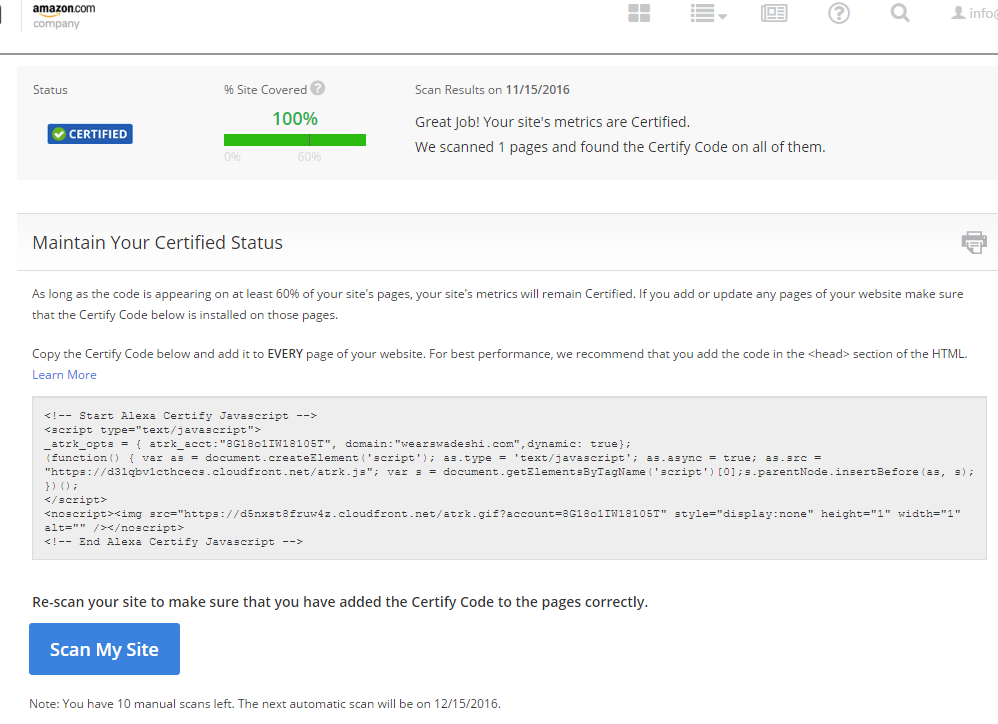
You’ll then be taken straight to your that - if you click off this page, you can find it again by going to the Account > Account Management > Site Setting. The full Alexa Certification Code with your unique ID code is shown in the. Copy this code and go to your OpenCart store’s admin area.
Step 3: Paste your Alexa Certification Code in your store’s server settings
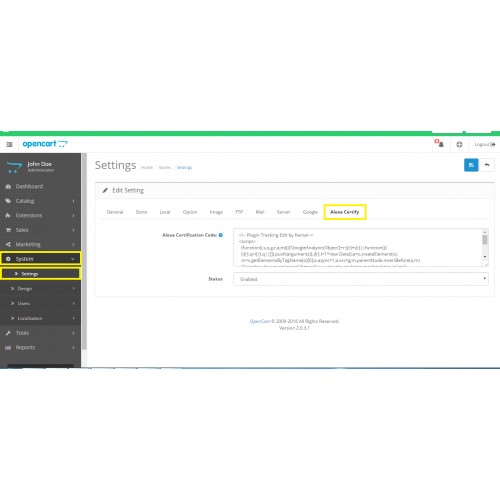
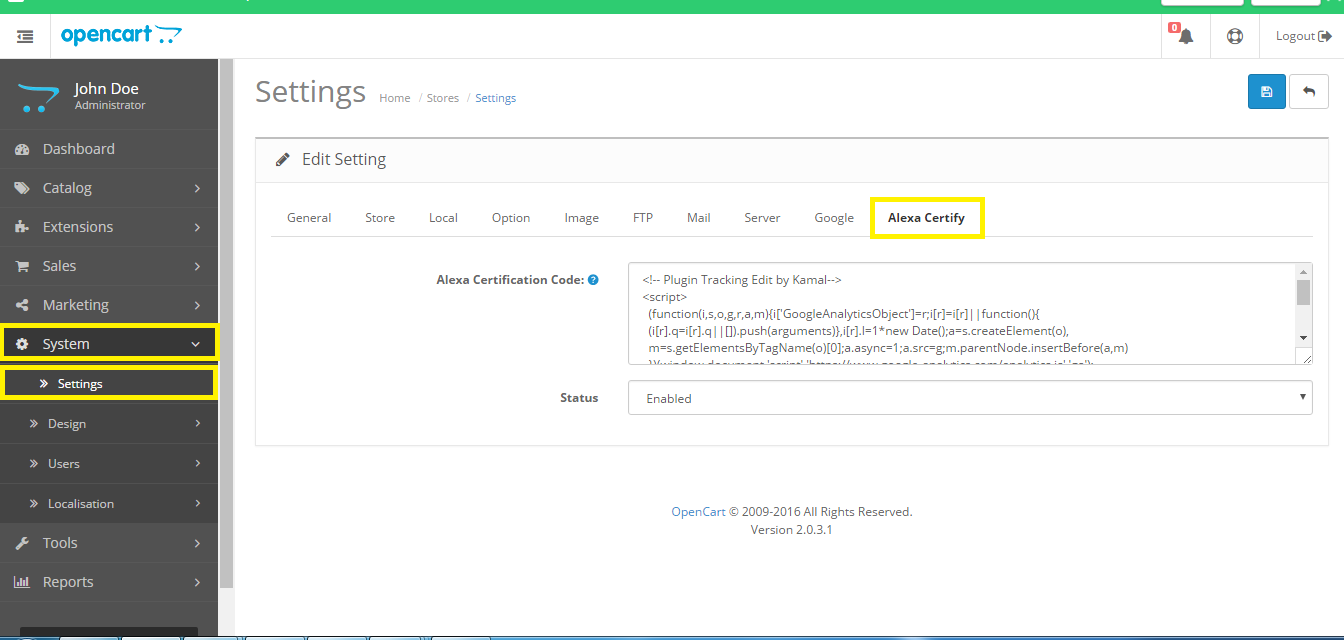
In your store’s admin area, navigate to System > Settings > edit the store you wish to add the Alexa Certification Code.
In the “Alexa Certify” tab, you should see “Alexa Certification Code” field and paste your Certification code into this field. Click save at the top right and you’re done!
How do I get my site’s metrics Certified?
Getting “Certified” means that you have installed an Alexa Certify Code on your site that allows Alexa to directly measure your website’s traffic. Once your site’s metrics are certified you can choose whether or not to publicly display your directly measured unique visitors, pageviews, and ranks.
To get certified you need to:
1. Sign up for a Basic, Insight, Advanced, or Advanced High Traffic subscription
2. Follow the directions to add an Alexa certify code to every page of your website.
3. Press the “Scan My Site” button to check if the code is installed properly.
4. If the certify code is installed correctly data will start flowing within 3 hours.
5. If you choose to display your Certified metrics publicly, you will see a badge on your site’s Site Overview page once the certify code is verified on at least 60% of your site’s pages.
Firstly, you’ll need to create a Alexa Certification account and generate a tracking code for your website. If you already have a Alexa Certification account set up for your website then skip to step 3 to see how to add your tracking code to your OpenCart store.
What You Get
SEO Tools
Keyword Research
On-Page SEO Checker
Site Audits
Competitive Intelligence Tools
Audience Overlap Tool
Site Screener
Historical Traffic Trends
Traffic Metrics
Engagement Metrics
Reputation Metrics
Audience Demographics
On-Site Analytics
Certified Metrics
Uptime Monitor
Step 1: Sign up to Alexa Certification & fill out the details of your website
To sign up to Alexa Certification, simply visit the Sign up for a Basic, Insight, Advanced, or Advanced High Traffic subscription and follow their sign up steps. For your new account, you’ll be asked to choose the plan along with the following basic details:
• First Name
• Last Name
• Job Function
• Industry
• Company Size
Once you’ve completed done the Payment go to Account Management > Site Setting to add your website. once done get the Alexa Certification Code.
Step 2: Copy your Alexa Certification Code
You’ll then be taken straight to your that - if you click off this page, you can find it again by going to the Account > Account Management > Site Setting. The full Alexa Certification Code with your unique ID code is shown in the. Copy this code and go to your OpenCart store’s admin area.
Step 3: Paste your Alexa Certification Code in your store’s server settings
In your store’s admin area, navigate to System > Settings > edit the store you wish to add the Alexa Certification Code.
In the “Alexa Certify” tab, you should see “Alexa Certification Code” field and paste your Certification code into this field. Click save at the top right and you’re done!
How do I get my site’s metrics Certified?
Getting “Certified” means that you have installed an Alexa Certify Code on your site that allows Alexa to directly measure your website’s traffic. Once your site’s metrics are certified you can choose whether or not to publicly display your directly measured unique visitors, pageviews, and ranks.
To get certified you need to:
1. Sign up for a Basic, Insight, Advanced, or Advanced High Traffic subscription
2. Follow the directions to add an Alexa certify code to every page of your website.
3. Press the “Scan My Site” button to check if the code is installed properly.
4. If the certify code is installed correctly data will start flowing within 3 hours.
5. If you choose to display your Certified metrics publicly, you will see a badge on your site’s Site Overview page once the certify code is verified on at least 60% of your site’s pages.
Price
$20.00
- Developed by OpenCart Community
- 1 Months Free Support
- Documentation Included
Rating
Compatibility
3.0.0.0, 3.0.1.0, 3.0.1.1, 3.0.1.2, 3.0.1.3, 3.0.2.0, 4.x.x.x, 2.0.0.0, 2.0.1.0, 2.0.1.1, 2.0.2.0, 2.0.3.1, 2.1.0.1, 2.1.0.2, 2.2.0.0, 2.3.0.0, 2.3.0.1, 2.3.0.2
Last Update
25 Mar 2018
Created
13 Dec 2016
6 Sales
6 Comments

Login and write down your comment.
Login my OpenCart Account