Opencart Multiple Wishlist
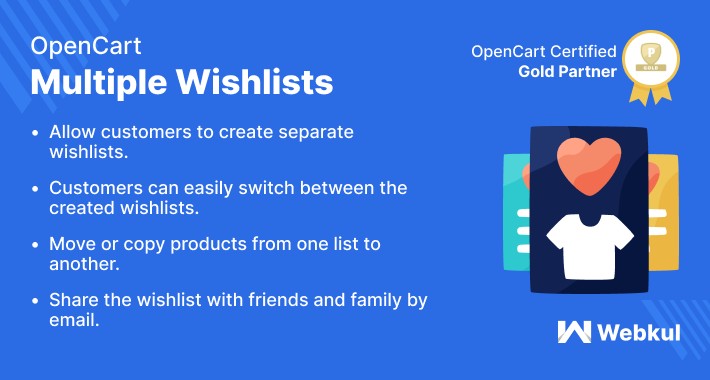
Opencart Multiple Wishlist-OpenCart Multiple wishlists module provides an easy way for customers to create separate wishlists. The customers can create as many as wishlists of their favorite products. All created wishlists are organized in defined sections and customers can easily switch between them.
The customers can move or copy products from one wishlist to another wishlist. Once the customers have created the wishlist, they can share it with their friends and family by email. The admin can set the number of wishlists a customer can create. The admin can also decide the number of products a customer can add in a wishlist.
Use Case
The Several Wishlists module is the most effective way to generate multiple wishlists and provide your customers the chance to organize and simplify their buying. Customers can also use the module to plan their budget before they place an order.
Customers can make as many wishlists for future events as they want. One list for holiday gifts, another for normal expenditures, another for sporting goods, and so on. It's also possible to send it to friends and relatives.

Features
Workflow
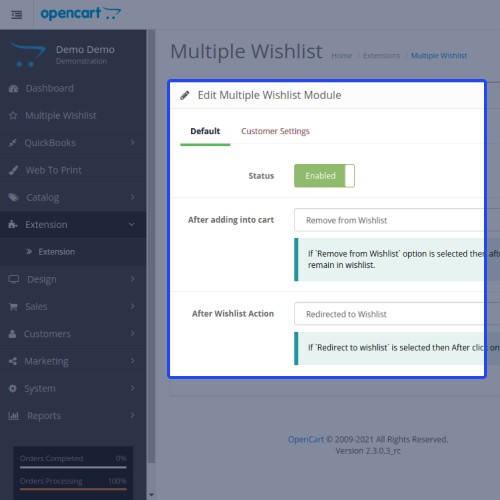
After adding to a cart, the admin must first set up various feature statuses, followed by Wishlist Action.
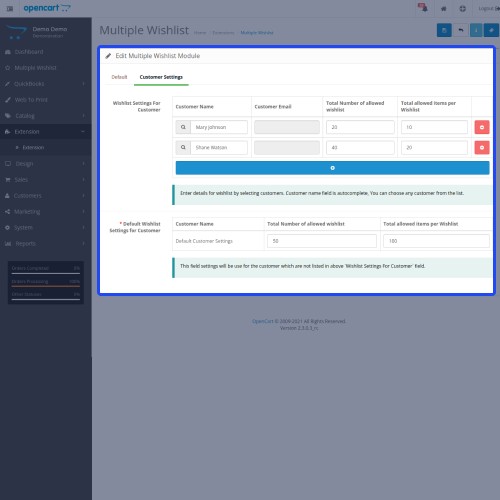
The admin can allocate the total number of wishlists a customer can make and the total number of products a consumer can include in a single wishlist to a customer from the list of registered customers. The selected customer can also be removed by the admin.

To make a wishlist, the customer must first log in. A customer must click the Multi Wish List option on the upper right side of the web page to create a new wishlist. Now the customer may either create a new wishlist or view all of the existing wishlists by clicking Create New.

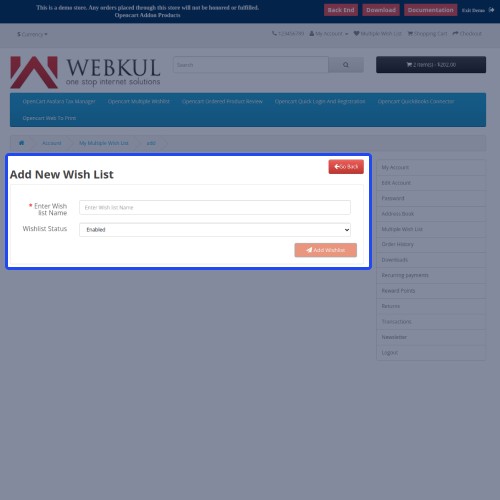
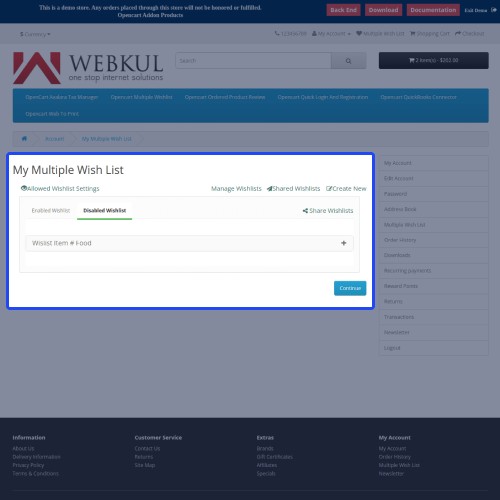
The customer must first type in the name of the wishlist and then click Add Wishlist. A wishlist can also be enabled or disabled by the customer.

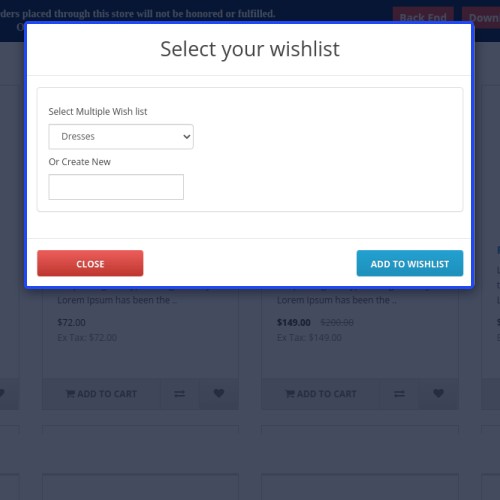
A customer must add his or her preferred products to a wishlist once it has been created. A client can add a product to their wishlist from both the category and search pages.

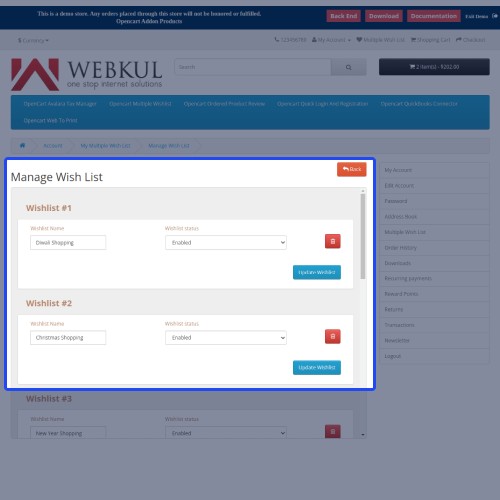
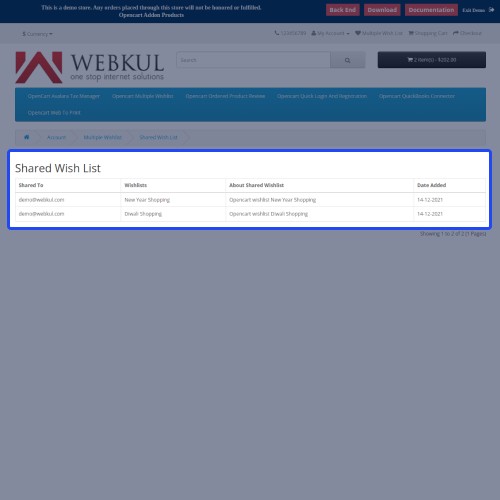
The customer can change the name of the wishlist, enable or disable it, and even delete it once it has been made. Customers can see the share wishlist by going to Shared Wishlists and clicking on the image below:

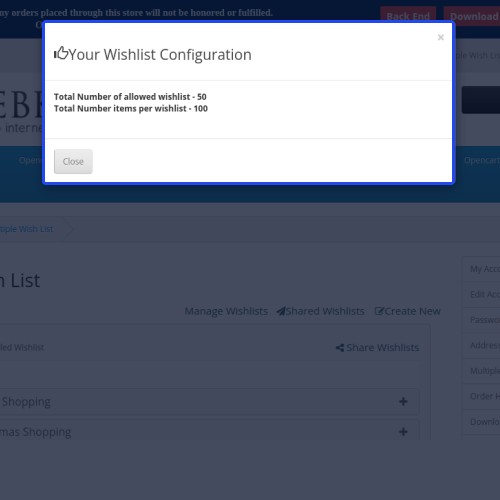
A customer can view the configuration for his wishlist manager that has been specified by the admin.

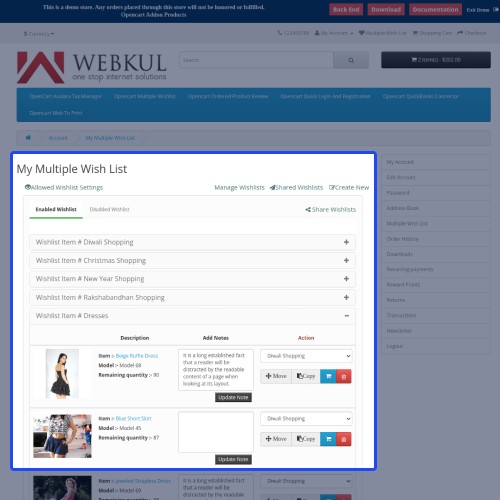
A customer can copy or move a product from one wishlist to another. A customer can also remove items from their wishlist. A customer must first select a wishlist under the Action option before clicking the move or copy button to move or copy a product from one wishlist to another.

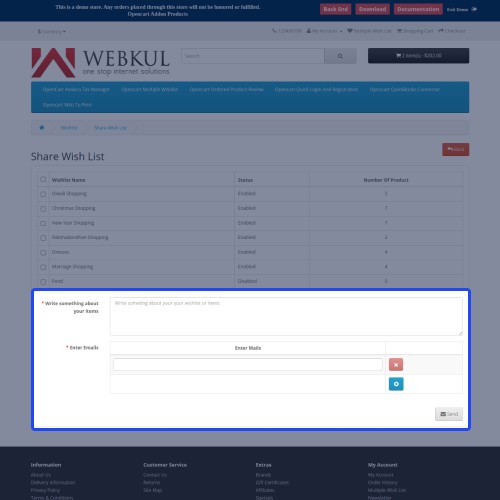
A customer can send his or her wishlists to friends and family members via email.







Some Moments Of Appreciation


Support Policy
The customers can move or copy products from one wishlist to another wishlist. Once the customers have created the wishlist, they can share it with their friends and family by email. The admin can set the number of wishlists a customer can create. The admin can also decide the number of products a customer can add in a wishlist.
Use Case
The Several Wishlists module is the most effective way to generate multiple wishlists and provide your customers the chance to organize and simplify their buying. Customers can also use the module to plan their budget before they place an order.
Customers can make as many wishlists for future events as they want. One list for holiday gifts, another for normal expenditures, another for sporting goods, and so on. It's also possible to send it to friends and relatives.
Features
- The admin can set the number of wishlists a customer can create.
- The admin can also set the number of products that a customer can add to a wishlist.
- A customer can create as many as wishlists of their favorite products.
- A customer can move or copy the products from one wishlist to another wishlist.
- Can Enable or disable and even delete a wishlist.
- The customers can share the wishlists with their friends or family members through email.
- A customer can add a product from the category as well as a product page.
- Add the products from wishlist to cart.
- Remove the products from the wishlist as per requirement.
Workflow
After adding to a cart, the admin must first set up various feature statuses, followed by Wishlist Action.
The admin can allocate the total number of wishlists a customer can make and the total number of products a consumer can include in a single wishlist to a customer from the list of registered customers. The selected customer can also be removed by the admin.
To make a wishlist, the customer must first log in. A customer must click the Multi Wish List option on the upper right side of the web page to create a new wishlist. Now the customer may either create a new wishlist or view all of the existing wishlists by clicking Create New.
The customer must first type in the name of the wishlist and then click Add Wishlist. A wishlist can also be enabled or disabled by the customer.
A customer must add his or her preferred products to a wishlist once it has been created. A client can add a product to their wishlist from both the category and search pages.
The customer can change the name of the wishlist, enable or disable it, and even delete it once it has been made. Customers can see the share wishlist by going to Shared Wishlists and clicking on the image below:
A customer can view the configuration for his wishlist manager that has been specified by the admin.
A customer can copy or move a product from one wishlist to another. A customer can also remove items from their wishlist. A customer must first select a wishlist under the Action option before clicking the move or copy button to move or copy a product from one wishlist to another.
A customer can send his or her wishlists to friends and family members via email.
Some Moments Of Appreciation
Support Policy
Price
$79.00
- Developed by OpenCart Partner
- 3 Months Free Support
- Documentation Included
Rating
Compatibility
3.0.0.0, 3.0.1.0, 3.0.1.1, 3.0.1.2, 3.0.1.3, 3.0.2.0, 3.0.3.0, 3.0.3.1, 3.0.3.2, 3.0.3.3, 3.0.3.5, 3.0.3.6, 3.0.3.7, 3.0.3.8
Last Update
14 May 2025
Created
20 Dec 2017
19 Sales
9 Comments

Login and write down your comment.
Login my OpenCart Account