Change User Password (CUP)

Change User Password (CUP)
CUP give an access to admin-user to change their password without interfere other users.
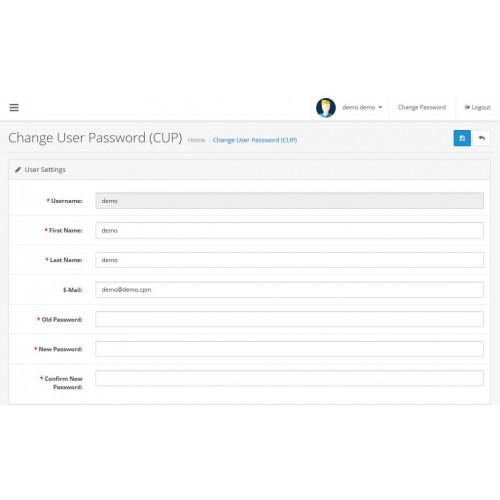
After install CUP, it will be 'Change Password' button in top-right of admin page. Pressing this 'Change Password' button will going to CUP user page, where user can change password.
Fuature:
- admin page and user-admin page
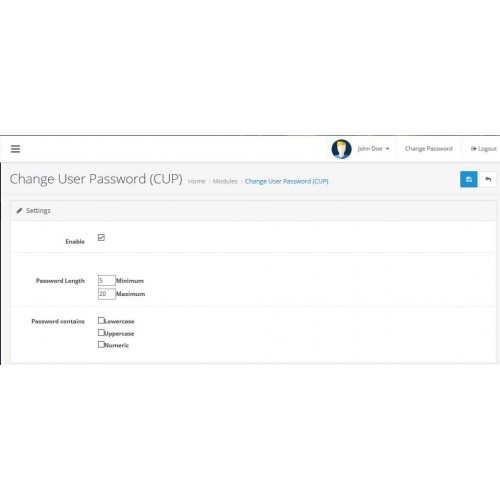
- admin page to define password lenght and password pattern (for example: password must be has lowercase and uppercase and number)
- user-admin page to change user password
- user-admin can edit their firstname, lastname and email
How to install?
OC23x
Login to admin page
Goto to Extensions - Extension Installer
Click upload
Choose CUP ocmod file (cup_[ver]_[ocver].ocmod.zip)
Wait till install progress done well
Goto Extensions - Modifications
Make sure CUP has been there
Click refresh (round button at top-right corner)
Goto Extensions - Extensions
Choose module and find CUP on module list
Click install on CUP (plus button on same line with CUP)
Click edit on CUP (pencil button on same line with CUP)
Make a setting and save it
You will see 'Change Password' on the top-right (near logout button)
Grand user-group for CUP:
Goto system - users - user group
Edit on which user-group you want
On access permission, find CUP and checked it
On modify permission, find CUP and checked it
OC20x-OC22x
Login to admin page
Goto to Extensions - Extension Installer
Click upload
Choose CUP ocmod file (cup_[ver]_[ocver].ocmod.zip)
Wait till install progress done well
Goto Extensions - Modifications
Make sure CUP has been there
Click refresh (round button at top-right corner)
Goto Extensions - Modules
find CUP on module list
Click install on CUP (plus button on same line with CUP)
Click edit on CUP (pencil button on same line with CUP)
Make a setting and save it
You will see 'Change Password' on the top-right (near logout button)
Grand user-group for CUP:
Goto system - users - user group
Edit on which user-group you want
On access permission, find CUP and checked it
On modify permission, find CUP and checked it
OC154 and OC1564
(Assume you already has vqmode (v2.6.1 - later) installed in your OC, if not please googling how to install vqmod)
Extract CUP zip file (cup_[ver]_[oc ver].zip) into your local computer
You will find upload folder, and under this upload folder, you will find admin and vqmod folder
Upload admin and vqmod folder to your OC website
Login to admin page
Goto Extensions - Modules
find CUP on module list
Click install on CUP
Click edit on CUP
Make a setting and save it
You will see 'Change Password' on the top-right (near logout button)
Grand user-group for CUP:
Goto system - users - user group
Edit on which user-group you want
On access permission, find CUP and checked it
On modify permission, find CUP and checked it
CUP give an access to admin-user to change their password without interfere other users.
After install CUP, it will be 'Change Password' button in top-right of admin page. Pressing this 'Change Password' button will going to CUP user page, where user can change password.
Fuature:
- admin page and user-admin page
- admin page to define password lenght and password pattern (for example: password must be has lowercase and uppercase and number)
- user-admin page to change user password
- user-admin can edit their firstname, lastname and email
How to install?
OC23x
Login to admin page
Goto to Extensions - Extension Installer
Click upload
Choose CUP ocmod file (cup_[ver]_[ocver].ocmod.zip)
Wait till install progress done well
Goto Extensions - Modifications
Make sure CUP has been there
Click refresh (round button at top-right corner)
Goto Extensions - Extensions
Choose module and find CUP on module list
Click install on CUP (plus button on same line with CUP)
Click edit on CUP (pencil button on same line with CUP)
Make a setting and save it
You will see 'Change Password' on the top-right (near logout button)
Grand user-group for CUP:
Goto system - users - user group
Edit on which user-group you want
On access permission, find CUP and checked it
On modify permission, find CUP and checked it
OC20x-OC22x
Login to admin page
Goto to Extensions - Extension Installer
Click upload
Choose CUP ocmod file (cup_[ver]_[ocver].ocmod.zip)
Wait till install progress done well
Goto Extensions - Modifications
Make sure CUP has been there
Click refresh (round button at top-right corner)
Goto Extensions - Modules
find CUP on module list
Click install on CUP (plus button on same line with CUP)
Click edit on CUP (pencil button on same line with CUP)
Make a setting and save it
You will see 'Change Password' on the top-right (near logout button)
Grand user-group for CUP:
Goto system - users - user group
Edit on which user-group you want
On access permission, find CUP and checked it
On modify permission, find CUP and checked it
OC154 and OC1564
(Assume you already has vqmode (v2.6.1 - later) installed in your OC, if not please googling how to install vqmod)
Extract CUP zip file (cup_[ver]_[oc ver].zip) into your local computer
You will find upload folder, and under this upload folder, you will find admin and vqmod folder
Upload admin and vqmod folder to your OC website
Login to admin page
Goto Extensions - Modules
find CUP on module list
Click install on CUP
Click edit on CUP
Make a setting and save it
You will see 'Change Password' on the top-right (near logout button)
Grand user-group for CUP:
Goto system - users - user group
Edit on which user-group you want
On access permission, find CUP and checked it
On modify permission, find CUP and checked it
Price
$20.00
- Developed by OpenCart Community
- Documentation Included
Rating
Compatibility
2.3.0.0, 2.3.0.1, 2.3.0.2, 2.0.0.0, 2.0.1.0, 2.0.1.1, 2.0.2.0, 2.0.3.1, 2.1.0.1, 2.1.0.2, 2.2.0.0, 1.5.4, 1.5.4.1, 1.5.5, 1.5.5.1, 1.5.6, 1.5.6.1, 1.5.6.2, 1.5.6.3, 1.5.6.4, 1.5.4, 1.5.4.1, 1.5.5, 1.5.5.1, 1.5.6, 1.5.6.1, 1.5.6.2, 1.5.6.3, 1.5.6.4, 2.0.0.0, 2.0.1.0, 2.0.1.1, 2.0.2.0, 2.0.3.1, 2.1.0.1, 2.1.0.2, 2.2.0.0, 2.3.0.0, 2.3.0.1, 2.3.0.2
Last Update
11 May 2018
Created
11 May 2018
0 Sales
0 Comments

Login and write down your comment.
Login my OpenCart Account