Google My Business - smart marketing

Why is this plugin important?
Creating content on Google My Business is becoming an increasingly important SEO factor. But the problem is it can be a hassle creating new content and easy to forget. Withthis plugin you can start getting more content on your, or your clients’ business page on Google without having to do any additional operations.
What does this plugin do?
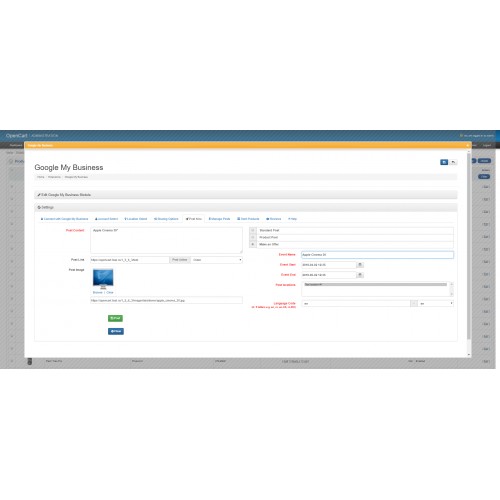
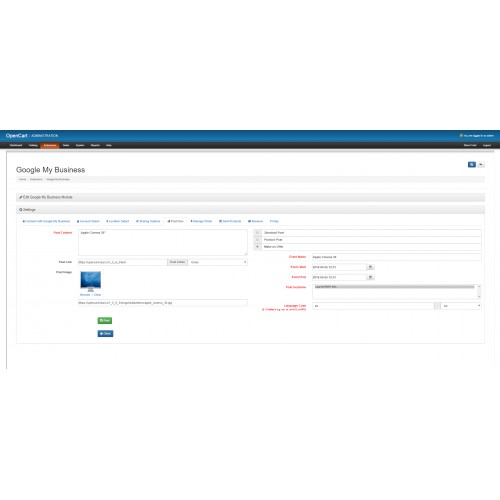
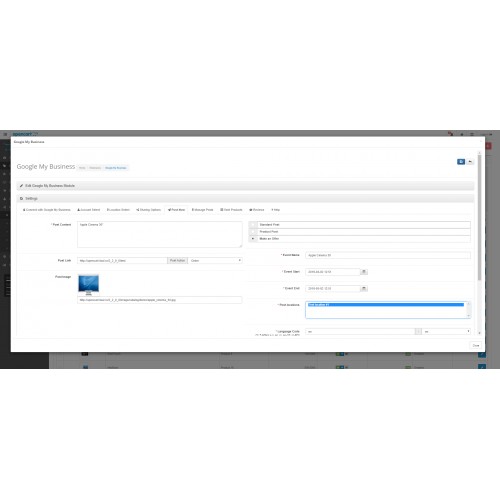
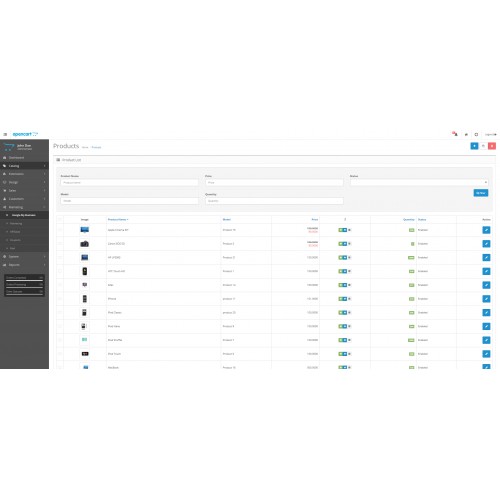
- This plugin lets you publish products or simple custom posts on your Google My Business page.
- Products can be published as (any or all):
- Standard posts
- Offer posts (If the product has active special price or discount for one product and for the default customer group )
- Custom posts can be published as:
- Standard posts
- Event posts
How do I use this plugin?
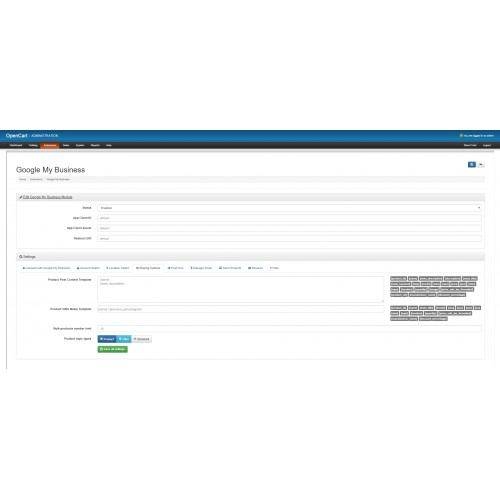
After you installed it successfully, navigate to the module Settings and enable it. You don't need to fill in the App Client Id, Secret and Redirect URI unless you really want to. There is a Google App implemented that you may use by default. This plugin connects with that app to Google My Business in order to manage your posts. You will have to give it permission to do so.
Once you enable the module, you may fill in the Sharing Options in its respective tab. There are customizable templates for Product Post content and offer name. You may click on the suggested parameter pills on the side in order to use them. These will be automatically replaced with the respective product field. This plugin also has an automatic-post capability via CRON JOB. You may limit the number of posts sent per run by changing the Bulk products number limit setting (10 by default). You may also establish to send your products as product/offer/standard (any or all) via CRON.
In order to access your Google My Business information, you must first connect via the button "Connect with Google My Business" inside the tab with the same name. You will have to accept to give the App permission to manage your posts.
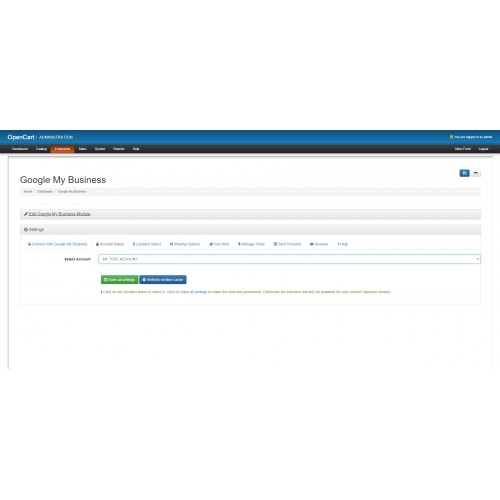
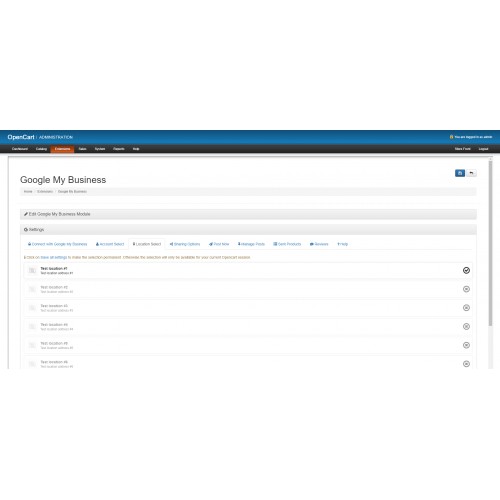
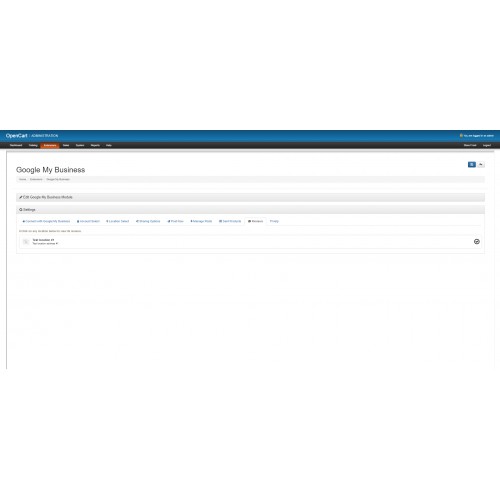
Once connected, you will be returned to the module settings. Here you must select one of your accounts (most have a single account) in the Account Select Tab, then select the locations respective to that account in the Location Select Tab. After you made these selections, click on "Save all settings" button in order to make your selection permanent, otherwise, your selection will only be available for your current opencart session (only the saved selections are available for CRON).
Creating content on Google My Business is becoming an increasingly important SEO factor. But the problem is it can be a hassle creating new content and easy to forget. Withthis plugin you can start getting more content on your, or your clients’ business page on Google without having to do any additional operations.
What does this plugin do?
- This plugin lets you publish products or simple custom posts on your Google My Business page.
- Products can be published as (any or all):
- Standard posts
- Offer posts (If the product has active special price or discount for one product and for the default customer group )
- Custom posts can be published as:
- Standard posts
- Event posts
How do I use this plugin?
After you installed it successfully, navigate to the module Settings and enable it. You don't need to fill in the App Client Id, Secret and Redirect URI unless you really want to. There is a Google App implemented that you may use by default. This plugin connects with that app to Google My Business in order to manage your posts. You will have to give it permission to do so.
Once you enable the module, you may fill in the Sharing Options in its respective tab. There are customizable templates for Product Post content and offer name. You may click on the suggested parameter pills on the side in order to use them. These will be automatically replaced with the respective product field. This plugin also has an automatic-post capability via CRON JOB. You may limit the number of posts sent per run by changing the Bulk products number limit setting (10 by default). You may also establish to send your products as product/offer/standard (any or all) via CRON.
In order to access your Google My Business information, you must first connect via the button "Connect with Google My Business" inside the tab with the same name. You will have to accept to give the App permission to manage your posts.
Once connected, you will be returned to the module settings. Here you must select one of your accounts (most have a single account) in the Account Select Tab, then select the locations respective to that account in the Location Select Tab. After you made these selections, click on "Save all settings" button in order to make your selection permanent, otherwise, your selection will only be available for your current opencart session (only the saved selections are available for CRON).
Price
$150.00
- Developed by OpenCart Community
- 6 Months Free Support
- Documentation Included
Rating
Compatibility
1.5.5.1, 1.5.6, 1.5.6.1, 1.5.6.2, 1.5.6.3, 1.5.6.4, 2.0.0.0, 2.0.1.0, 2.0.1.1, 2.0.2.0, 2.0.3.1, 2.1.0.1, 2.1.0.2, 2.2.0.0, 2.3.0.0, 2.3.0.1, 2.3.0.2
Last Update
21 Dec 2021
Created
2 Apr 2019
5 Sales
7 Comments

Login and write down your comment.
Login my OpenCart Account