Opencart Customer Interest
Opencart Customer Interest- Using the Opencart Customer Interest module will give the buyers a unique experience where they can sort there favorite category’s product to a single custom section.
Logged in customers on the store will be able to select the categories or subcategories from which the products will be shown. The module will help to add the custom section having shortlisted of their favorite categories on the different pages.
Note:
1. This module supports all templates and themes including the Journal theme.
2. Opencart Customer Interest module supports the Multi-Store feature of default Opencart.




Use Case
Consider a case of a customer who usually visits or makes purchases through a particular category product. It becomes irritating to navigate to the categories each time you visit the website.
As per Google reports, there is a drop of 16 % interest in shopping with the lag of every 1 second in reaching to the desired product. So displaying the customer with the products of their interest just after they log in or on the Home page will boost up the sales of the products.
Feature
Work Flow
Module Configuration
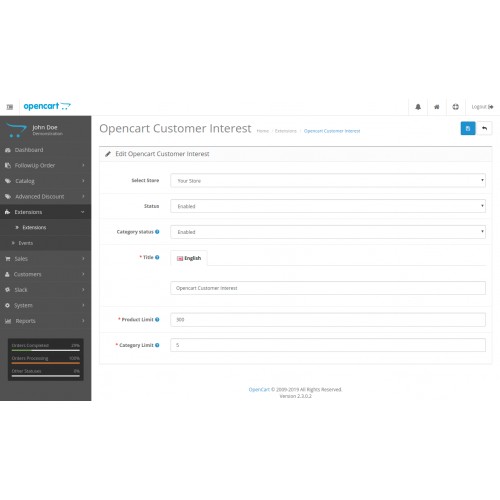
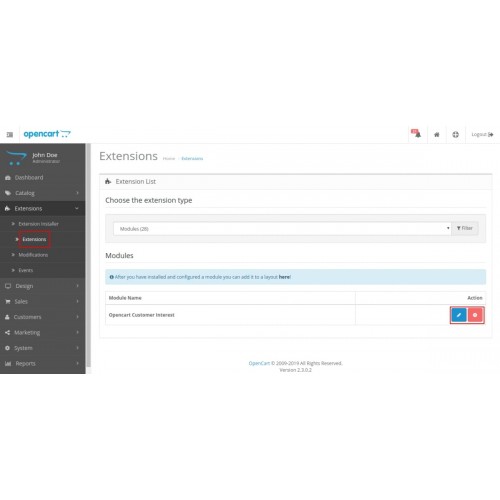
After the installation, the admin can configure the module by navigating Extensions > Extensions > Modules and edit the Opencart Customer Interest module, as shown in the image below.

Layout & Position
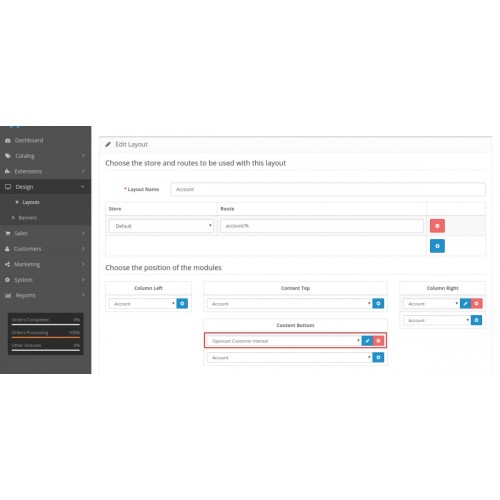
The admin can add a custom section to any page at any position. The admin needs to navigate to Design>Layout>Select page(account page, product page, category page, and search page, etc.) and edit, as shown in the image below.

Front End
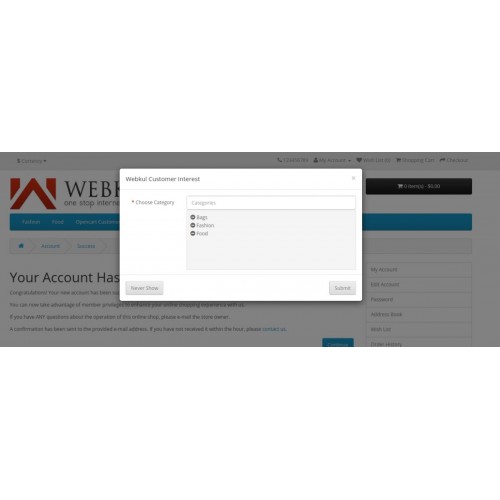
After login, the customer will be displayed the pop-up, as shown in the image below in which the customer will be able to add the categories or subcategories.

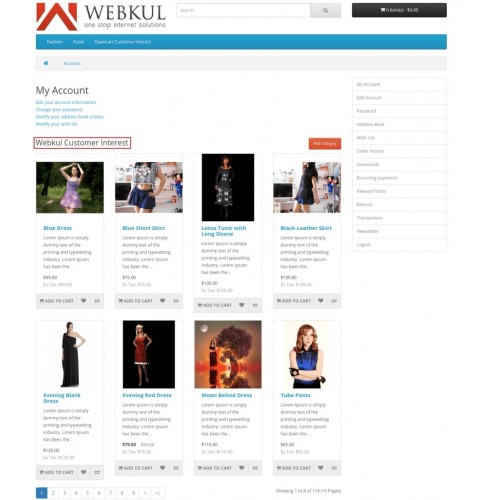
The Custom Interest Section will be displayed, as shown in the image below.




Some Moments Of Appreciation



Support Policy
Logged in customers on the store will be able to select the categories or subcategories from which the products will be shown. The module will help to add the custom section having shortlisted of their favorite categories on the different pages.
Note:
1. This module supports all templates and themes including the Journal theme.
2. Opencart Customer Interest module supports the Multi-Store feature of default Opencart.
Use Case
Consider a case of a customer who usually visits or makes purchases through a particular category product. It becomes irritating to navigate to the categories each time you visit the website.
As per Google reports, there is a drop of 16 % interest in shopping with the lag of every 1 second in reaching to the desired product. So displaying the customer with the products of their interest just after they log in or on the Home page will boost up the sales of the products.
Feature
- The admin can enable or disable the module.
- The customer can choose from all store categories or categories having at least a single product.
- A custom title can be set for the customer interest section, which will appear on the frontend.
- The admin can define the product limit that is to be displayed in the section.
- The category limit can be set for by the admin.
- A customer can choose categories for displaying products
- A customer can also add or remove categories.
- The admin can configure the layout and position of the module
- The custom section can be added to multiple pages like the accounts page, category page, product page, search page, and so on.
Work Flow
Module Configuration
After the installation, the admin can configure the module by navigating Extensions > Extensions > Modules and edit the Opencart Customer Interest module, as shown in the image below.
Layout & Position
The admin can add a custom section to any page at any position. The admin needs to navigate to Design>Layout>Select page(account page, product page, category page, and search page, etc.) and edit, as shown in the image below.
Front End
After login, the customer will be displayed the pop-up, as shown in the image below in which the customer will be able to add the categories or subcategories.
The Custom Interest Section will be displayed, as shown in the image below.
Some Moments Of Appreciation
Support Policy
Price
$79.00
- Developed by OpenCart Partner
- 3 Months Free Support
- Documentation Included
Rating
Compatibility
3.0.0.0, 3.0.1.0, 3.0.1.1, 3.0.1.2, 3.0.1.3, 3.0.2.0, 3.0.3.0, 3.0.3.1, 3.0.3.2, 3.0.3.3, 3.0.3.5, 3.0.3.6, 3.0.3.7, 3.0.3.8
Last Update
13 Jun 2025
Created
10 Sep 2019
1 Sales
1 Comments

Login and write down your comment.
Login my OpenCart Account