Opencart DHgate Dropship Management
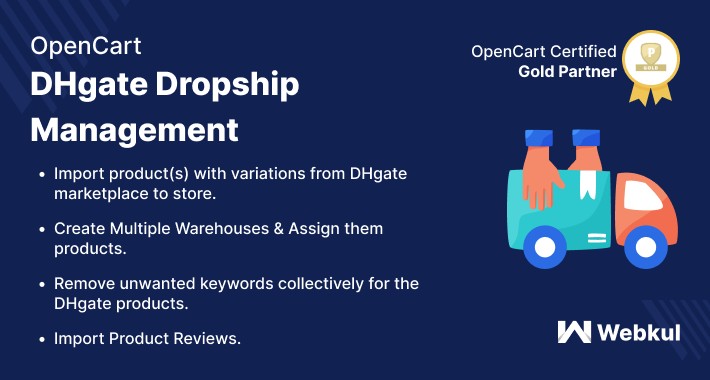
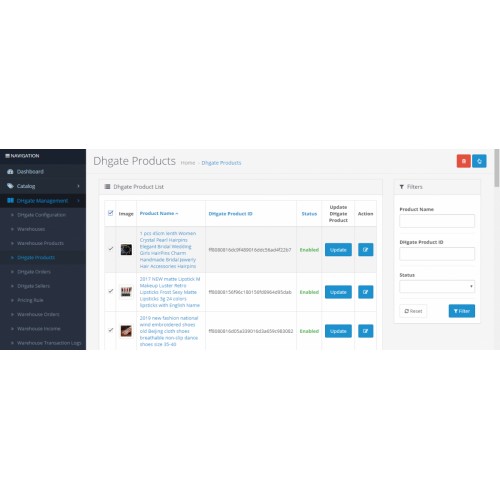
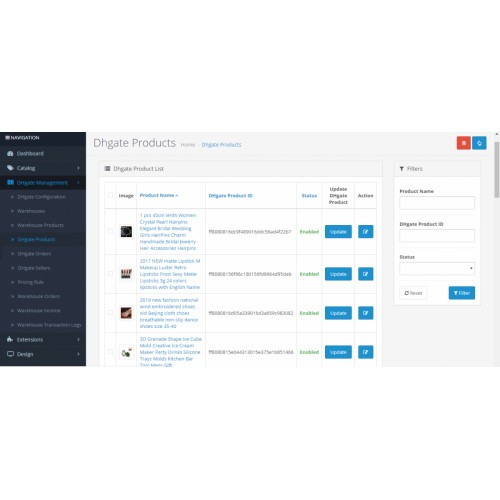
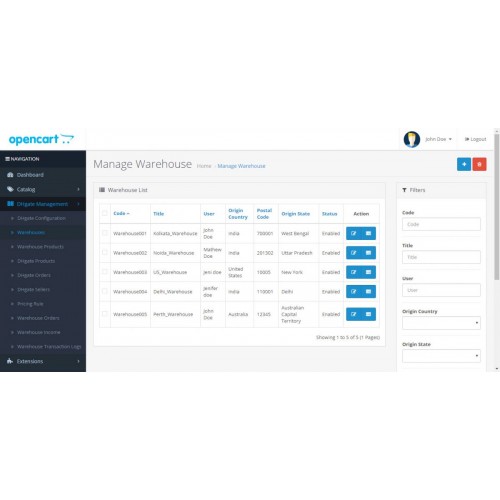
Using the Dhgate Dropship Management plugin, the Opencart store owner can now import the products from Dhgate website and then can list them within his website.
Apart from that, the admin can easily create multiple warehouses and assign warehouse managers to them. Apart from that, the admin can assign default products, and the Dhgate imported products to the warehouses as required.
Note:
1. This module supports all templates and themes including the Journal theme.
2. Opencart DHGate Dropship Management module supports the Multi-Store feature of default Opencart.




Use Case
Using this plugin, the store owner does not need to keep goods in stock but instead transfer sales orders and shipment details to the warehouse manager, who then ships the goods directly to the customers. Shipping rates will be calculated according to the warehouse origin address.
The admin can assign warehouses to the products and can add shipping methods that the warehouse provides, and during checkout, the buyer can choose those shipping methods as per the choice.
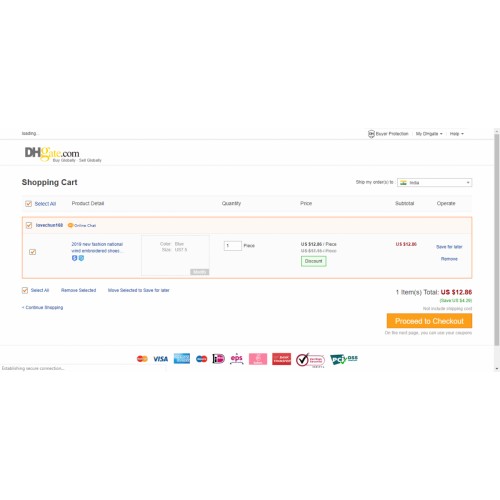
Using this extension, apart from the warehouse creation, the store admin can also import products from the Dhgate webstore to the OpenCart store. After import, the admin can list the products and start selling the same on their website. All of the DHgate orders are visible in another section for better management.
Features
Workflow:
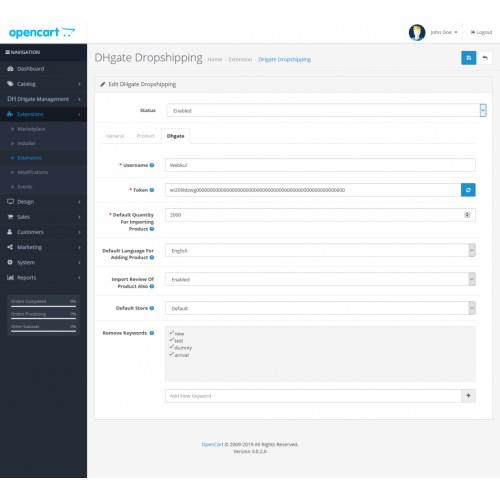
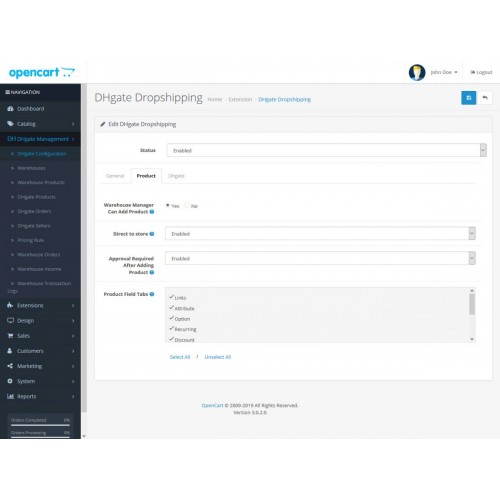
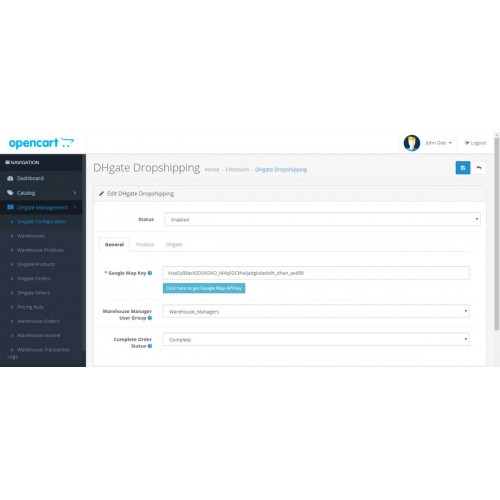
After successful installation, the admin will make initial configuration settings which include the general, product, dhgate, settings.
General Settings:

Product Settings

DHgate Settings

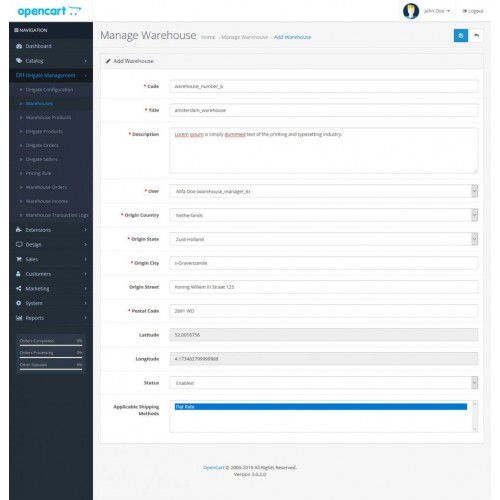
After that, the admin will be able to create the warehouse by entering the required information.

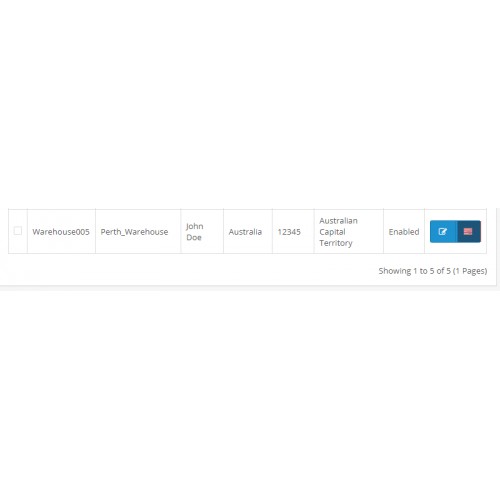
After creating a warehouse, the admin can see a success message for the same.

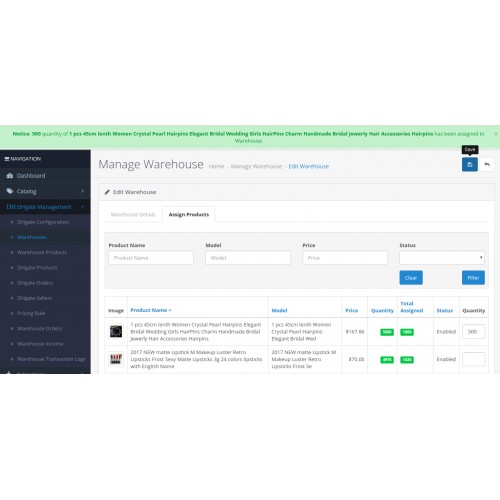
The admin can assign the products to the created warehouses with the required quantities.

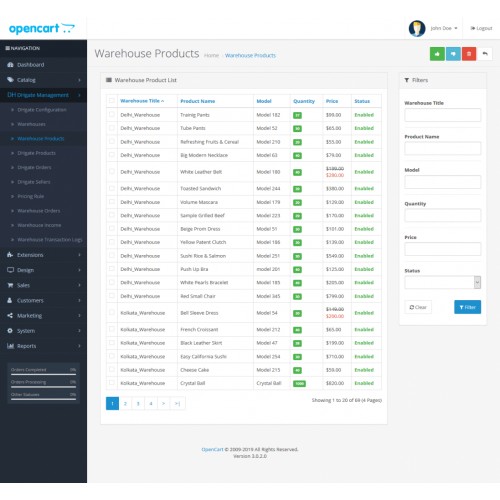
The admin will be able to see all of the products that have been assigned to the various warehouses. Here, the admin will be able to approve, disapprove, and delete and of the products that have been assigned to the various warehouses.

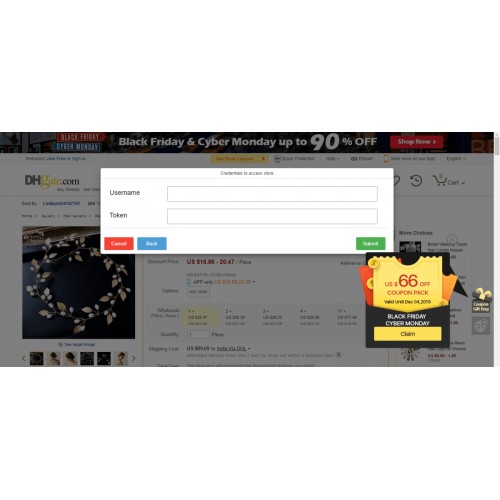
The admin can also import the products from the DHgate website marketplace by using the DHgate Product importer plugin for the Google Chrome browser.

Also, the admin needs to authenticate the store using the username and token generated from the module backend settings.

After that, the admin can import the products one by one or in bulk as required.

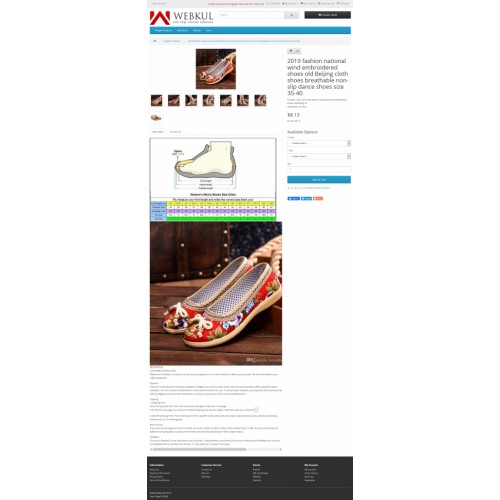
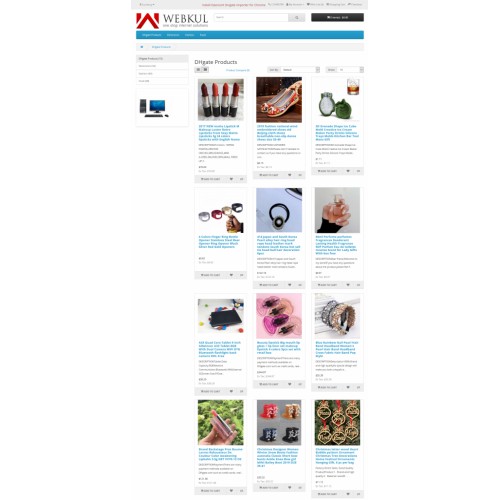
These imported products can be viewed under the Opencart store as shown below.

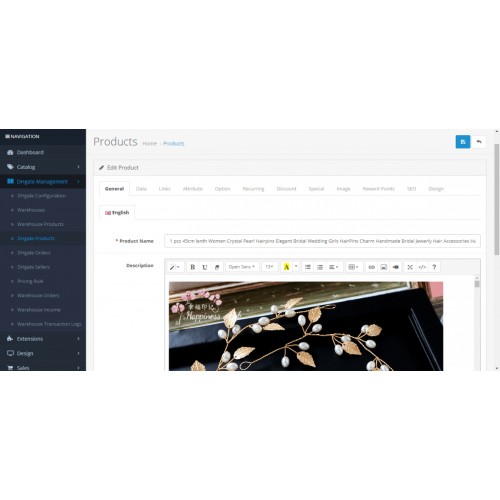
The admin can edit the product as required and while the imported products have not yet been pushed to the OpenCart store’s catalog the admin can first select the products and then tap the “Push the products to Stores Catalog” button just next to the Delete button. This adds the imported products to the OpenCart store’s catalog.

Apart from that, the admin can create the price rule to apply to the admin default or DHgate products as required.

To create the price rule the admin will enter the required information.

The admin will be able to check all of the orders that have been placed for the warehouse products. This includes the admin assigned(default and Dhgate products(assigned to the warehouses)), warehouse manager created products.

The admin can view different details regarding the orders placed under the different warehouses. For any particular warehouse, the admin can tap the View button under the Actions column to check the details of the particular orders.

The admin can also check the warehouse income.

And the transactions for the warehouses.




Some Moments Of Appreciation



Support Policy
Apart from that, the admin can easily create multiple warehouses and assign warehouse managers to them. Apart from that, the admin can assign default products, and the Dhgate imported products to the warehouses as required.
Note:
1. This module supports all templates and themes including the Journal theme.
2. Opencart DHGate Dropship Management module supports the Multi-Store feature of default Opencart.
Use Case
Using this plugin, the store owner does not need to keep goods in stock but instead transfer sales orders and shipment details to the warehouse manager, who then ships the goods directly to the customers. Shipping rates will be calculated according to the warehouse origin address.
The admin can assign warehouses to the products and can add shipping methods that the warehouse provides, and during checkout, the buyer can choose those shipping methods as per the choice.
Using this extension, apart from the warehouse creation, the store admin can also import products from the Dhgate webstore to the OpenCart store. After import, the admin can list the products and start selling the same on their website. All of the DHgate orders are visible in another section for better management.
Features
- Import products from Dhgate marketplace to your OpenCart store.
- Products with variations can also be imported from DHgate and these variations are created within the OpenCart store as well.
- Allow Warehouse Managers to add products under their own account panel. Product approval for products added by the warehouse managers.
- Set the allowed product fields that are accessible for adding products by the warehouse managers.
- Import Product reviews for the DHgate products and choose to enable them or keep disabled even after importing.
- Add new keywords that allow removing the keywords collectively from the DHgate products.
- Select the store in which the imported products will be added.
- Select the language in which the product’s name, description, etc, will be added while importing the products from Dhgate to OpenCart store.
- Select the default quantity of the products that will be set for each product while importing the same from DHgate store.
- Enable/disable option for pushing the products directly to the OpenCart store without any approval.
- Option to generate multiple tokens for the OpeCart store authorization before importing the products.
- Option to set the order status which will be supposed to be Complete Order status of warehouse product’s order.
Workflow:
After successful installation, the admin will make initial configuration settings which include the general, product, dhgate, settings.
General Settings:
Product Settings
DHgate Settings
After that, the admin will be able to create the warehouse by entering the required information.
After creating a warehouse, the admin can see a success message for the same.
The admin can assign the products to the created warehouses with the required quantities.
The admin will be able to see all of the products that have been assigned to the various warehouses. Here, the admin will be able to approve, disapprove, and delete and of the products that have been assigned to the various warehouses.
The admin can also import the products from the DHgate website marketplace by using the DHgate Product importer plugin for the Google Chrome browser.
Also, the admin needs to authenticate the store using the username and token generated from the module backend settings.
After that, the admin can import the products one by one or in bulk as required.
These imported products can be viewed under the Opencart store as shown below.
The admin can edit the product as required and while the imported products have not yet been pushed to the OpenCart store’s catalog the admin can first select the products and then tap the “Push the products to Stores Catalog” button just next to the Delete button. This adds the imported products to the OpenCart store’s catalog.
Apart from that, the admin can create the price rule to apply to the admin default or DHgate products as required.
To create the price rule the admin will enter the required information.
The admin will be able to check all of the orders that have been placed for the warehouse products. This includes the admin assigned(default and Dhgate products(assigned to the warehouses)), warehouse manager created products.
The admin can view different details regarding the orders placed under the different warehouses. For any particular warehouse, the admin can tap the View button under the Actions column to check the details of the particular orders.
The admin can also check the warehouse income.
And the transactions for the warehouses.
Some Moments Of Appreciation
Support Policy
Price
$199.00
- Developed by OpenCart Partner
- 3 Months Free Support
- Documentation Included
Rating
Compatibility
3.0.0.0, 3.0.1.0, 3.0.1.1, 3.0.1.2, 3.0.1.3, 3.0.2.0, 3.0.3.0, 3.0.3.1, 3.0.3.2, 3.0.3.3, 3.0.3.5, 3.0.3.6, 3.0.3.7, 3.0.3.8
Last Update
16 Jun 2025
Created
12 Dec 2019
4 Sales
0 Comments

Login and write down your comment.
Login my OpenCart Account