Barcode Warehouse - Easy Quantity Management
SHORT DESCRIPTION
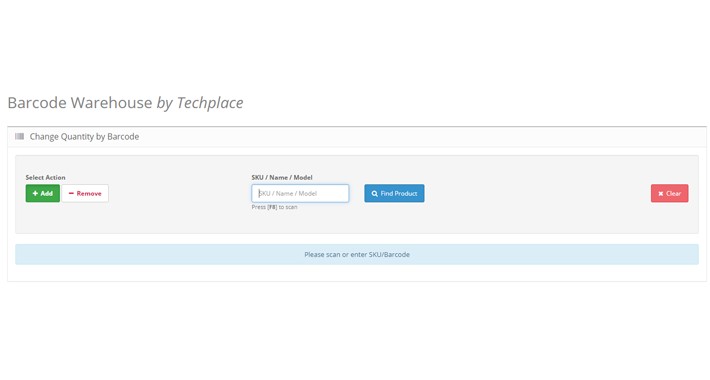
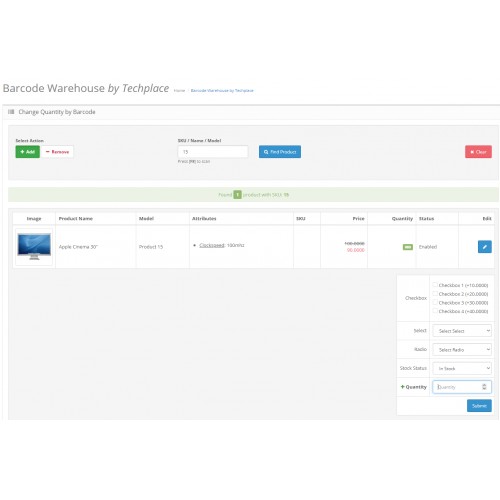
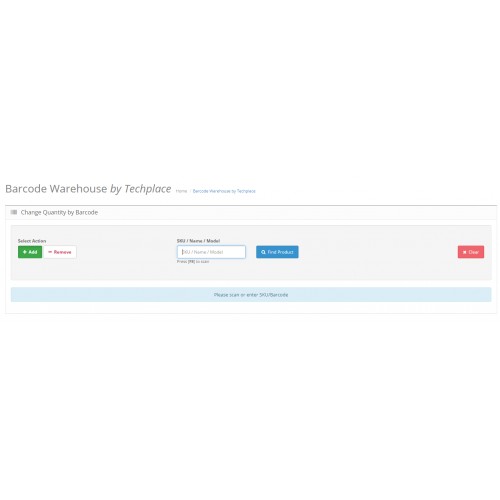
This extension adds a page named “Barcode Manager” to your admin panel: Once you click on it, you can search for a product by model, name and SKU or by scanning its barcode. Then, you can add or subtract quantities of that product from your inventory and/or edit the product’s details without having to open the product editing page.
MORE DETAILS & WHY YOU NEED THE EXTENSION
Now, you can have easier access to your inventory, manage your orders more efficiently and change the features of your products in a more convenient manner: Especially when you choose to search a product by its barcode, you don’t even need to type a single word.
Manage the quantities and attributes of your products by using a single extension, keep record of the orders your business has to deliver and enjoy the flexibility and high usability of Barcode Warehouse!
INSTALLATION
- Login to your OpenCart Administration panel
- Go to Extensions > Installer and upload zip file suited for your OpenCart version
- Go to Extensions > Modifications and hit the Refresh button
INSTRUCTIONS
1.Add/ Remove Products to/from Inventory
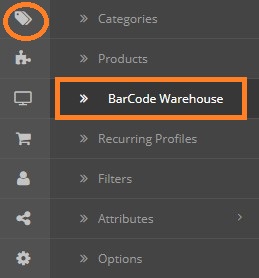
At first, you have to enter your admin OpenCart panel. Then, on the left side you will find an icon that can redirect you to “Barcode Warehouse”, as shown below:
Click on “BarCode Warehouse” and you will see the following page:
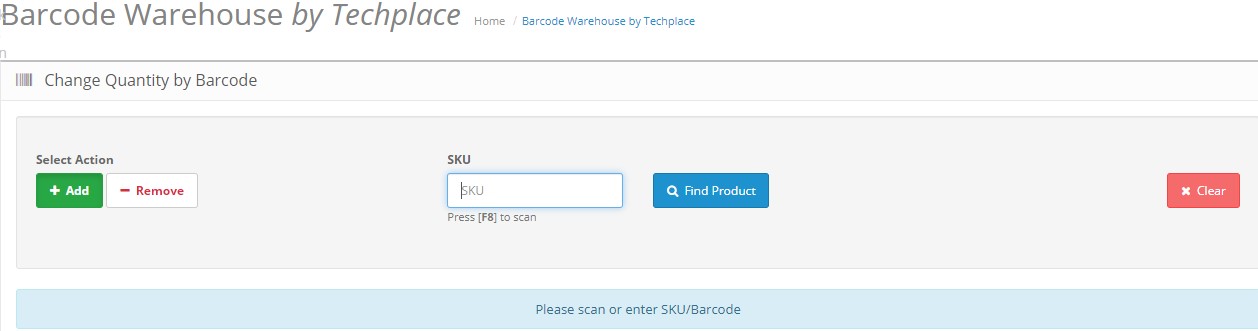
After that, either press F8 and scan the barcode of the product or type the name, model, or SKU of the product you are looking for right here:
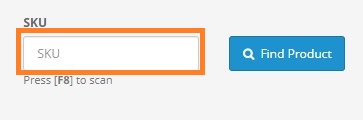
Finally, you can click on the “Find Product” button to search for the specific item you typed or scanned. However, if you change your mind and want to search for another product, then click on the “Clear” button:

For example, let’s say that you are looking for the following product:
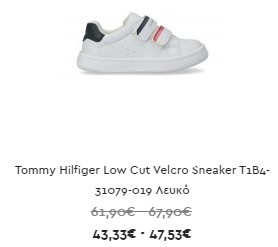
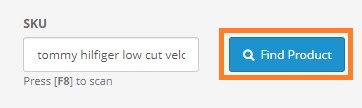
Also, let’s suppose that you are searching by name, simply typing “Tommy Hilfiger Low Cut Velcro” (you don’t need to type the whole name) and then clicking on “Find Product”:
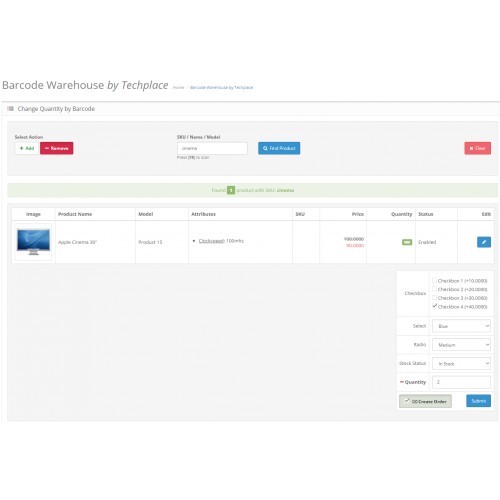
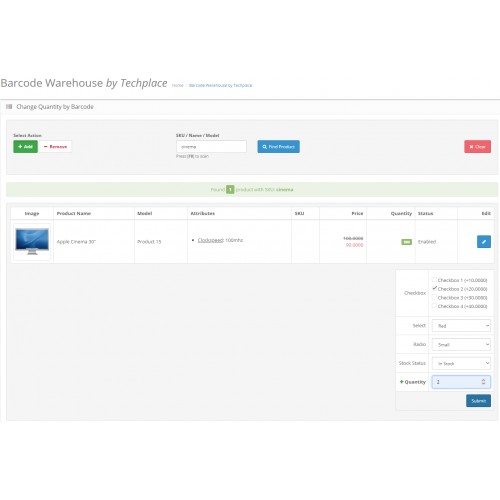
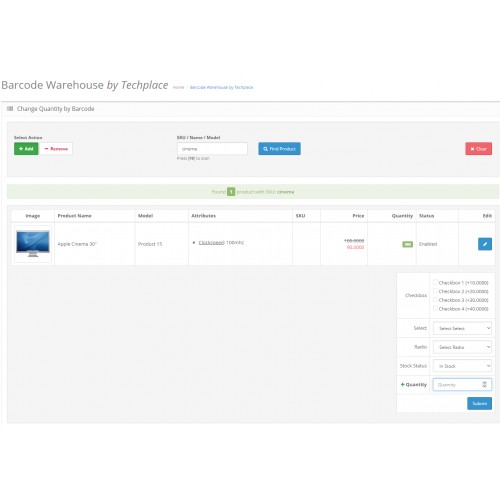
Then, you will be seeing the following screen, which has to do with your product (image, product name, model, attributes, SKU, price, quantity, status):
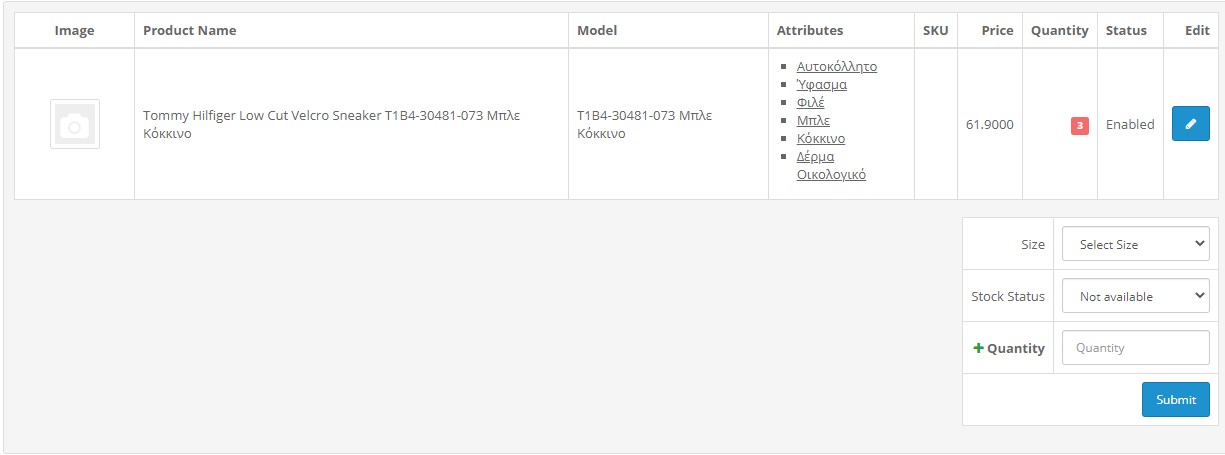
You can add a certain quantity of the product to your inventory, by selecting its attributes appropriately (In this case, you looked for a shoe, so you have to make a choice about the size. However, if it were about another kind of product, the appearing attributes may differ), changing the stock status and finally clicking on “Submit”, for example:
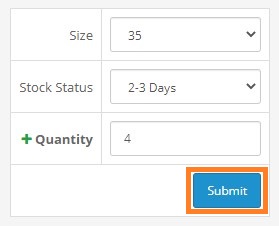
In case you want to remove a certain product from your inventory, after searching for it, you may click on “Remove”:

The following will appear:
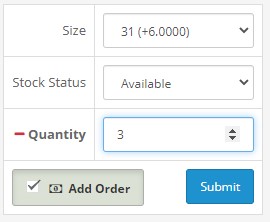
In case you want to remove the product because someone ordered it and you want to manage your inventory, check the box “Add Order”. However, if you want to remove the product due to any other reason, leave the “Add Order” box unchecked.
2.Edit product features via the Barcode Warehouse extension
Once you have reached this screen:
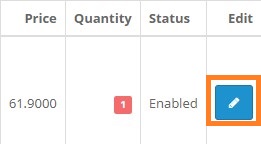
You may click on “Edit” button And then modify the attributes/features of the product, editing the following categories: General, Feeds Extra Data, Links, Attribute, Option, Recurring, Discount, Special, Image, Reward Points, Design, Facebook:

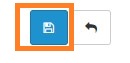
Don’t forget to click on “Save” button on the upper right side of each page, so that you don’t lose any changes you make:
This extension adds a page named “Barcode Manager” to your admin panel: Once you click on it, you can search for a product by model, name and SKU or by scanning its barcode. Then, you can add or subtract quantities of that product from your inventory and/or edit the product’s details without having to open the product editing page.
MORE DETAILS & WHY YOU NEED THE EXTENSION
Now, you can have easier access to your inventory, manage your orders more efficiently and change the features of your products in a more convenient manner: Especially when you choose to search a product by its barcode, you don’t even need to type a single word.
Manage the quantities and attributes of your products by using a single extension, keep record of the orders your business has to deliver and enjoy the flexibility and high usability of Barcode Warehouse!
INSTALLATION
- Login to your OpenCart Administration panel
- Go to Extensions > Installer and upload zip file suited for your OpenCart version
- Go to Extensions > Modifications and hit the Refresh button
INSTRUCTIONS
1.Add/ Remove Products to/from Inventory
At first, you have to enter your admin OpenCart panel. Then, on the left side you will find an icon that can redirect you to “Barcode Warehouse”, as shown below:
Click on “BarCode Warehouse” and you will see the following page:
After that, either press F8 and scan the barcode of the product or type the name, model, or SKU of the product you are looking for right here:
Finally, you can click on the “Find Product” button to search for the specific item you typed or scanned. However, if you change your mind and want to search for another product, then click on the “Clear” button:
For example, let’s say that you are looking for the following product:
Also, let’s suppose that you are searching by name, simply typing “Tommy Hilfiger Low Cut Velcro” (you don’t need to type the whole name) and then clicking on “Find Product”:
Then, you will be seeing the following screen, which has to do with your product (image, product name, model, attributes, SKU, price, quantity, status):
You can add a certain quantity of the product to your inventory, by selecting its attributes appropriately (In this case, you looked for a shoe, so you have to make a choice about the size. However, if it were about another kind of product, the appearing attributes may differ), changing the stock status and finally clicking on “Submit”, for example:
In case you want to remove a certain product from your inventory, after searching for it, you may click on “Remove”:
The following will appear:
In case you want to remove the product because someone ordered it and you want to manage your inventory, check the box “Add Order”. However, if you want to remove the product due to any other reason, leave the “Add Order” box unchecked.
2.Edit product features via the Barcode Warehouse extension
Once you have reached this screen:
You may click on “Edit” button And then modify the attributes/features of the product, editing the following categories: General, Feeds Extra Data, Links, Attribute, Option, Recurring, Discount, Special, Image, Reward Points, Design, Facebook:
Don’t forget to click on “Save” button on the upper right side of each page, so that you don’t lose any changes you make:
Price
$80.00
- Developed by OpenCart Community
- 12 Months Free Support
- Documentation Included
Rating
Compatibility
3.0.0.0, 3.0.1.0, 3.0.1.1, 3.0.1.2, 3.0.1.3, 3.0.2.0, 3.0.3.0, 3.0.3.1, 3.0.3.2, 3.0.3.3, 3.0.3.5, 3.0.3.6, 3.0.3.7, 3.0.3.8, 3.x.x.x, 3.0.3.9, 3.0.4.1, 3.0.5.0, 2.0.0.0, 2.0.1.0, 2.0.1.1, 2.0.2.0, 2.0.3.1, 2.1.0.1, 2.1.0.2, 2.2.0.0, 2.3.0.0, 2.3.0.1, 2.3.0.2
Last Update
3 Feb 2026
Created
12 Feb 2020
2 Sales
1 Comments

Login and write down your comment.
Login my OpenCart Account