Opencart POS Customer Screen
Opencart POS Customer Screen: This extension allows customers to ensure an error-free checkout. Customers can view the products added to the cart on the customer-facing screen at the time of checkout with real-time updates using Socket.IO and Firebase.
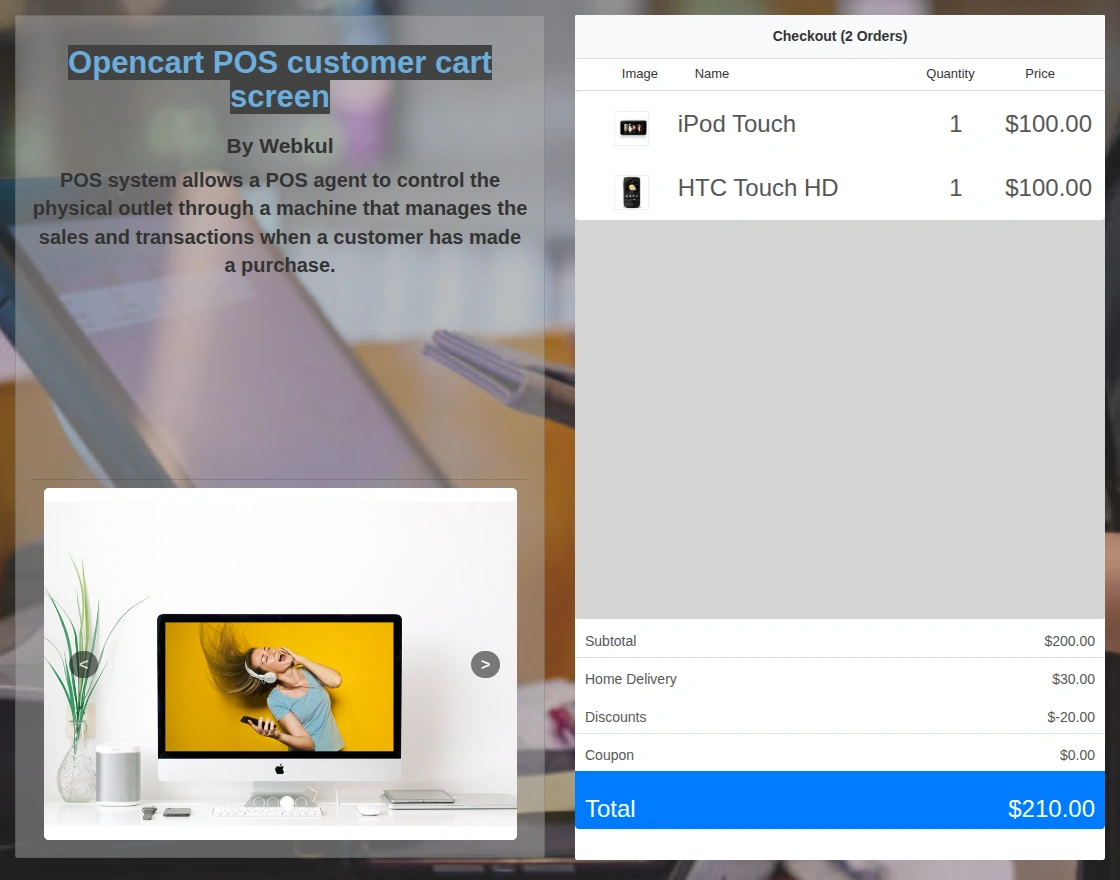
There is a slide bar with a description that will display on the screen added by the admin. Admin can also set a background image or background color. The complete cart will be displayed to the customer.
Note: This module is an add-on to the Opencart Point of Sale (POS) System, so to use this module you need to install the Opencart Point of Sale (POS) System first.



Use Case:
This module is useful for physical stores where POS systems are used. It integrates the Opencart POS with a customer screen so that customers can view the cart during checkout with real-time updates using Socket.IO and Firebase.
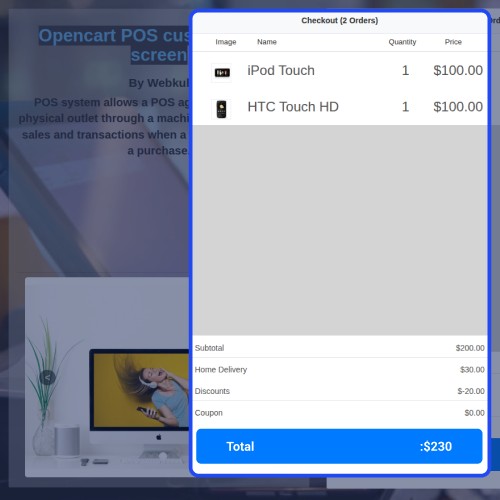
On the screen, cart details such as product image, price, quantity, and order total are displayed along with promotional slides. Admin can also set a background image or background color. This customer-facing feature improves transparency and enhances the overall checkout experience.
Features:
Workflow:
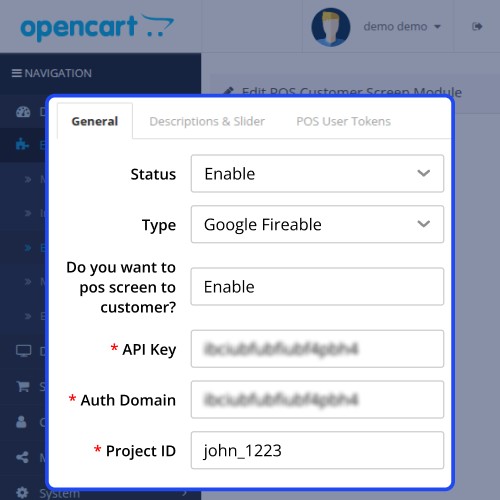
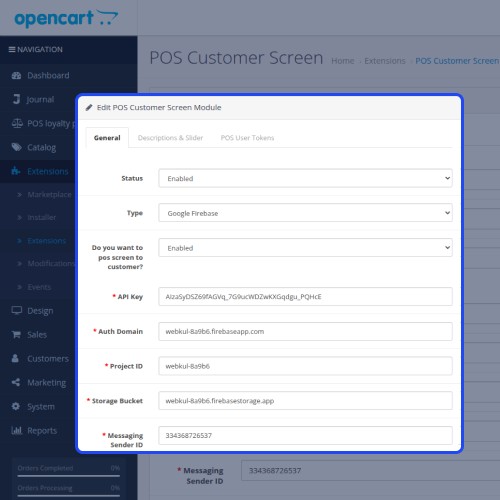
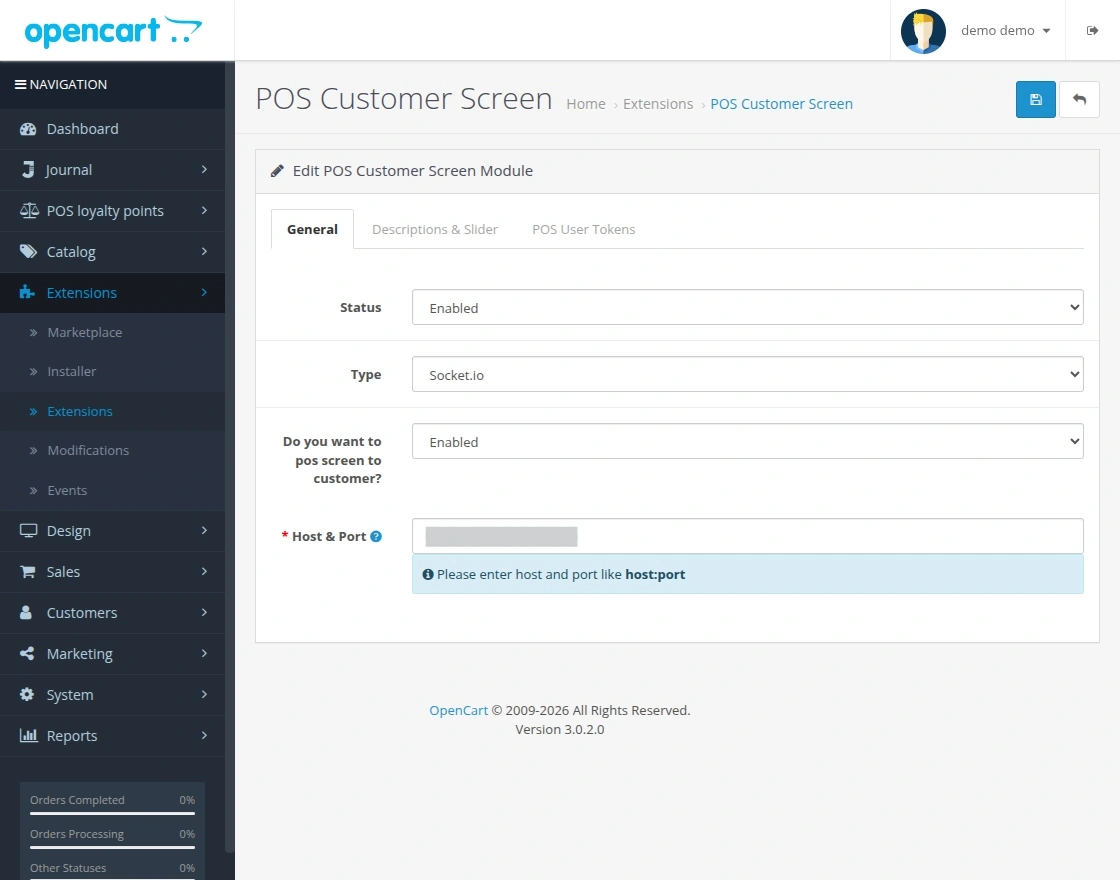
After installing the module, the admin can enable or disable it from the General tab. Admin can select the connection type as Socket.IO and enter the Host and Port details to establish the connection.
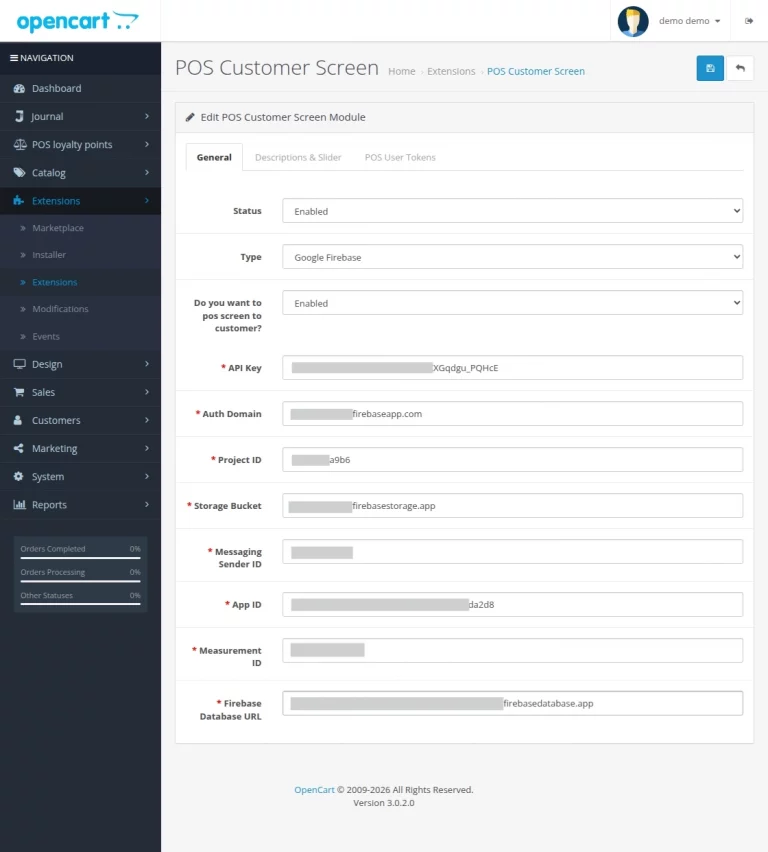
Admin can also choose Google Firebase as the connection type and enter the required Firebase credentials to enable real-time synchronization.
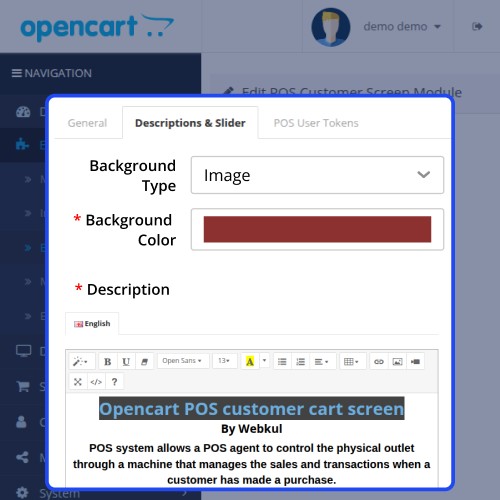
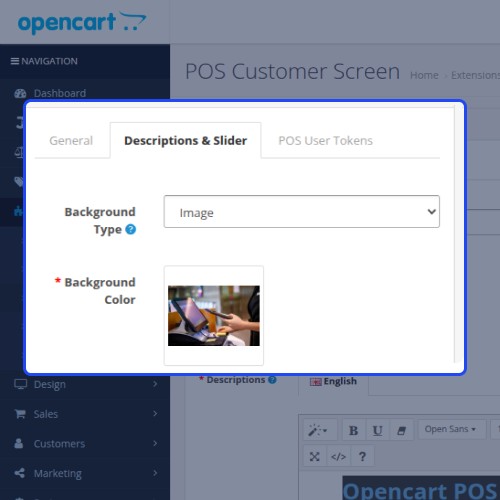
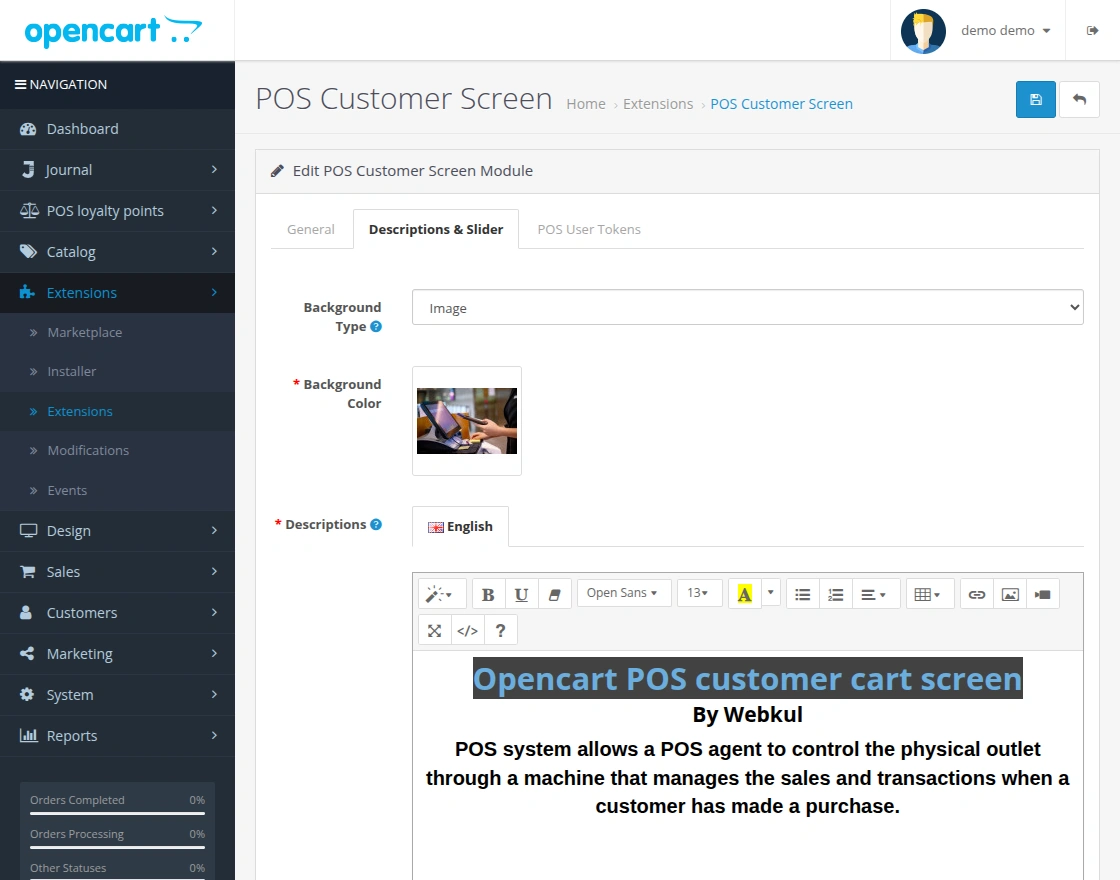
In the Descriptions & Slider tab, the admin can select the background type as Image and upload a background image along with the display description.
Admin can also select the background type as Color and set a background color to customize the customer screen appearance.
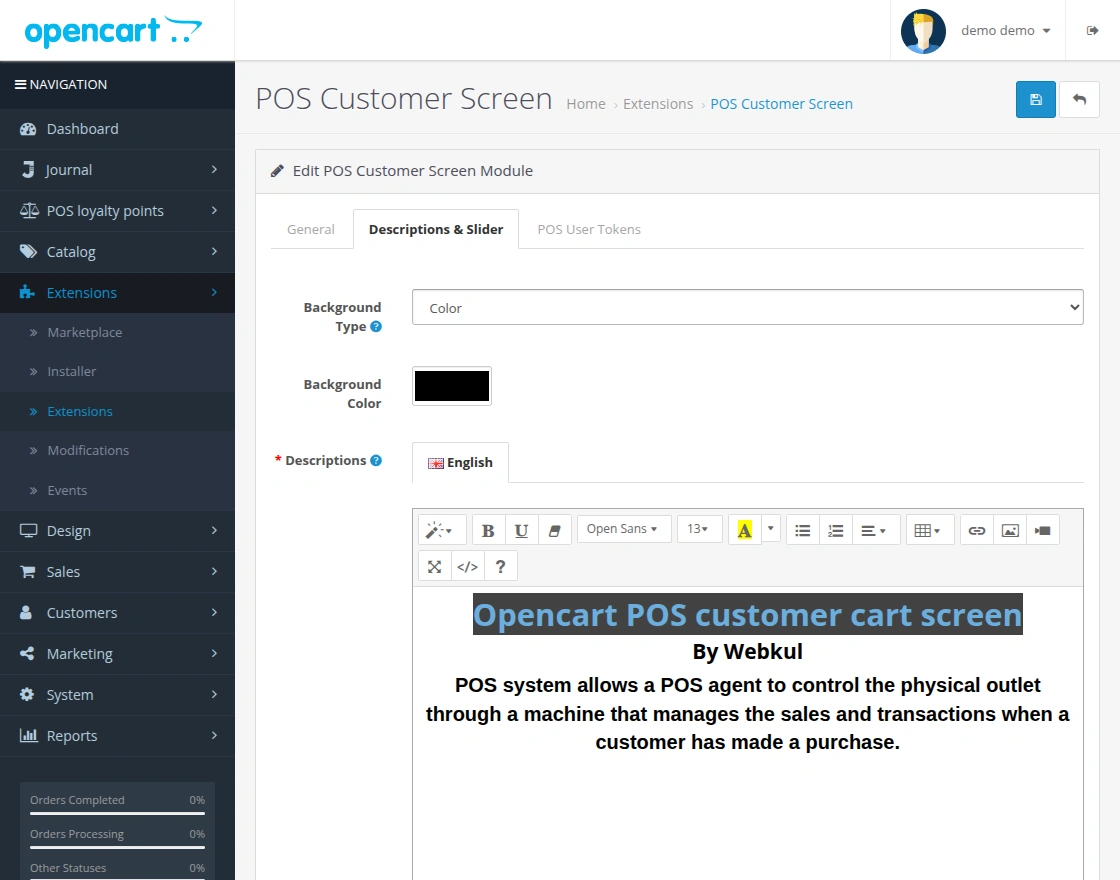
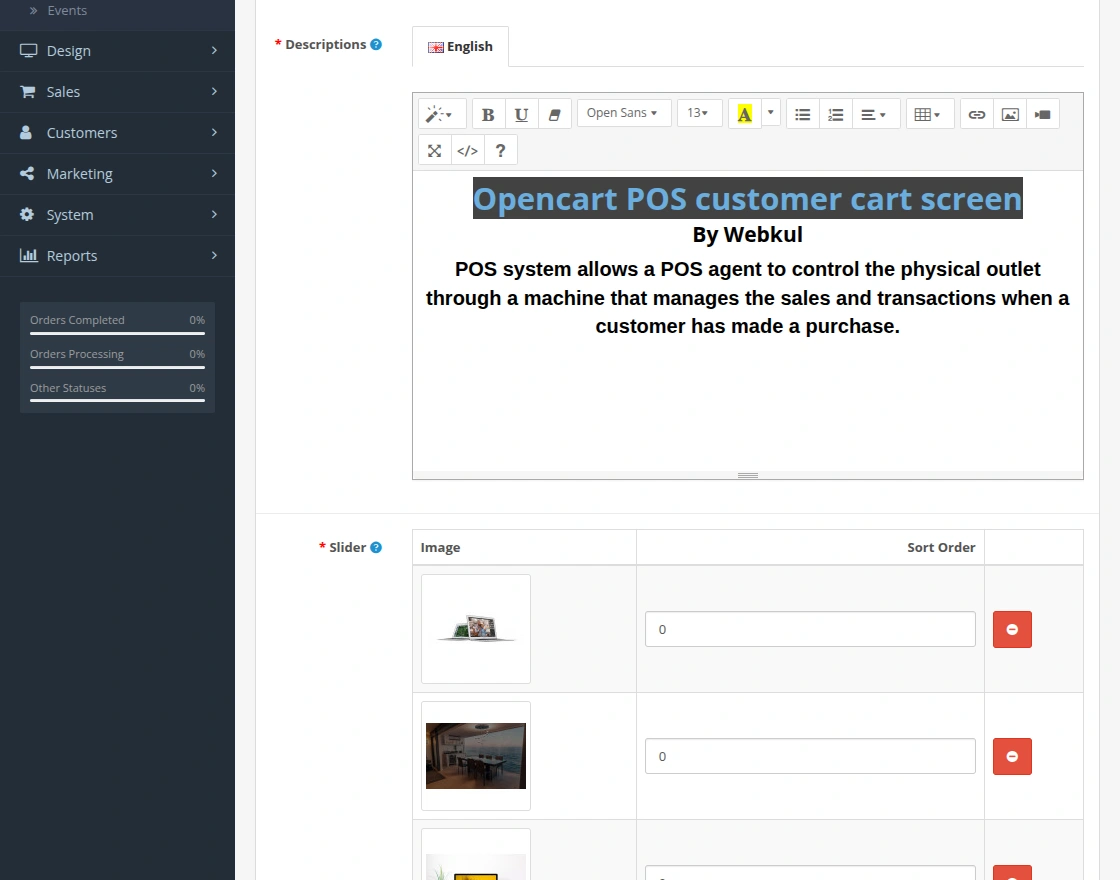
The admin can add promotional descriptions and upload multiple slide images. These slides will be displayed on the customer screen with the set sort order.
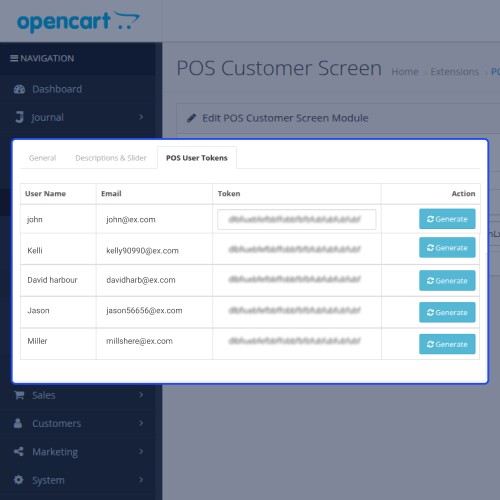
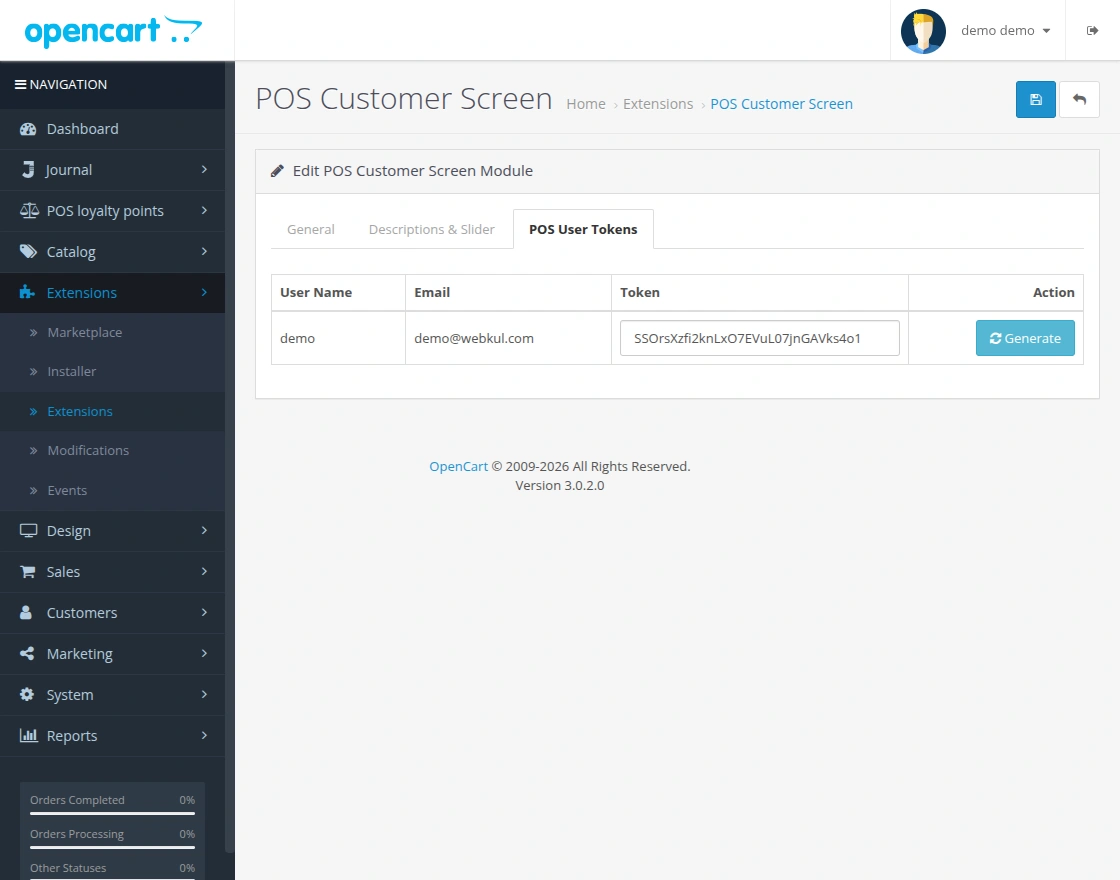
From the POS User Tokens tab, the admin can generate a token for POS users. This token is required to connect and access the customer screen securely.
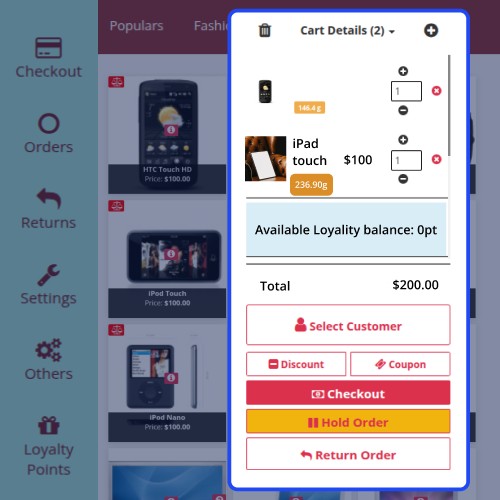
In the POS panel, the user can click on the Cart Screen button available in the left sidebar to open the customer display.
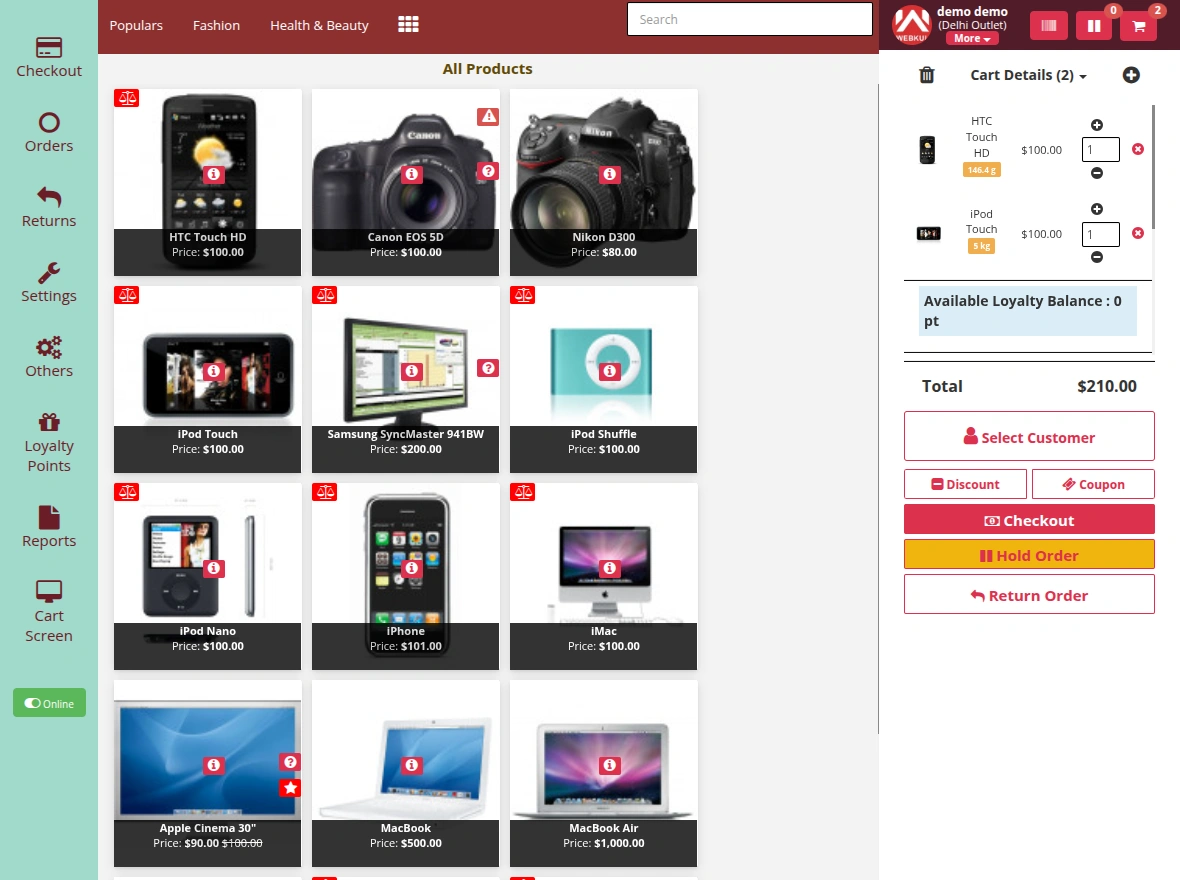
The customer-facing screen will display the complete cart details in real time along with product information, totals, and promotional slides.

Some Moments Of Appreciation



Support Policy
There is a slide bar with a description that will display on the screen added by the admin. Admin can also set a background image or background color. The complete cart will be displayed to the customer.
Note: This module is an add-on to the Opencart Point of Sale (POS) System, so to use this module you need to install the Opencart Point of Sale (POS) System first.
Use Case:
This module is useful for physical stores where POS systems are used. It integrates the Opencart POS with a customer screen so that customers can view the cart during checkout with real-time updates using Socket.IO and Firebase.
On the screen, cart details such as product image, price, quantity, and order total are displayed along with promotional slides. Admin can also set a background image or background color. This customer-facing feature improves transparency and enhances the overall checkout experience.
Features:
- Customers can view cart details on the customer screen in real time.
- Real-time updates are managed using Socket.IO and Firebase.
- Description and slide images added by the admin are displayed on the cart screen.
- Admin can enable or disable the module from the panel.
- Admin can add slides and set background image or background color.
- Admin needs to generate the Point of Sale (POS) token.
Workflow:
After installing the module, the admin can enable or disable it from the General tab. Admin can select the connection type as Socket.IO and enter the Host and Port details to establish the connection.
Admin can also choose Google Firebase as the connection type and enter the required Firebase credentials to enable real-time synchronization.
In the Descriptions & Slider tab, the admin can select the background type as Image and upload a background image along with the display description.
Admin can also select the background type as Color and set a background color to customize the customer screen appearance.
The admin can add promotional descriptions and upload multiple slide images. These slides will be displayed on the customer screen with the set sort order.
From the POS User Tokens tab, the admin can generate a token for POS users. This token is required to connect and access the customer screen securely.
In the POS panel, the user can click on the Cart Screen button available in the left sidebar to open the customer display.
The customer-facing screen will display the complete cart details in real time along with product information, totals, and promotional slides.
Some Moments Of Appreciation
Support Policy
Price
$119.00
- Developed by OpenCart Partner
- 3 Months Free Support
- Documentation Included
Rating
Compatibility
3.0.0.0, 3.0.1.0, 3.0.1.1, 3.0.1.2, 3.0.1.3, 3.0.2.0, 3.0.3.0, 3.0.3.1, 3.0.3.2, 3.0.3.3, 3.0.3.5, 3.0.3.6, 3.0.3.7, 3.0.3.8, 3.0.3.9, 3.0.4.0, 3.0.4.1
Last Update
13 Mar 2026
Created
11 Jun 2021
1 Sales
4 Comments

Login and write down your comment.
Login my OpenCart Account