Galleria: Photo Gallery Extension for OpenCart
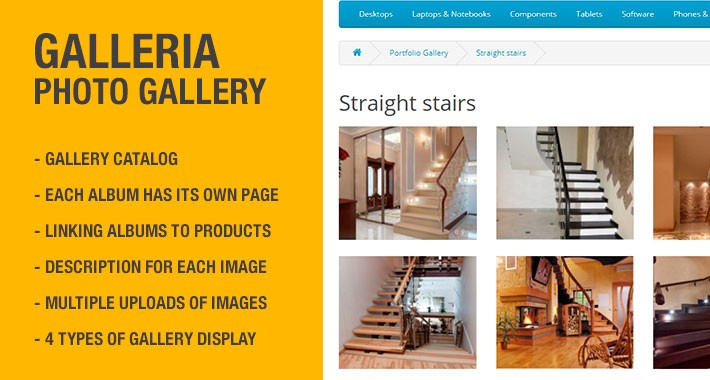
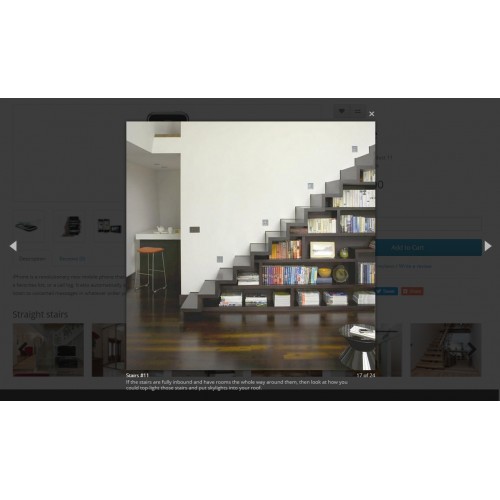
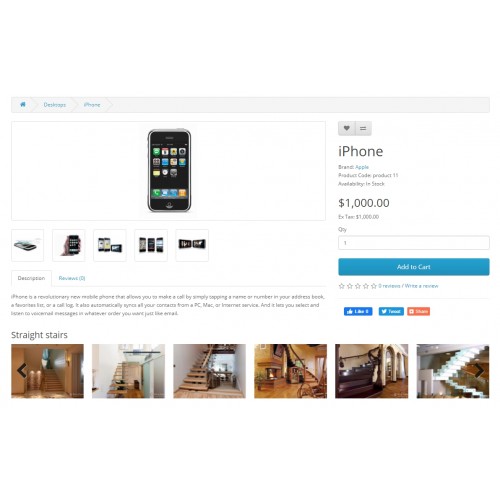
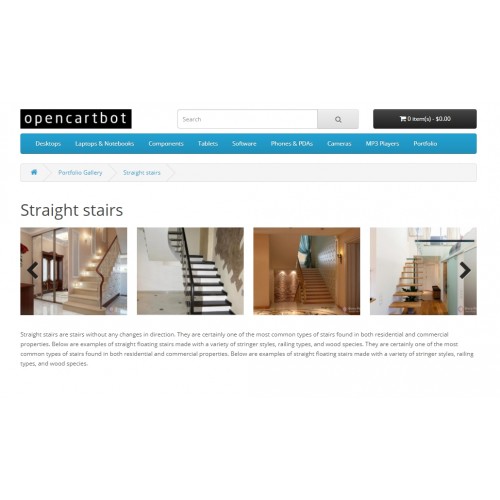
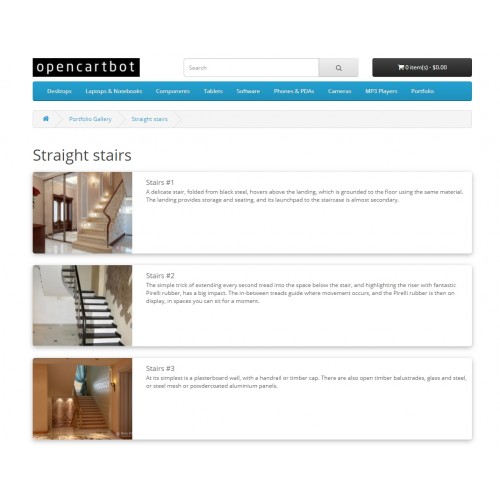
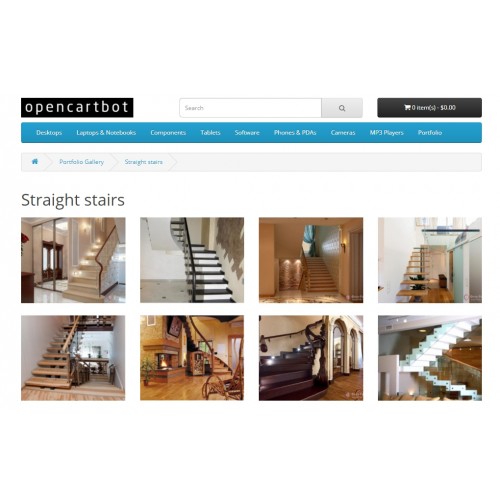

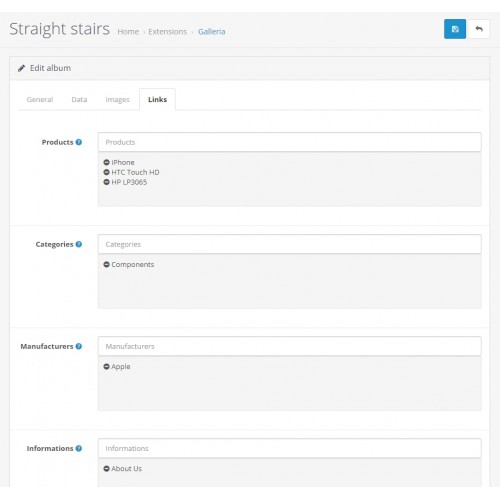
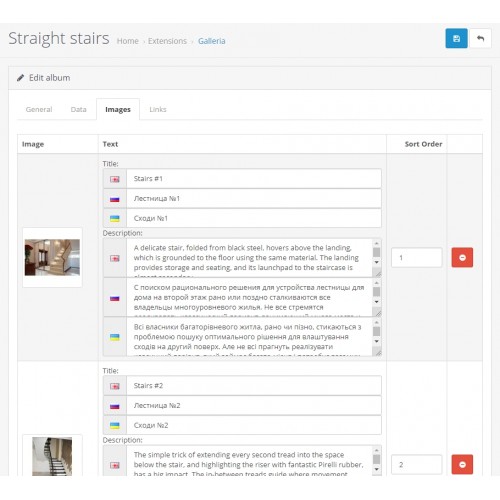
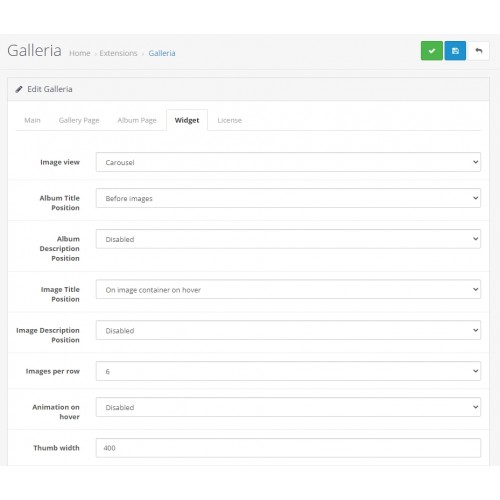
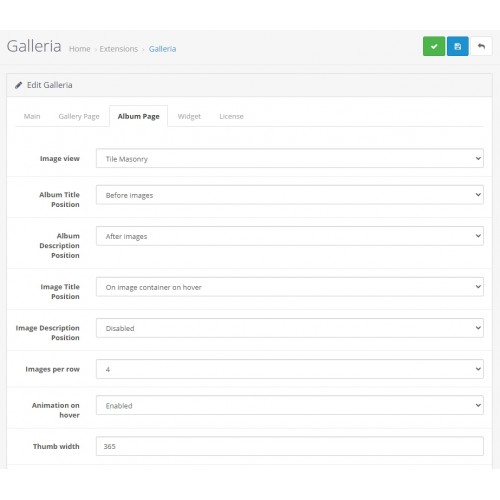
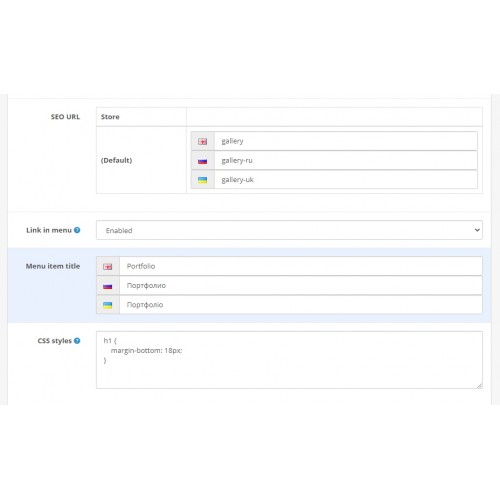
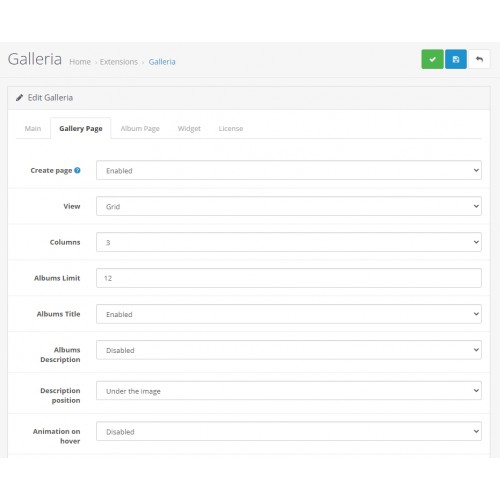
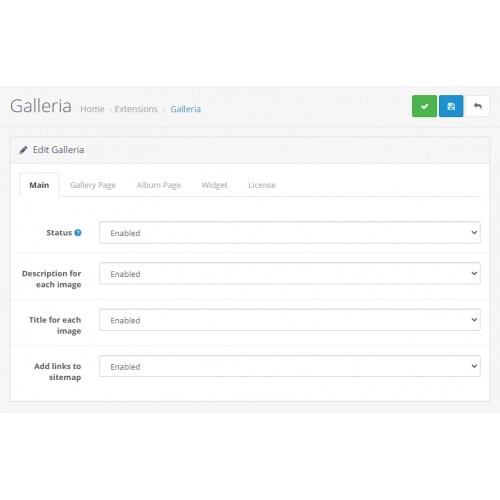
Galleria: Photo Gallery Module for OpenCart 3 is designed to quickly implement a full-fledged photo gallery in an online store. This module has a lot of different settings and it will allow you to create just such a gallery as you need. It is a powerful tool for creating both single galleries and cataloging albums. It is possible to link photo galleries to products, categories, manufacturers, pages and automatically display galleries on these pages.
The set additionally includes a module "Galleria Featured Albums", which allows you to display some galleries on any page of the site. This add-on allows you to create as many such gallery blocks as you like and set different output settings for them. For example, you can display a one gallery as a grid of images, the other as a carousel, etc.
DEMO
DEMO Admin
Login/password: demo
What can be used extension Galleria for OpenCart 3:
Features of the module:
Module configuration note
Module installation instructions:
The set additionally includes a module "Galleria Featured Albums", which allows you to display some galleries on any page of the site. This add-on allows you to create as many such gallery blocks as you like and set different output settings for them. For example, you can display a one gallery as a grid of images, the other as a carousel, etc.
DEMO
DEMO Admin
Login/password: demo
What can be used extension Galleria for OpenCart 3:
- create a portfolio, photo gallery of works with descriptions and meta tags. You can arrange it as a separate page on the site or as a module on one of the pages;
create a page "Our services" with examples of implementation and a description of each service;
create galleries with examples of the use / application of products, with automatic display on product pages;
display scans of documents, certificates, diplomas etc. on the OpenCart website;
blogging;
create a section "News" or "Articles", there is a list of entries.
Features of the module:
- gallery catalog (albums) - a separate page with description and SEO meta tags
adding a link to the main menu and the menu in the footer (for the default template)
a separate photo gallery (album) not included in the gallery catalog
a separate module for displaying photo galleries on any pages of the site
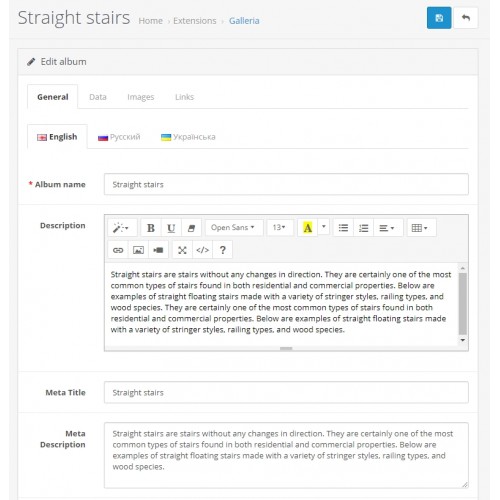
each album has its own page with description and meta tags
linking albums to products, categories, manufacturers, pages
automatic display of the widget of linked albums in products, categories, manufacturers, pages
separate output settings for gallery, album, widget, featured albums module
title and description for each image (optional, can be disabled)
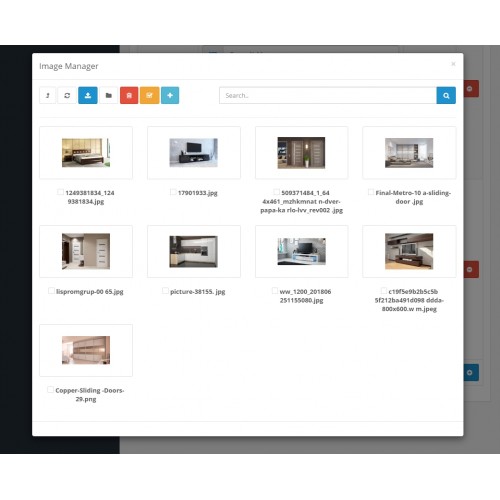
multiple uploads of images to the album
drag-and-drop sorting of images
4 types of image display: Grid, List, Carousel, Masonry Tiles
for Grid and Carousel, you can select the number of images in a row
selection of the display position of the title and description for images and albums
animation when hovering over an image
smart cropping of preview images to specified sizes, without white borders
custom CSS for each type of output (gallery, album, widget, module) for custom styling
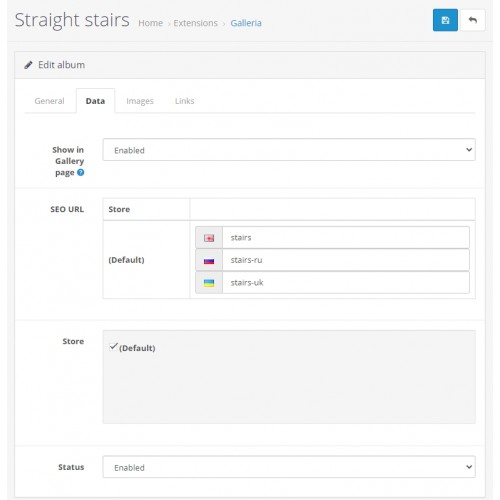
support multilingual store
adding links to the sitemap
support seo_url and seo_pro
the module was developed adhering to the OpenCart standards
Module configuration note
- some options from the module settings work only with certain other settings;
when selecting the display of images in the "List" view, the setting of the position of the title and description of the image is not important;
when choosing to display images in the "Masonry" view, the number of images in a row (columns) is controlled only by the "Image Width" field. In the module settings, you need to select the required image width in order to achieve the required number of images in a row. With this type of output, "Image height" is not taken into account from the settings, this field can be ignored. The height of the images will be automatically determined according to the proportions of the original image.
Module installation instructions:
- Upload the module in the admin panel in the "Extensions" : "Install".
Go to the "Modifications" section and update the cache.
Go to the "Dashboard" section and update the template cache.
Go to the "System" : "Users" : "User groups" : "Administrators" : set the checkboxes "common/galleriamanager"
Go to the "Extensions" : "Extensions" : "Modules" and enable the module "Galleria" .
Edit the "Galleria" module. Enable the module status and configure all its options to suit your needs and save the settings.
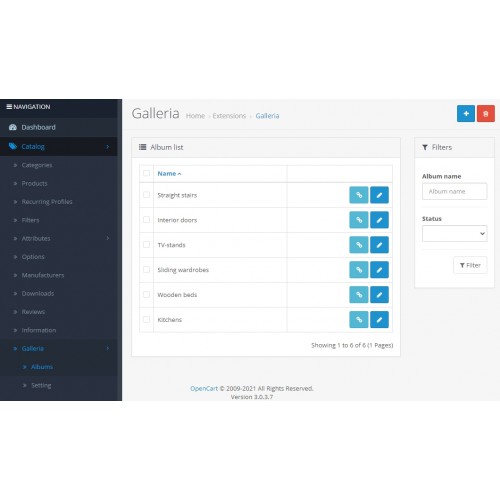
In the "Catalog" section, the "Gallery" section should appear, where you can create albums with images and descriptions, link them to products, categories, manufacturers and pages.
If there is a need to display some albums on other pages - you need to enable module "Galleria Featured Albums", create a module for display, select the necessary albums there and set the settings, display it through the section "Design" : "Layouts" to any site layout.
Price
$29.99
- Developed by OpenCart Partner
- 12 Months Free Support
- Documentation Included
Rating
Compatibility
3.0.0.0, 3.0.1.0, 3.0.1.1, 3.0.1.2, 3.0.1.3, 3.0.2.0, 3.0.3.0, 3.0.3.1, 3.0.3.2, 3.0.3.3, 3.0.3.5, 3.0.3.6, 3.0.3.7, 3.0.3.8, 3.0.3.9, 3.0.4.0, 3.0.4.1, 3.0.5.0
Last Update
17 Apr 2026
Created
30 Mar 2022
9 Sales
4 Comments

Login and write down your comment.
Login my OpenCart Account