Google Maps: Show any locations on own map
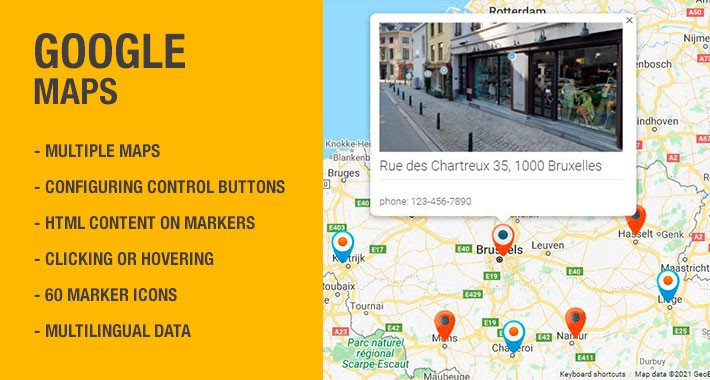
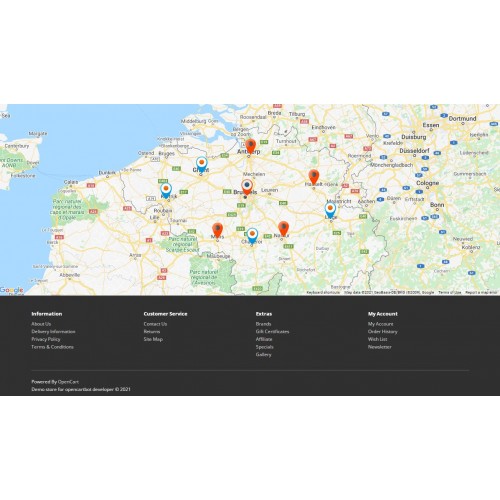

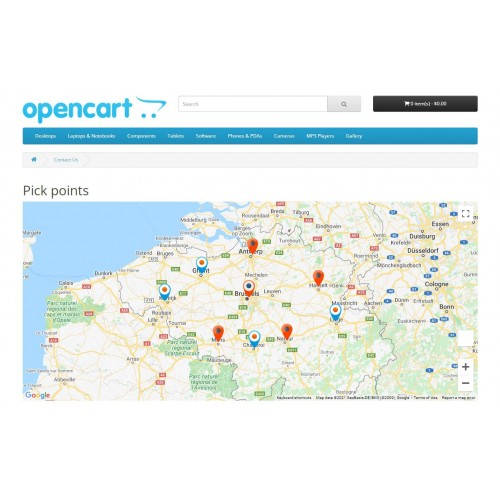


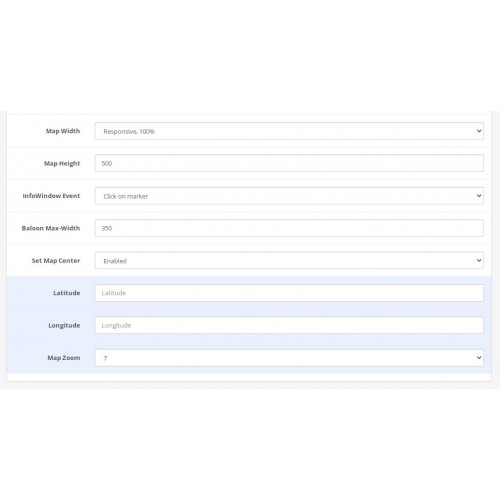

OpenCart Google Maps Module - add custom maps to any page on your site, be it home page or contact page. The wide functionality of the module allows you to create maps for every taste. You can implement maps of the location of stores, retailers, distributors, representatives in regions and countries, points of delivery of goods, offices or sites. Using this module, you can create as many different maps as you want and display even several maps on one page.
Features of the Google Maps module for OpenCart 3
Using this module, you can create many different maps and display them on different pages. To create a map and add points of location of objects to it, you need to click on the "+" button in the list of modules near the Google Maps extension. Geo maps will help you orient your clients about the location of your points on the map.
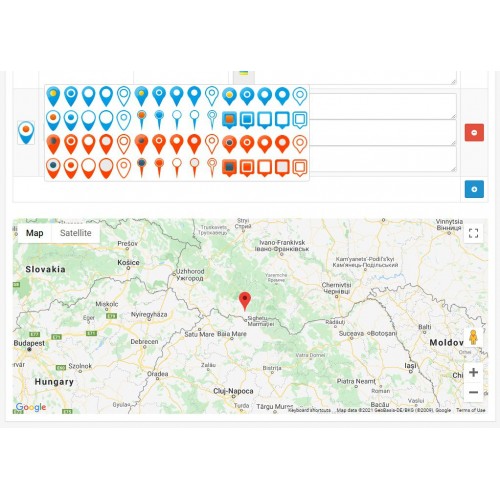
The advantage of our module is its ample opportunities for flexible customization of the map to suit your needs, as well as the simplicity of adding points to the map. Each point can be assigned its own marker icon, as well as any HTML content that will be shown in a pop-up window when you click or hover the mouse cursor over the marker.
For maps to work, you need to obtain an API Key from the Google Maps Platform service. The module is compatible with any OpenCart 3 templates.
DEMO MAP
DEMO ADMIN (demo/demo)
Module installation instructions:
Features of the Google Maps module for OpenCart 3
- - multi-instance extension
- 4 types of maps - regular, terrain, satellite, satellite map with signatures
- configuring the map control buttons
- width: fixed, responsive or full-width
- manual or automatic determination of the map center and initial scale
- 60 kinds of map marker icons
- automatic recording of the coordinates of points in the fields when moving the marker on the map
- displaying additional information by clicking or hovering the mouse over the placemarks on the map
- HTML content on markers
- heading title for map
- any HTML before and after the map
- support multilanguage data
Using this module, you can create many different maps and display them on different pages. To create a map and add points of location of objects to it, you need to click on the "+" button in the list of modules near the Google Maps extension. Geo maps will help you orient your clients about the location of your points on the map.
The advantage of our module is its ample opportunities for flexible customization of the map to suit your needs, as well as the simplicity of adding points to the map. Each point can be assigned its own marker icon, as well as any HTML content that will be shown in a pop-up window when you click or hover the mouse cursor over the marker.
For maps to work, you need to obtain an API Key from the Google Maps Platform service. The module is compatible with any OpenCart 3 templates.
DEMO MAP
DEMO ADMIN (demo/demo)
Module installation instructions:
- 1. Get API Key in Google Maps Platform service (instruction)
2. Upload the module in the admin panel in the "Extensions" : "Install".
3. Go to the "Extensions" : "Extensions" : "Modules" and enable the module.
4. Edit module. Enable the status of the module and adjust all its options to your needs and save the settings.
5. Display maps on the required pages in the "Design": "Layouts"
6. Check module operation.
Price
$29.99
- Developed by OpenCart Partner
- 12 Months Free Support
- Documentation Included
Rating
Compatibility
2.3.0.0, 2.3.0.1, 2.3.0.2, 3.0.1.0, 3.0.1.1, 3.0.1.2, 3.0.1.3, 3.0.2.0, 3.0.3.0, 3.0.3.1, 3.0.3.2, 3.0.3.3, 3.0.3.5, 3.0.3.6, 3.0.3.7, 3.0.3.8, 3.0.3.9, 3.0.4.0, 3.0.4.1
Last Update
19 May 2025
Created
3 Apr 2022
2 Sales
1 Comments

Login and write down your comment.
Login my OpenCart Account