Apirone Crypto Payments for Opencart

Apirone has released an updated OpenCart plugin to accept payments in cryptocurrencies.
Since version 1.2.0 the service fee can be two types:
in fixed amount for any outcoming transfer or
charged in the amount of 1% for any sum withdrawn.
The plugin uses a percentage fee plan as default.
The plugin expands the opportunities for merchants who use OpenCart for their online stores. It allows accepting payments in cryptocurrencies supported by Apirone and uses the Apirone service as a gateway to accept cryptocurrencies. The system does not store clients’ funds but forwards the payments directly to the addresses specified by the online store owner. It is called simple forwarding payment. Read more about it in our documentation.
The source code of the plugin can be found in this open repository.
Key features
Payments are automatically forwarded from a temporarily generated crypto-address directly into your wallet (any temporary address associates the payment with an exact order).
The payment gateway charges either a fixed fee which does not depend on the amount of the order or a percentage fee in the amount of 1% of the transfer. Small payments are totally free of service fees. See about fee plans on https://apirone.com
You do not need to complete a KYC/Documentation to start using our plugin. Just fill in settings and start your business.
White label processing (your online store accepts payments on the store side without redirects, iframes, advertisements, logo, etc.).
This plugin works well all over the world.
Tor network support.
Requirements
Since version 2.0.0 the plugin has been based on Apirone SDK PHP that works on PHP v.7.4+. So the minimum PHP version is 7.4. PHP v.8.0+ is recommended.
Plugin Installation
1. To get started, download the plugin for your OpenCart version.
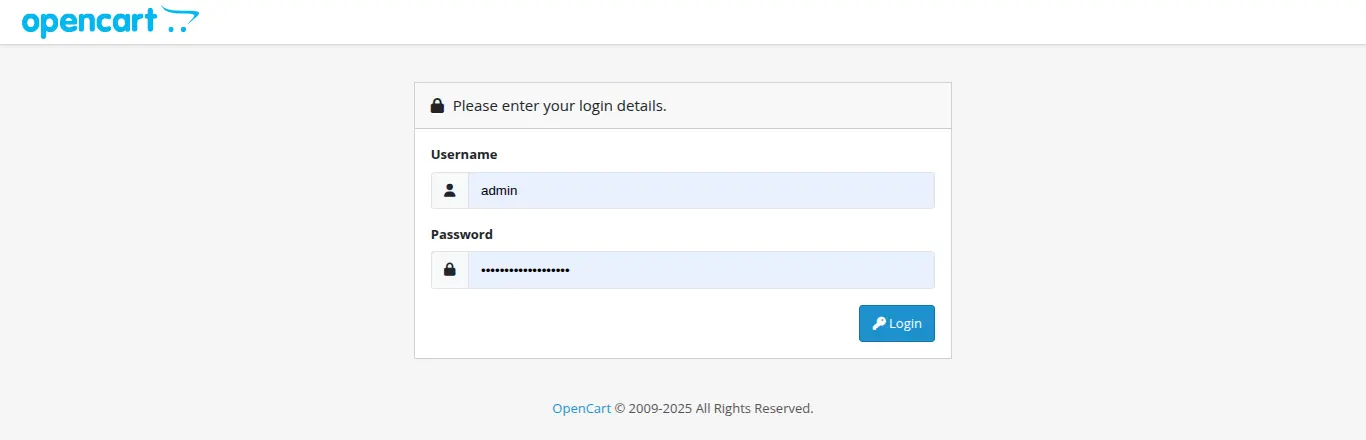
2. Log in to your OpenCart Admin Area.
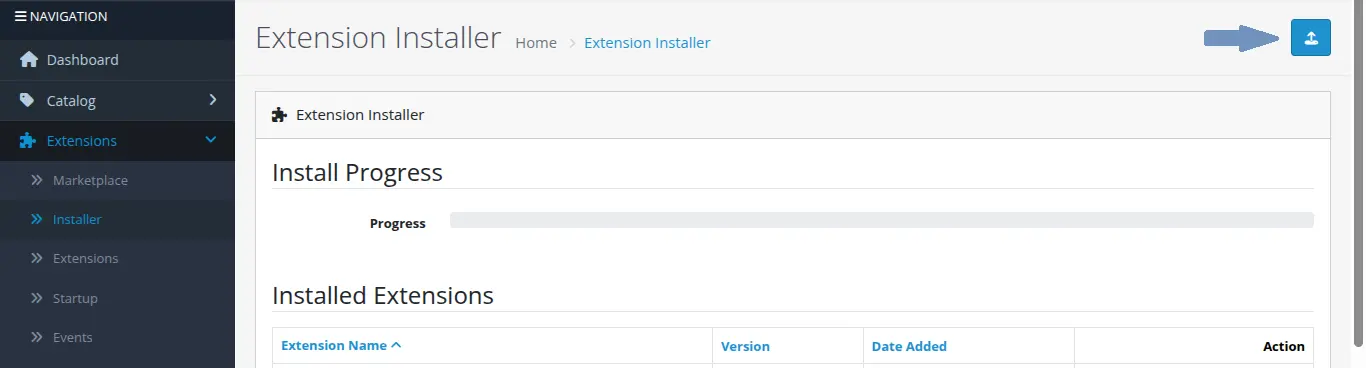
3. From the menu go to Extensions >> Installer and click the button Upload.
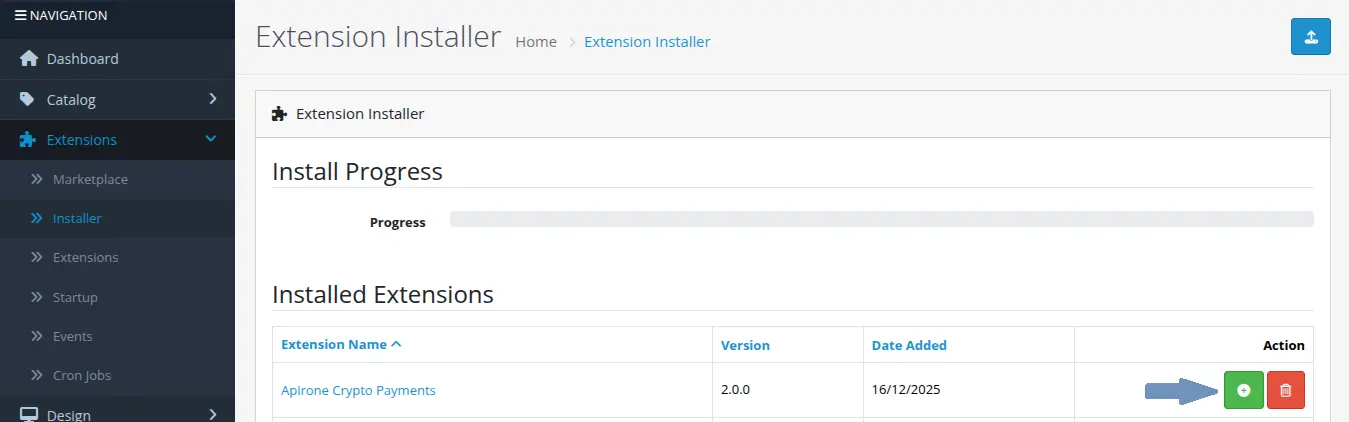
After successful upload, the plugin will appear in the list of added plugins.
To complete the installation, click the plus button next to the plugin.
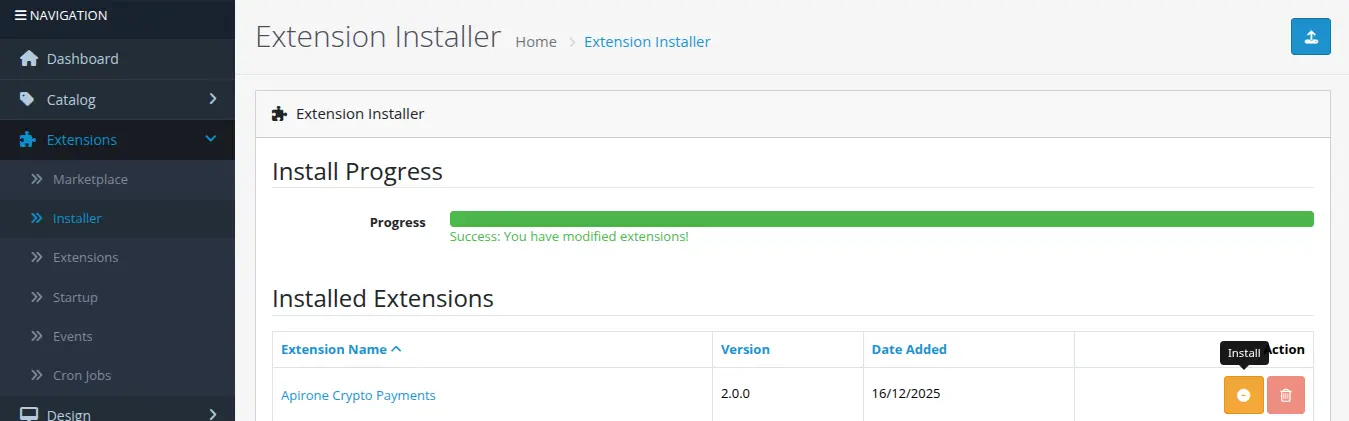
On success installation you will see:
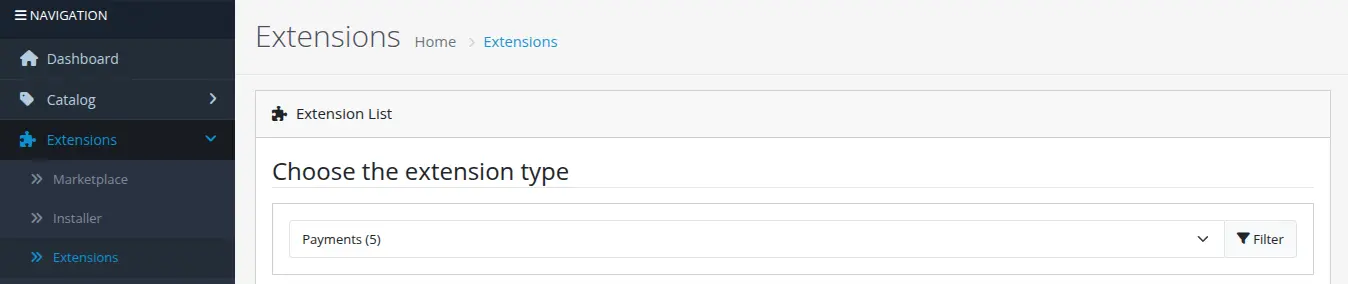
4. Then go to Extensions >> Extensions. Choose the Payments type from the Extensions list.
5. Then add Apirone Crypto Payments by clicking the plus button.
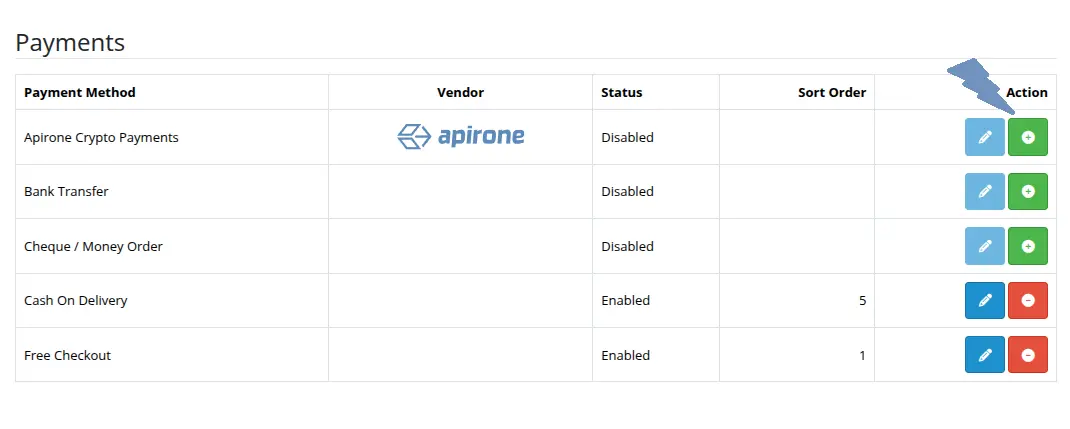
6. To customize all your data click the pencil icon.

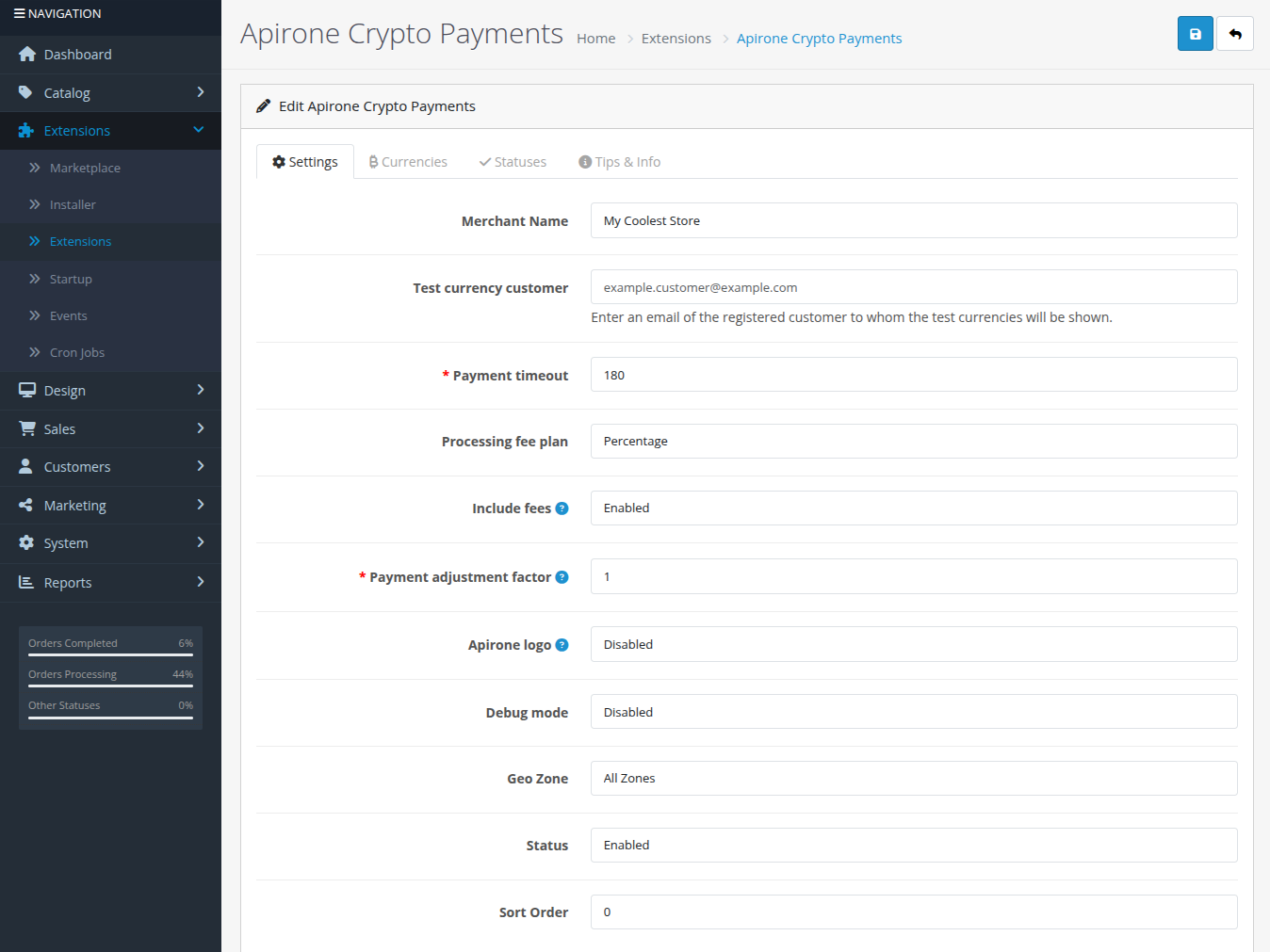
7.1 - Step 1 - Module settings
Merchant name: Shows Merchant name on the plugin invoice page. If this field is empty, the store name from general OpenCart settings will be displayed for a customer.
Test currency customer: Enter an email of the registered customer to whom the test currencies will be shown or * for any customer. Use this field for test only purposes!
Payment timeout: The period during which a customer shall pay. Set value in seconds. The default value is 1800 (30 minutes).
Processing fee plan: Processing fee plan may be percentage or fixed. More information see on https://apirone.com
Include fees: Adds service and network fees to total. The final amount per coin will be shown to the customer. Disabled by default.
Price adjustment factor: If you want to add/subtract percent to/from the payment amount, use the following price adjustment factor multiplied by the amount. The default value is 1.
For example: 100% * 0.99 = 99% | 100% * 1.01 = 101%
Apirone Logo: Shows the Apirone logo on the invoice page. Enabled by default.
Debug mode: Writes debug information into the log file. Disabled by default.
GeoZone: Select the geographical zones for which the plugin will be displayed. Default value is All Zones that means the payment method will be available in any geographical location.
Status: Enable or disable plugin. Disabled by default.
Sort Order: Plugin position in the list of payment methods.
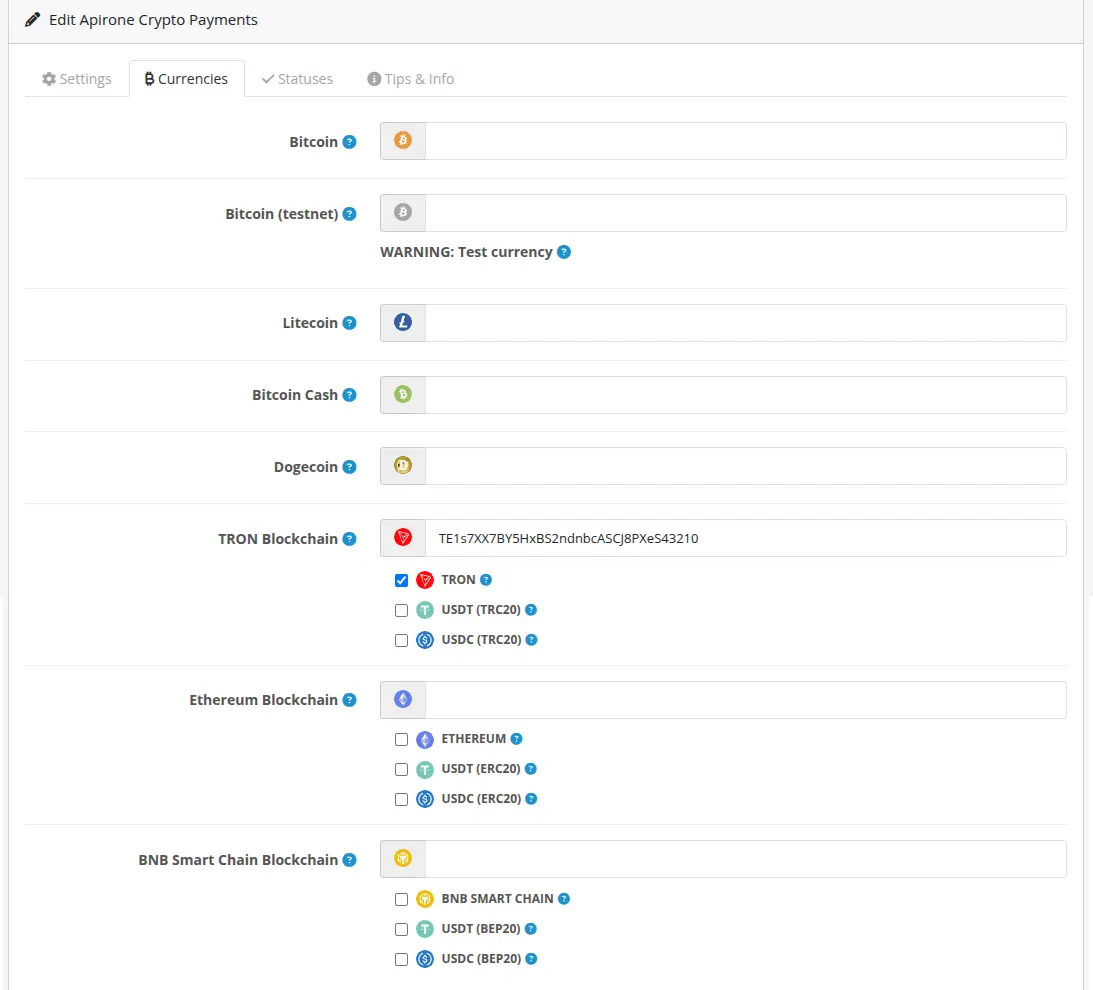
7.2. Step 2 – Setup your cryptocurrencies addresses
Fill in the valid addresses of the currencies you want to accept. All currencies that have Testnet in their names are used for testing purposes and are displayed to the registered customer whose email is specified in the Test currency customer field or to any customer if * is specified in this field.
For currencies with tokens check the check-boxes for the main network currency or any token. If no check-boxes are checked for the currency even with a filled valid address the currency will not appear in the currency selector.
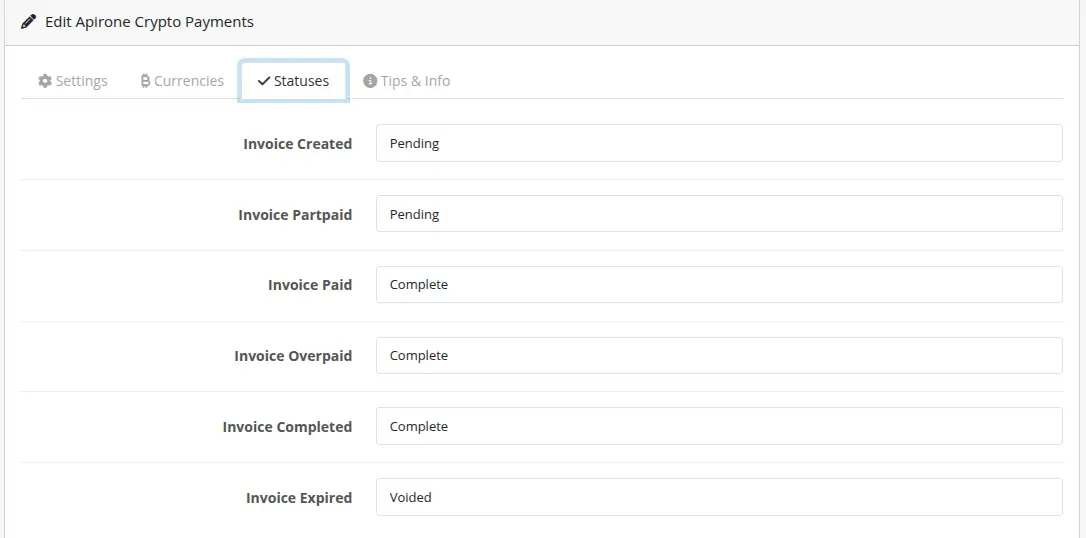
7.3. Step 3 – Statuses setup
Configure the correspondence between OpenCart statuses and Apirone account statuses as you wish. By default, statuses are set as OpenCart recommended.
How do I install the plugin
How to configure the plugin
How does it work
Installation
Download the build for your Opencart version:
Opencart 2 - apirone-crypto-payments.oc2.vX.X.X.ocmod.zip
Opencart 3 - apirone-crypto-payments.oc3.vX.X.X.ocmod.zip
Opencart 4 - apirone-crypto-payments.oc4.vX.X.X.ocmod.zip
Important for Opencart 4 - Rename file to apirone.ocmod.zip
Update
OpenCart v3 updating:
Opencart 4 updating
Without deleting the installed plugin, unpack the data archive into the extensions/apirone directory
For all OpenCart versions:
On the Currencies tab of the plugin settings for currencies that have tokens and a valid address filled, check the check-boxes for the main currency of the network or any token.
Since version 1.2.0 the service fee can be two types:
The plugin uses a percentage fee plan as default.
The plugin expands the opportunities for merchants who use OpenCart for their online stores. It allows accepting payments in cryptocurrencies supported by Apirone and uses the Apirone service as a gateway to accept cryptocurrencies. The system does not store clients’ funds but forwards the payments directly to the addresses specified by the online store owner. It is called simple forwarding payment. Read more about it in our documentation.
The source code of the plugin can be found in this open repository.
Key features
Requirements
Since version 2.0.0 the plugin has been based on Apirone SDK PHP that works on PHP v.7.4+. So the minimum PHP version is 7.4. PHP v.8.0+ is recommended.
Plugin Installation
1. To get started, download the plugin for your OpenCart version.
2. Log in to your OpenCart Admin Area.
3. From the menu go to Extensions >> Installer and click the button Upload.
After successful upload, the plugin will appear in the list of added plugins.
To complete the installation, click the plus button next to the plugin.
On success installation you will see:
4. Then go to Extensions >> Extensions. Choose the Payments type from the Extensions list.
5. Then add Apirone Crypto Payments by clicking the plus button.
6. To customize all your data click the pencil icon.
7.1 - Step 1 - Module settings
Merchant name: Shows Merchant name on the plugin invoice page. If this field is empty, the store name from general OpenCart settings will be displayed for a customer.
Test currency customer: Enter an email of the registered customer to whom the test currencies will be shown or * for any customer. Use this field for test only purposes!
Payment timeout: The period during which a customer shall pay. Set value in seconds. The default value is 1800 (30 minutes).
Processing fee plan: Processing fee plan may be percentage or fixed. More information see on https://apirone.com
Include fees: Adds service and network fees to total. The final amount per coin will be shown to the customer. Disabled by default.
Price adjustment factor: If you want to add/subtract percent to/from the payment amount, use the following price adjustment factor multiplied by the amount. The default value is 1.
For example: 100% * 0.99 = 99% | 100% * 1.01 = 101%
Apirone Logo: Shows the Apirone logo on the invoice page. Enabled by default.
Debug mode: Writes debug information into the log file. Disabled by default.
GeoZone: Select the geographical zones for which the plugin will be displayed. Default value is All Zones that means the payment method will be available in any geographical location.
Status: Enable or disable plugin. Disabled by default.
Sort Order: Plugin position in the list of payment methods.
7.2. Step 2 – Setup your cryptocurrencies addresses
Fill in the valid addresses of the currencies you want to accept. All currencies that have Testnet in their names are used for testing purposes and are displayed to the registered customer whose email is specified in the Test currency customer field or to any customer if * is specified in this field.
For currencies with tokens check the check-boxes for the main network currency or any token. If no check-boxes are checked for the currency even with a filled valid address the currency will not appear in the currency selector.
7.3. Step 3 – Statuses setup
Configure the correspondence between OpenCart statuses and Apirone account statuses as you wish. By default, statuses are set as OpenCart recommended.
How do I install the plugin
How to configure the plugin
How does it work
Installation
Download the build for your Opencart version:
Important for Opencart 4 - Rename file to apirone.ocmod.zip
- Go to Extensions >> Installer and upload the plugin file.
- Go to Extensions » Extensions. Choose Payments from the dropdown menu.
- Click the Install (the green plus) button to install the Apirone Crypto Currency plugin.
- Click the Edit button.
- Enter your cryptocurrency addresses for desired cryptos and switch plugin Status to enable the plugin.
Update
OpenCart v3 updating:
- Download the build for Opencart v3
- Without deleting the old plugin version, install using the admin panel.
- Go to the plugin settings page.
- All values should be from the previous version.
- Check the status mapping and, if necessary, set the statuses you use for various invoice states.
Opencart 4 updating
Without deleting the installed plugin, unpack the data archive into the extensions/apirone directory
For all OpenCart versions:
On the Currencies tab of the plugin settings for currencies that have tokens and a valid address filled, check the check-boxes for the main currency of the network or any token.
What customers say about Apirone Crypto Payments for Opencart

Extention has saved my time so accurate and user friendly highly recommended.
~mustafajamal
~mustafajamal
A good module, I can't say anything bad about it. It is sad that there is no USDT for payments.
~istiakfahad
~istiakfahad
I am grateful for this plugin for Opencart. With it, I was able to connect the acceptance of payment in cryptocurrency. Thanks to the developers of this plugin
~Taylor1
~Taylor1
Download
- Developed by OpenCart Community
- Documentation Included
Rating
Compatibility
2.2.0.0, 2.3.0.0, 2.3.0.1, 2.3.0.2, 3.0.3.0, 3.0.3.1, 3.0.3.2, 3.0.3.3, 3.0.3.5, 3.0.3.6, 3.0.3.7, 3.0.3.8, 3.x.x.x, 3.0.3.9, 3.0.4.1, 3.0.5.0, 4.x.x.x, 4.0.2.0, 4.0.2.1, 4.0.2.2, 4.0.2.3, 4.1.0.0, 4.1.0.1, 4.1.0.2, 4.1.0.3
Last Update
23 Jan 2026
Created
6 Jun 2022
350 Downloads
14 Comments

Login and write down your comment.
Login my OpenCart Account