Advance Promotion and Pricing Rules


OpenCart Advance Promotion and Pricing Rules Extension is designed to create offers and discounts using promotion rules for customers. The admin can create offers for individual products, categories, or even customized customer groups. This extension comes with conditions, which when fulfilled, applies offers in cart and catalog values. These offers also apply during checkout if the customers fulfil a few conditions set with product fields. Admin has the complete access to create time sensitive offers. This extension thus ensures higher sales based on promotion capabilities further enhancing customer engagement.
Business Values
- Personalized offers for specific customer groups and conditional promotion rules leads to repeated purchases by those customers increasing sales rate and revenue.
- Promotion rules on mass product categories can be strategically used to deal with slow moving inventory, thus making sure that no loss is faced due to unsold stock.
- Time sensitive promotions also create a sense of urgency within customers that also attracts new customers. Hence this can help to stand out among competitors.
Features
- Admin has the access to create promotion rules for all kinds of products.
- Admin can create offers for individual products, and even product categories.
- Admin can provide promotion rules based on the total cart amount.
- Admin can also extend offers and discounts based on the checkout conditions.
- The extension comes with product field conditions that applies offers on an order during the checkout process.
- Admin can provide promotion rules for checkout conditions with product fields.
- The condition configuration offers ALL and ANY conditions, under which the offer applies only when all the product fields are fulfilled, or when any one of the product fields apply respectively.
- Admin can also set promotion rules in details by creating rule name, its description, and customer group.
- Admin can set the time validity of a promotion rule by setting its start date and end date of the offer.
- It is up to the admin to extend either a fixed amount of discount or a percentage-based discount.
- The admin can set the discount type as well as the amount for the offer.
- Admin can set the sort order, that is, the priority of the promotion rule.
How does Advanced Promotion Rules extension functions?
It creates Promotion rules for Product and Categories under Catalog Price Rule configuration and Cart Price Rule configuration is used to create Promotion rules for cart price and checkout condition.
How to apply offers for Catalog Price Rule?
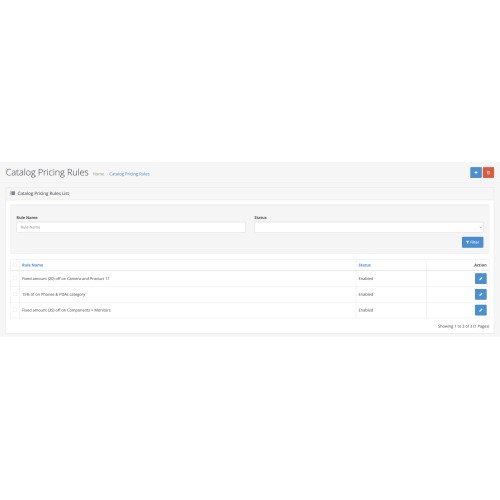
The admin can create promotion rule in Catalog Price Rule configuration for applying offers for Products and Categories.
- Let’s say, the admin created a promotion rule named ‘30% off for wholesaler’ that is meant to apply offers on Categories like components, Components > Mice and Trackballs, Components > Monitors > test 1, Cameras and Components > Monitors and products like Product 15, Product 3, Product 21, Product 1 and Product 14.
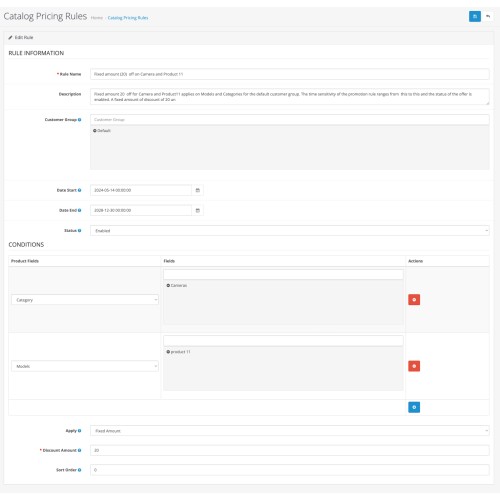
- The admin has to first assign the promotion rule with a rule name, that is, ‘30% off for wholesaler’, give a description, and assign it to a customer group. Let’s say the customer group is wholesaler. Then the admin has to give a time validity for the offer to work, with a start date and an end date. Then with status configuration, when enabled, the offer can be applied on products and when disabled, the products will be displayed without any offer.
- Now, in Condition configuration, the admin has to input the products and the categories for which the promotion rule is created. In Category Product Field, the admin can input all the categories on which the offer is applied. Similarly, in Models, the admin has to input all the Products for which the offers will be applied.
- From here on, the admin can set the amount that is to be deducted from the original amount of the product, which can either be a fixed amount or a percentage-based amount. The admin can also set the priority order of the Promotion Rule.
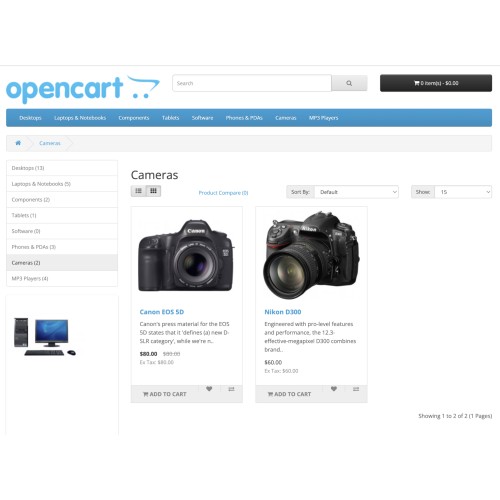
- Hence, upon successfully applying the offer in the admin end all the products under components, Components > Mice and Trackballs, Components > Monitors > test 1, Cameras and Components > Monitors categories and Product 15, Product 3, Product 21, Product 1 and Product 14 will be displayed with offers in the front end.
How to apply promotion rules in Cart Price Rule?
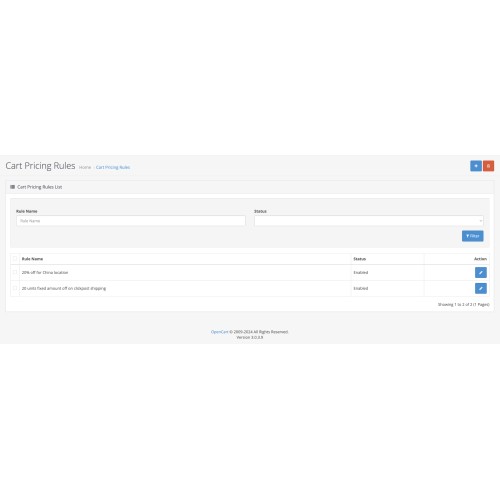
- Like mentioned, Pricing Rule is also used to create promotion rules based on cart price and checkout conditions. In Cart Price Rule configurations, similar to the Catalog Price Rule, the admin can create a promotion rule, add a description, set the start and end day of the offer, and enable and disable the offer status.
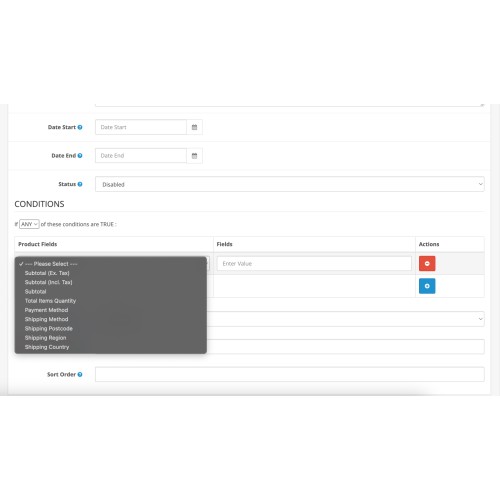
- However, in Condition configuration, the admin can set more conditions with Product Fields, and Fields based on which the offers which will be applied. Let’s take a quick look at all the Product Fields in details.
- Subtotal (Ex. Tax): When Subtotal (Ex. Tax) Product Field is selected, the offer will be applied only when the subtotal amount in the cart excluding the tax is greater than or equal to the field amount.
- Subtotal (Incl. Tax): When Subtotal (Inc. Tax) Product Field is selected, the offer will be applied only when the subtotal amount in the cart including the tax is greater than or equal to the field amount.
- Subtotal (Incl. Tax): When Subtotal (Inc. Tax) Product Field is selected, the offer will be applied only when the subtotal amount in the cart including the tax is greater than or equal to the field amount.
- Total Items Quantity: When Total Items Quantity Product Field is selected, the offer will be applied only when the total items in the cart is equal to or more than the set field number.
- Payment Method: When Payment Method Product Field is selected, the offer will be applied only when the payment is done using payment method set in field.
- Shipping Method: When Shipping Method Product Field is selected, the offer will be applied only when the shipping is done using shipping method set in field.
- Shipping Postcode: When Shipping Postcode Product Field is selected, the offer will be applied only when the product is shipped is to the postcode set in field.
- Shipping Region: When Shipping Region Product Field is selected, the offer will be applied only when the product is shipped is to the region set in field.
- Shipping Country: When Shipping Country Product Field is selected, the offer will be applied only when the product is shipped is to the country set in field.
- These product fields apply as per ALL & ANY conditions.
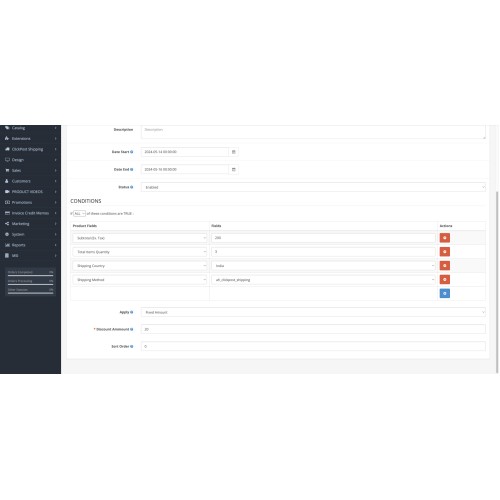
- For instance, the admin has set Subtotal, Total Items Quantity, Payment Method, Shipping Method, Shipping Region, Subtotal (Ex. Tax), Subtotal (Incl. Tax) and Shipping Country and Shipping Postcode product fields for ‘Special Rule (20% off)’ Cart Price promotion rule to stand valid.
- When ALL condition is applied, cart value and checkout conditions must fulfil all the product fields for the offer to apply. That is the cart subtotal value should be more than or equal to 1000 units, the shipping country must be United States, shipping method must be via ah_clickpost_shipping, the total quantity in the cart should be more than or equal to 2, and the payment method must be by COD, shipping region must be New York, Subtotal (Ex. Tax) should be more than or equal to 1000, Subtotal (Incl. Tax) should be more than or equal to 1200 and Shipping Postcode must be 10003 .
- However, with ANY condition, the cart value must satisfy any one of the product fields for the offer to apply. Thereafter, with Apply, the admin can set the percentage or fixed amount to be deducted from the original price of the products. Sort order is to set the priority of the promotion rule.
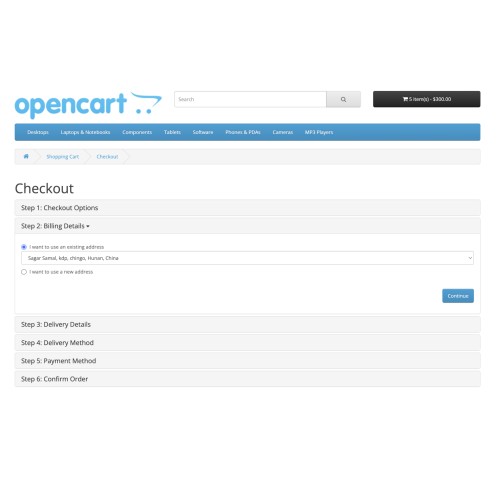
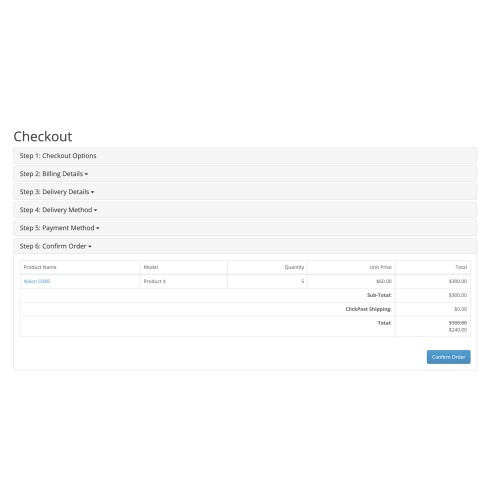
- Hence when all of these conditions are fulfilled, the offer will show in cart value and during checkout.
Demonstrations
The demo below gives you a brief of the extension:
For Admin End: Click Here
username: demo
password: demo
References:
Blog: Click Here
User Guide: Click Here
Price
$99.00
- Developed by OpenCart Community
- 3 Months Free Support
- Documentation Included
Rating
Compatibility
2.3.0.2, 3.0.0.0, 3.0.1.0, 3.0.1.1, 3.0.1.2, 3.0.1.3, 3.0.2.0, 4.x.x.x, 3.0.3.0, 3.0.3.1, 3.0.3.2, 3.0.3.3, 3.0.3.5, 3.0.3.6, 3.0.3.7, 3.0.3.8, 4.0.0.0, 4.0.1.0, 4.0.1.1, 3.x.x.x, 4.0.2.0, 4.0.2.1, 4.0.2.2, 4.0.2.3, 3.0.3.9, 3.0.4.0, 4.1.0.0, 4.1.0.1, 4.1.0.2, 4.1.0.3
Last Update
10 Apr 2025
Created
28 May 2024
0 Sales
2 Comments

Login and write down your comment.
Login my OpenCart Account