Google Tag Manager

The Playful Sparkle - Google Tag Manager extension for OpenCart 4.x+ seamlessly integrates Google Tag Manager (GTM) into your OpenCart eCommerce store without requiring any coding knowledge. Simply enter your GTM Measurement ID, and the tracking code is automatically injected into your site. This enables precise tracking and data collection for services such as Google Ads, Google Analytics, and other marketing tools.
This extension fully supports Google Consent Mode V2, which enhances privacy compliance by allowing websites to adjust tracking behavior based on user consent. Unlike the previous version, which only handled basic ad and analytics storage permissions, Consent Mode V2 expands consent signals to include ad user data and ad personalization preferences.
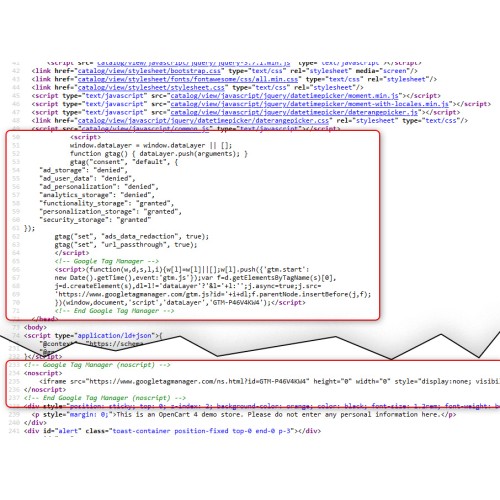
To make use of these consent settings, you must install a separate Cookie Consent Banner to collect user choices. The extension automatically configures GTM to respect these choices by dynamically setting consent states for ad storage, analytics storage, security storage, functionality storage, personalization storage, and ads data redaction.
Additionally, it supports URL Passthrough and allows setting a wait_for_update delay to defer tracking until consent is granted.
This ensures compliance with GDPR, ePrivacy, and other data regulations while maintaining effective analytics and ad tracking without slowing down your site.
This extension does not track Enhanced eCommerce events or ad conversions it only configures default consent settings for Google Tag Manager. If you require Enhanced eCommerce event tracking[b] or [b]Google Ads conversion tracking[b], you will need an additional extension such as Google Analytics (GA4)/Ads Conversion Enhanced Measurement for OpenCart 4.x+.
About Google Tag Manager
[b]Google Tag Manager (GTM) is a free tool that helps you manage marketing tags (like analytics and tracking codes) on your website without needing to touch the code. It lets marketers and developers add, update, and manage tags in real-time, without the hassle of modifying the website code every time you want to update or add a tag.
With GTM, you can easily integrate services like Google Ads, Google Analytics, and other marketing tools. This extension simplifies the process by automatically setting up GTM on your OpenCart store, so it's ready to track key metrics with minimal effort.
About Google Consent Mode V2
Google Consent Mode V2 is a feature designed to help websites comply with privacy regulations like GDPR by adjusting tracking behavior based on user consent.
In Consent Mode V1, you could only manage basic tracking permissions, such as ad storage and analytics storage. However, Consent Mode V2 extends these capabilities, allowing websites to also manage consent for ad user data and ad personalization preferences.
The main difference is that V2 offers more granular control over user consent. With Consent Mode V2, you can set consent preferences for multiple types of data (such as ad storage, analytics storage, and personalization storage) and configure more privacy-conscious features like ads data redaction and URL passthrough.
To use Consent Mode V2, you must install a separate cookie consent banner to collect user preferences. Once the user provides consent, the extension automatically applies the selected settings to Google Tag Manager, ensuring compliant tracking across your store.
Features
If you’re looking to track Google eCommerce events or Google Ads conversions, we recommend exploring our Google Analytics (GA4) / Ads Conversion Enhanced Measurement extension.
For more information, visit the extension's GitHub page at https://github.com/playfulsparkle/oc3_gtm or https://github.com/playfulsparkle/oc4_gtm.




Installation Instructions
Installation Instructions for OpenCart 3.x+
MD5 Checksum: ec4892985df0770f2c6095891773ff49
SHA256 Checksum: ff4d1a2b3ac3398bf9855d5322373f60d5814976c781911e0f24df1c0d28238d
Installation Instructions for OpenCart 4.x+
MD5 Checksum: ed95779ad79c8117c5b6cf8bee5b7622
SHA256 Checksum: b261f1e221a4bf0321a6ad970a919ea576f78ced7d1718dd7ceaaea7b35955b7
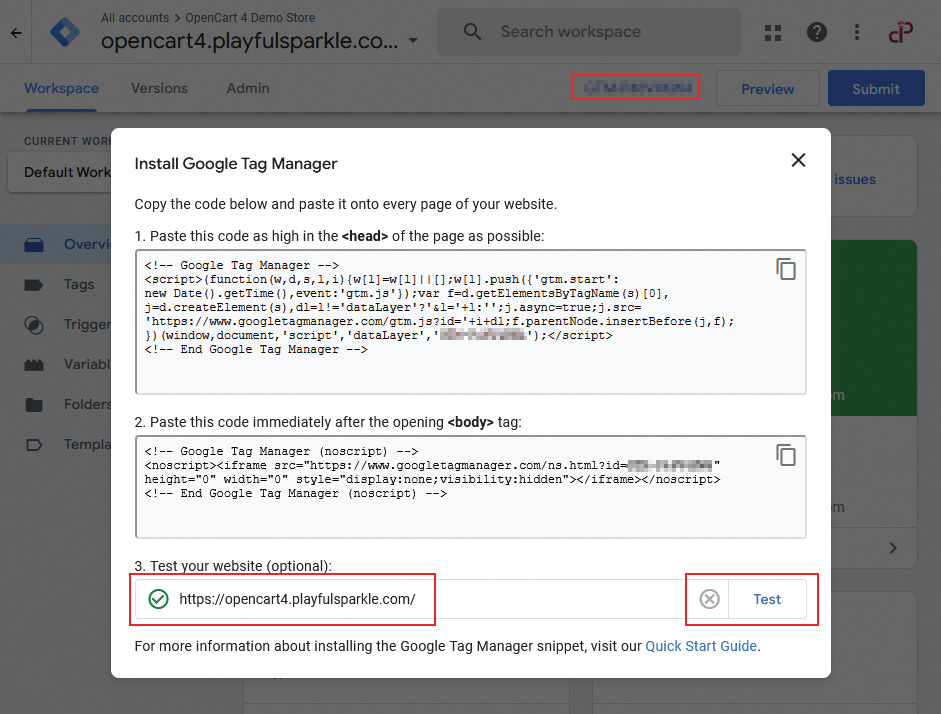
After installing the extension and set-up, visit your GTM container to verify the set-up.
Support & Inquiries
For assistance or inquiries regarding this extension, please visit our support website or contact us via email at support@playfulsparkle.com.
This extension fully supports Google Consent Mode V2, which enhances privacy compliance by allowing websites to adjust tracking behavior based on user consent. Unlike the previous version, which only handled basic ad and analytics storage permissions, Consent Mode V2 expands consent signals to include ad user data and ad personalization preferences.
To make use of these consent settings, you must install a separate Cookie Consent Banner to collect user choices. The extension automatically configures GTM to respect these choices by dynamically setting consent states for ad storage, analytics storage, security storage, functionality storage, personalization storage, and ads data redaction.
Additionally, it supports URL Passthrough and allows setting a wait_for_update delay to defer tracking until consent is granted.
This ensures compliance with GDPR, ePrivacy, and other data regulations while maintaining effective analytics and ad tracking without slowing down your site.
This extension does not track Enhanced eCommerce events or ad conversions it only configures default consent settings for Google Tag Manager. If you require Enhanced eCommerce event tracking[b] or [b]Google Ads conversion tracking[b], you will need an additional extension such as Google Analytics (GA4)/Ads Conversion Enhanced Measurement for OpenCart 4.x+.
About Google Tag Manager
[b]Google Tag Manager (GTM) is a free tool that helps you manage marketing tags (like analytics and tracking codes) on your website without needing to touch the code. It lets marketers and developers add, update, and manage tags in real-time, without the hassle of modifying the website code every time you want to update or add a tag.
With GTM, you can easily integrate services like Google Ads, Google Analytics, and other marketing tools. This extension simplifies the process by automatically setting up GTM on your OpenCart store, so it's ready to track key metrics with minimal effort.
About Google Consent Mode V2
Google Consent Mode V2 is a feature designed to help websites comply with privacy regulations like GDPR by adjusting tracking behavior based on user consent.
In Consent Mode V1, you could only manage basic tracking permissions, such as ad storage and analytics storage. However, Consent Mode V2 extends these capabilities, allowing websites to also manage consent for ad user data and ad personalization preferences.
The main difference is that V2 offers more granular control over user consent. With Consent Mode V2, you can set consent preferences for multiple types of data (such as ad storage, analytics storage, and personalization storage) and configure more privacy-conscious features like ads data redaction and URL passthrough.
To use Consent Mode V2, you must install a separate cookie consent banner to collect user preferences. Once the user provides consent, the extension automatically applies the selected settings to Google Tag Manager, ensuring compliant tracking across your store.
Features
- No-code Integration: Effortless setup—just insert your Google Tag Manager Measurement ID, and the tracking code is added automatically.
- Google Consent Mode V2: Supports Google Consent Mode V2, allowing you to manage user consent for data storage, ad personalization, and analytics tracking.
- Consent Management Compatibility: Requires a separate cookie consent banner to collect user choices and automatically applies consent preferences to GTM.
- Ads Data Redaction: Supports Ads Data Redaction to enhance privacy by limiting the transmission of identifiable ad data.
- URL Passthrough: Enables URL Passthrough to help preserve tracking information when users navigate across pages.
- Multi-store Support: Works seamlessly with OpenCart’s multi-store functionality, allowing easy integration across multiple stores.
- Compatibility: Fully compatible with OpenCart 3.x+ and 4.x+.
- Multilingual Support: Ready for international use with languages including العربية (ar), Български (bg), 中文(简体) (zh-cn), 中文(繁體) (zh-tw), Čeština (cs-cz), English (UK) (en-gb), English (US) (en-us), Français (fr-fr), Deutsch (de-de), Ελληνικά (el-gr), Magyar (hu-hu), Italiano (it-it), 日本語 (ja), 한국어 (ko-kr), Polski (pl-pl), Português (Brasil) (pt-br), Русский (ru-ru), Slovenčina (sk-sk), Español (es-es), and Türkçe (tr-tr).
If you’re looking to track Google eCommerce events or Google Ads conversions, we recommend exploring our Google Analytics (GA4) / Ads Conversion Enhanced Measurement extension.
For more information, visit the extension's GitHub page at https://github.com/playfulsparkle/oc3_gtm or https://github.com/playfulsparkle/oc4_gtm.
Installation Instructions
Installation Instructions for OpenCart 3.x+
- 1) Download the latest version from the OpenCart Marketplace.
2) Log in to your OpenCart admin panel.
3) Navigate to Extensions > Installer.
4) Click the Upload button and upload the ps_gtm.ocmod.zip file.
5) Navigate to Extensions > Extensions and select Analytics from the Choose the extension type dropdown list.
6) Locate the extension in the Analytics list and click the Install button.
7) Click the Edit button, configure the extension parameters, and click the Save button to save your settings.
8) Navigate to Extensions > Modifications, select all your modifications and click the Refresh button to update the modification cache and apply the changes.
MD5 Checksum: ec4892985df0770f2c6095891773ff49
SHA256 Checksum: ff4d1a2b3ac3398bf9855d5322373f60d5814976c781911e0f24df1c0d28238d
Installation Instructions for OpenCart 4.x+
- 1) Download the latest version from the OpenCart Marketplace.
2) Log in to your OpenCart admin panel.
3) Navigate to Extensions > Installer.
4) Click the Upload button and upload the ps_gtm.ocmod.zip file.
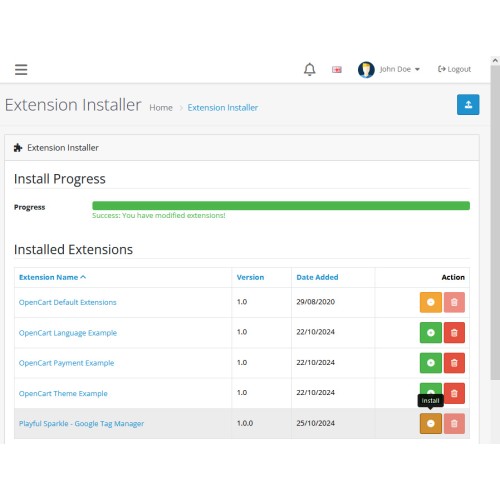
5) Locate the extension in the Installed Extensions list and click the Install button.
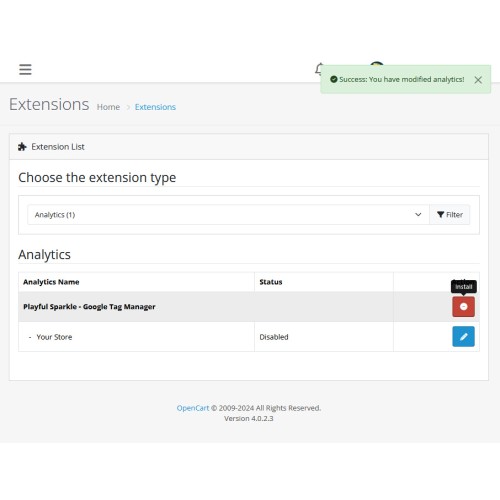
6) Navigate to Extensions > Extensions and select Analytics from the Choose the extension type dropdown list.
7) Locate the extension in the Analytics list and click the Install button.
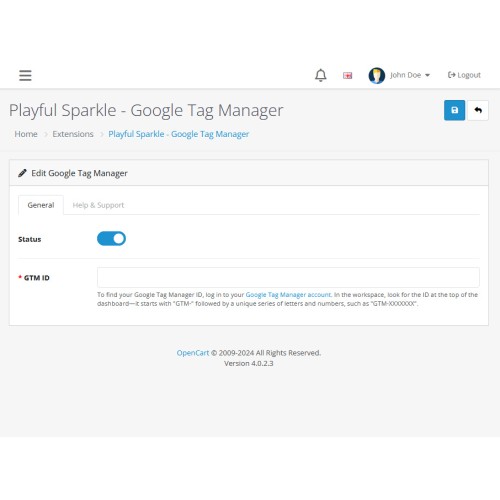
8) Click the Edit button, configure the extension parameters, and click the Save button to save your settings.
MD5 Checksum: ed95779ad79c8117c5b6cf8bee5b7622
SHA256 Checksum: b261f1e221a4bf0321a6ad970a919ea576f78ced7d1718dd7ceaaea7b35955b7
After installing the extension and set-up, visit your GTM container to verify the set-up.
Support & Inquiries
For assistance or inquiries regarding this extension, please visit our support website or contact us via email at support@playfulsparkle.com.
What customers say about Google Tag Manager

Setup was simple, and Tag setup done easily, Thanks Again
~var29
~var29
Download
- Developed by OpenCart Community
- 3 Months Free Support
- Documentation Included
Rating
Compatibility
3.0.0.0, 3.0.1.0, 3.0.1.1, 3.0.1.2, 3.0.1.3, 3.0.2.0, 3.0.3.0, 3.0.3.1, 3.0.3.2, 3.0.3.3, 3.0.3.5, 3.0.3.6, 3.0.3.7, 3.0.3.8, 3.x.x.x, 3.0.3.9, 3.0.4.0, 3.0.4.1, 3.0.5.0, 4.x.x.x, 4.0.0.0, 4.0.1.0, 4.0.1.1, 4.0.2.0, 4.0.2.1, 4.0.2.2, 4.0.2.3, 4.1.0.0, 4.1.0.1, 4.1.0.2, 4.1.0.3
Last Update
1 Apr 2026
Created
25 Oct 2024
578 Downloads
4 Comments

Login and write down your comment.
Login my OpenCart Account