Custom CSS and JavaScript for Multi-Store
Custom CSS and JavaScript for Multi-Store – OpenCart Extension
This extension allows OpenCart store owners to define unique CSS and JavaScript code for each store in a multi-store setup. This extension provides an easy way to customize the appearance and functionality of different stores without modifying core files or themes.
Key Features:
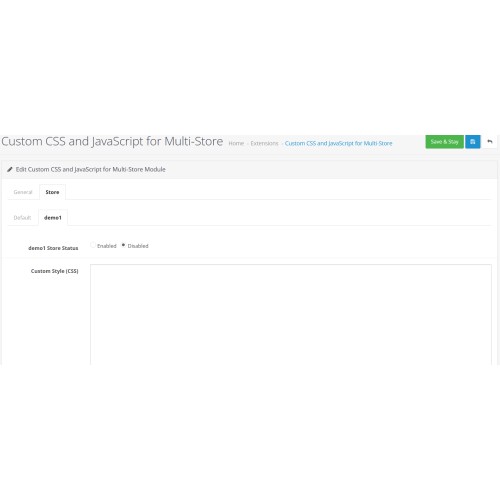
✅ Store-Specific Customization – Add unique styles and scripts for each store individually.
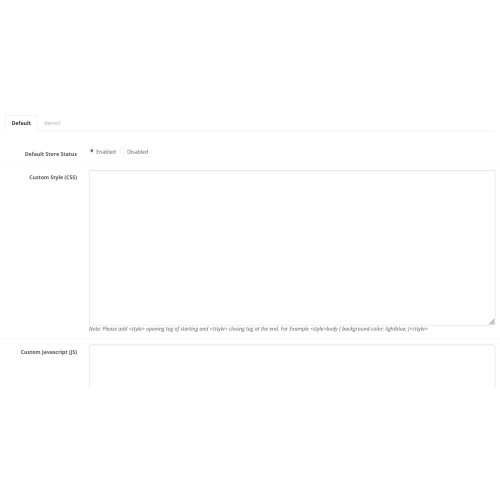
✅ Easy-to-Use Admin Panel – Manage custom CSS and JS directly from the OpenCart admin panel.
✅ Enable/Disable Per Store – Activate or deactivate custom scripts per store with a single click.
✅ Syntax Highlighting – Built-in editor with syntax highlighting for better readability.
✅ Supports External Scripts – Easily include third-party CSS and JS files.
✅ Works with Any Theme – Compatible with default and custom OpenCart themes.
✅ Error-Free Execution – Ensures JavaScript and CSS validation before applying changes.
.
.
Installation Guide
Step 1: Download the Extension
Ensure the extension is compatible with your OpenCart version.
Step 2: Upload the Extension
Method 1: Using OpenCart Admin Panel
Log in to your OpenCart admin panel.
Navigate to Extensions → Installer.
Click Upload and select the .zip file.
Wait until the upload is complete. You should see a success message.
Method 2: Manual Upload via FTP (If Required)
Extract the extension .zip file on your computer.
Use an FTP client (like FileZilla) to connect to your server.
Upload files from the extracted folder to their respective directories in OpenCart (e.g., admin, catalog, system).
Overwrite existing files if required.
Step 3: Install the Extension
Go to Extensions → Extensions.
Select the appropriate Extension Type (e.g., Module, Payment, Shipping, etc.).
Find your extension and click Install (green "+" button).
Step 4: Configure the Extension
Click the Edit button (pencil icon) next to the extension.
Adjust the settings as needed (e.g., enable/disable).
Click Save to apply changes.
Step 5: Refresh Modifications
Go to Extensions → Modifications.
Click the Refresh button (top-right corner).
Step 6: Clear Cache (Optional but Recommended)
Navigate to Dashboard → Developer Settings (gear icon in the top-right corner).
Click Clear for Theme Cache and SASS Cache.
This extension allows OpenCart store owners to define unique CSS and JavaScript code for each store in a multi-store setup. This extension provides an easy way to customize the appearance and functionality of different stores without modifying core files or themes.
Key Features:
✅ Store-Specific Customization – Add unique styles and scripts for each store individually.
✅ Easy-to-Use Admin Panel – Manage custom CSS and JS directly from the OpenCart admin panel.
✅ Enable/Disable Per Store – Activate or deactivate custom scripts per store with a single click.
✅ Syntax Highlighting – Built-in editor with syntax highlighting for better readability.
✅ Supports External Scripts – Easily include third-party CSS and JS files.
✅ Works with Any Theme – Compatible with default and custom OpenCart themes.
✅ Error-Free Execution – Ensures JavaScript and CSS validation before applying changes.
.
.
Installation Guide
Step 1: Download the Extension
Ensure the extension is compatible with your OpenCart version.
Step 2: Upload the Extension
Method 1: Using OpenCart Admin Panel
Log in to your OpenCart admin panel.
Navigate to Extensions → Installer.
Click Upload and select the .zip file.
Wait until the upload is complete. You should see a success message.
Method 2: Manual Upload via FTP (If Required)
Extract the extension .zip file on your computer.
Use an FTP client (like FileZilla) to connect to your server.
Upload files from the extracted folder to their respective directories in OpenCart (e.g., admin, catalog, system).
Overwrite existing files if required.
Step 3: Install the Extension
Go to Extensions → Extensions.
Select the appropriate Extension Type (e.g., Module, Payment, Shipping, etc.).
Find your extension and click Install (green "+" button).
Step 4: Configure the Extension
Click the Edit button (pencil icon) next to the extension.
Adjust the settings as needed (e.g., enable/disable).
Click Save to apply changes.
Step 5: Refresh Modifications
Go to Extensions → Modifications.
Click the Refresh button (top-right corner).
Step 6: Clear Cache (Optional but Recommended)
Navigate to Dashboard → Developer Settings (gear icon in the top-right corner).
Click Clear for Theme Cache and SASS Cache.
Price
$20.00
- Developed by OpenCart Community
- Documentation Included
Rating
Compatibility
3.0.0.0, 3.0.1.0, 3.0.1.1, 3.0.1.2, 3.0.1.3, 3.0.2.0, 3.0.3.0, 3.0.3.1, 3.0.3.2, 3.0.3.3, 3.0.3.5, 3.0.3.6, 3.0.3.7, 3.0.3.8, 3.x.x.x, 3.0.3.9, 3.0.4.0
Last Update
18 Mar 2025
Created
18 Mar 2025
0 Sales
0 Comments

Login and write down your comment.
Login my OpenCart Account