Real-Time Low Stock Email Alerts
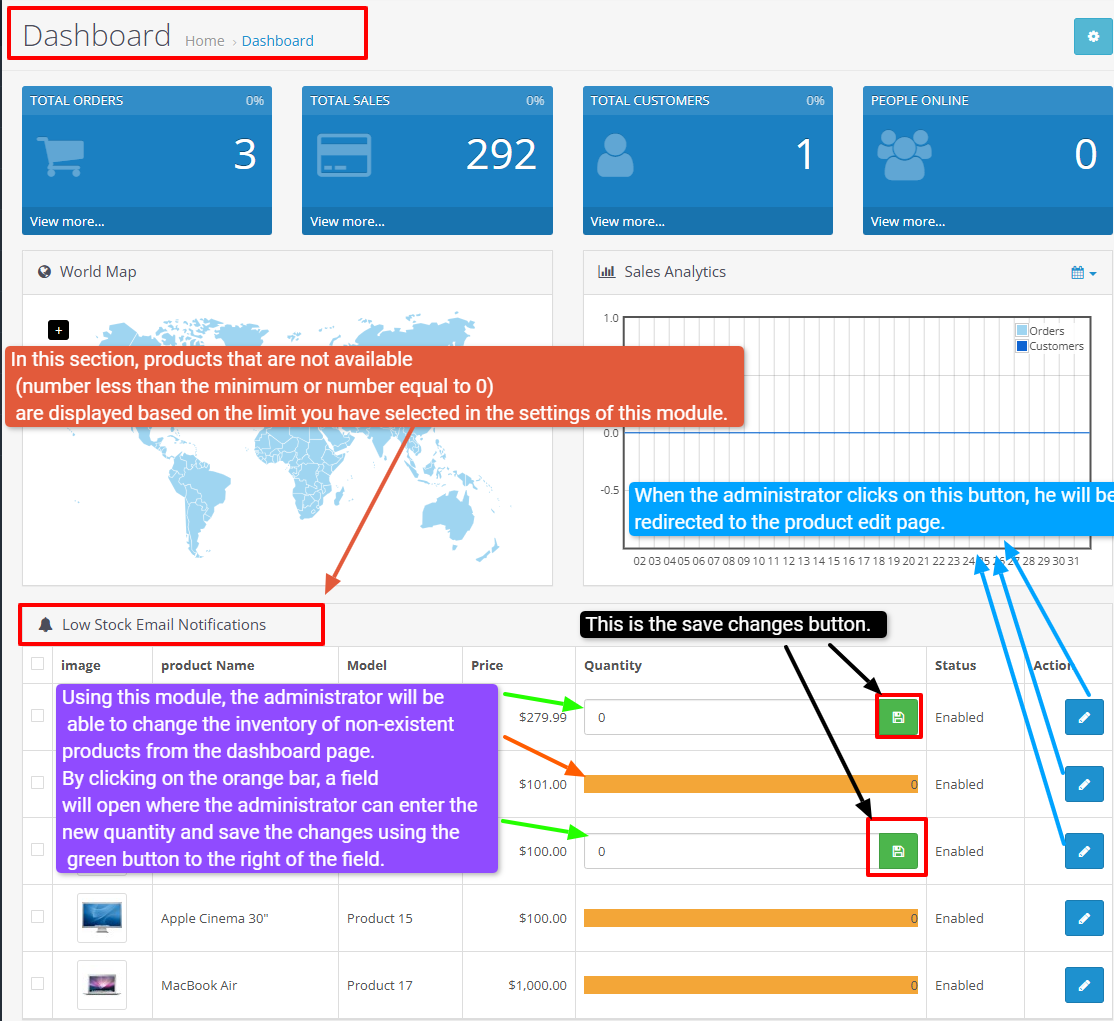
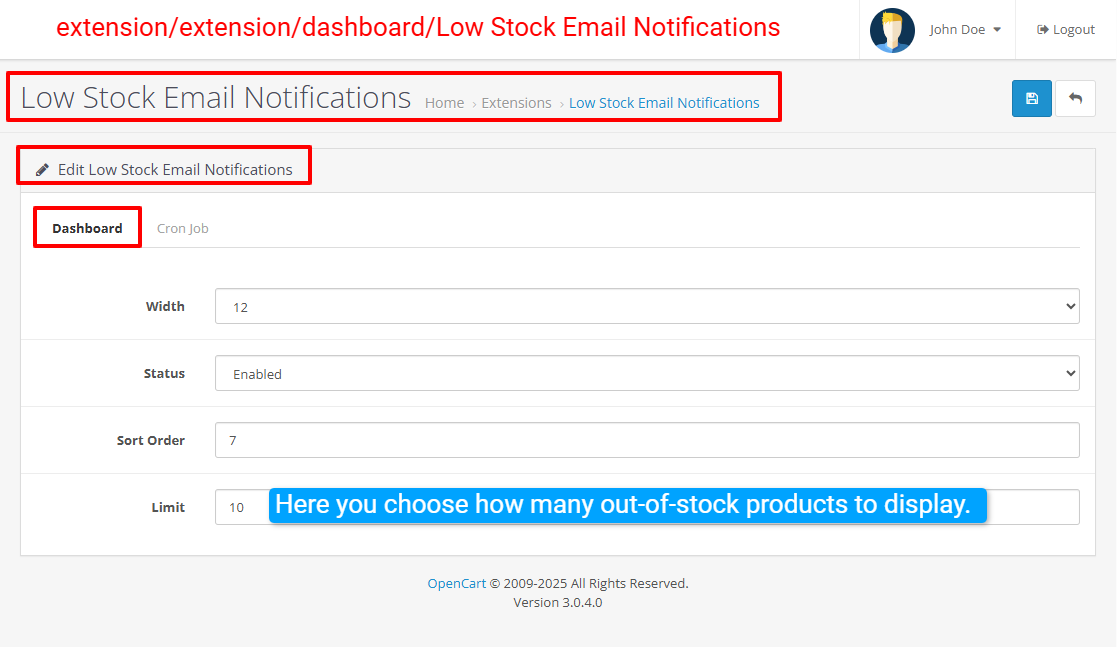
Dashboard view for out-of-stock products:
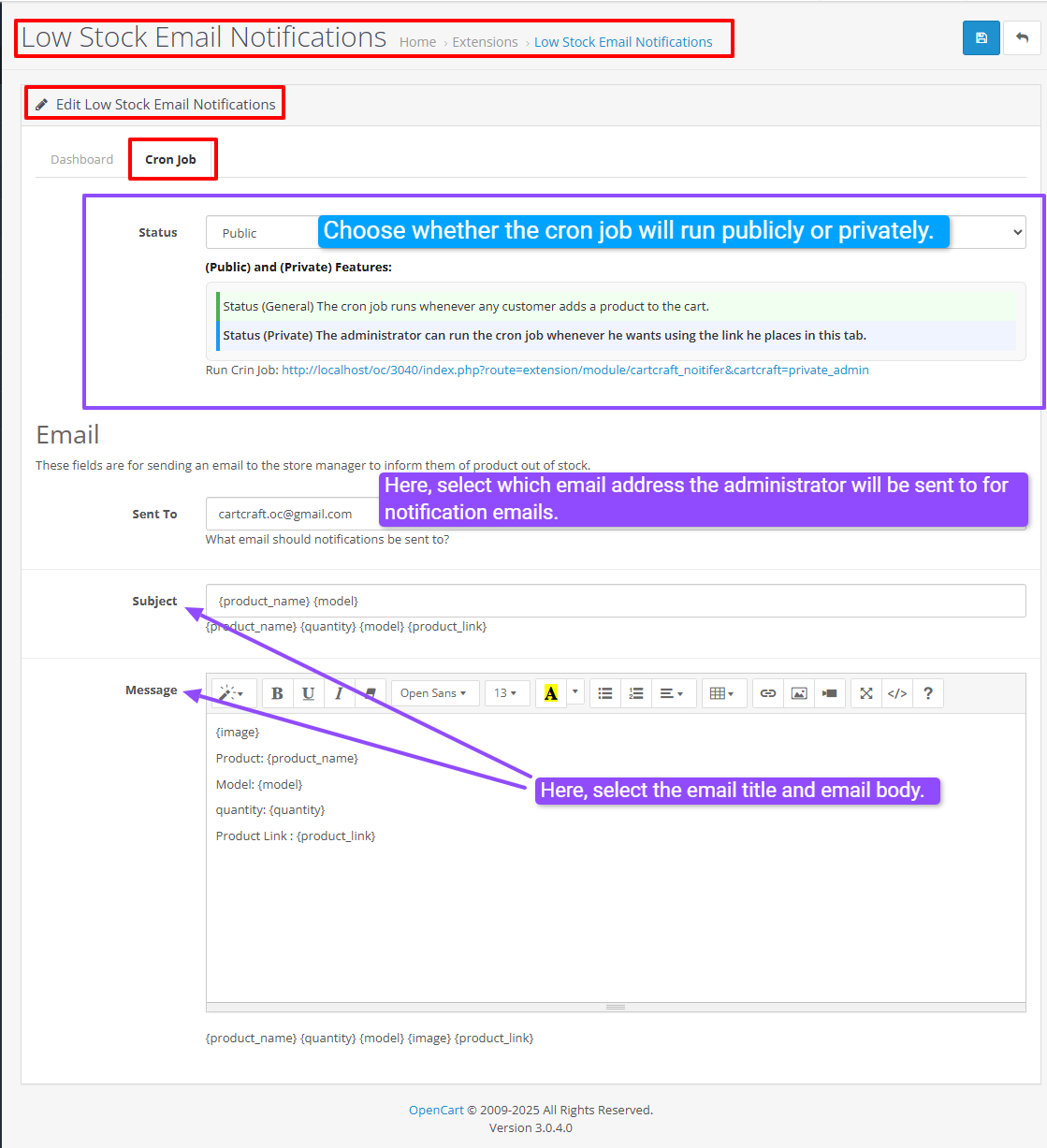
Cron Job settings (Private or Public):
You can configure:
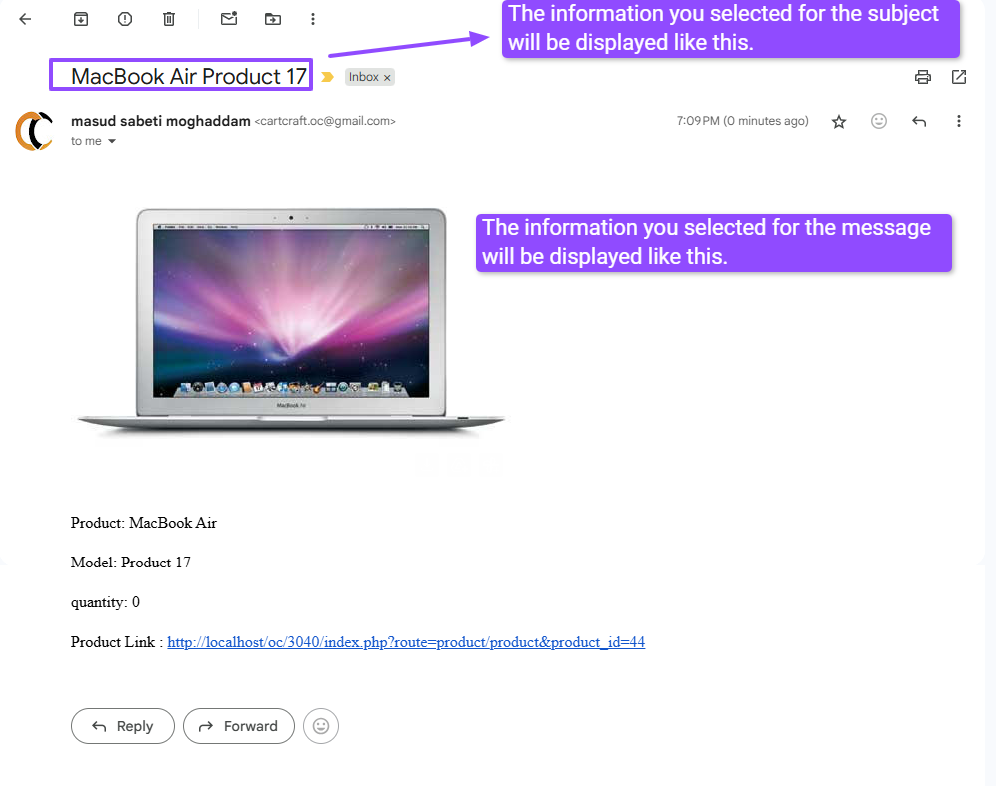
Write the email message body, including placeholders such as product name, model, quantity, and product link.
When the cron job runs (private or public), the system will automatically send these notification emails.
Install:
Free installation and support:
- The module shows products that are not available (quantity is 0 or less) directly on the dashboard.
- This helps you quickly identify which items need to be restocked.
- Edit quantity directly from the dashboard
- In the list of out-of-stock products, click the orange bar in the “Quantity” column.
- A field opens where you can enter a new quantity.
- Click the green save button to apply and save the changes immediately.
- This makes stock updates fast and convenient without leaving the dashboard.
Cron Job settings (Private or Public):
- In the module settings, go to the Cron Job tab.
- You can choose whether the cron job runs privately or publicly.
- The screenshots show a “Status” option where you select Public or Private.
You can configure:
- Which email address should receive notifications
- The email subject
- The message body
- Email notification settings
- Specify the recipient email address for stock-out notifications.
- Set the subject line to identify the notification quickly.
Write the email message body, including placeholders such as product name, model, quantity, and product link.
When the cron job runs (private or public), the system will automatically send these notification emails.
Install:
- First download the ZIP file.
- Then go to Extensions>Installer Click on the (Upload) button And upload the downloaded ZIP file.
- Go to Extensions>Extension>Dashboard and enable the “Low Stock Email Notifications” module.
- Then go to extensions>Modifications and click on the Refresh button to apply the new changes.
Free installation and support:
- cartcraft.oc@gmail.com
Price
$20.00
- Developed by OpenCart Community
- 12 Months Free Support
- Documentation Included
Rating
Compatibility
3.0.0.0, 3.0.1.0, 3.0.1.1, 3.0.1.2, 3.0.1.3, 3.0.2.0, 3.0.3.0, 3.0.3.1, 3.0.3.2, 3.0.3.3, 3.0.3.5, 3.0.3.6, 3.0.3.7, 3.0.3.8, 3.x.x.x, 3.0.3.9, 3.0.4.0, 3.0.4.1, 3.0.5.0
Last Update
26 May 2026
Created
26 Aug 2025
0 Sales
0 Comments

Login and write down your comment.
Login my OpenCart Account