AstroPay 4.x
# AstroPay Payment Gateway for OpenCart 4.x
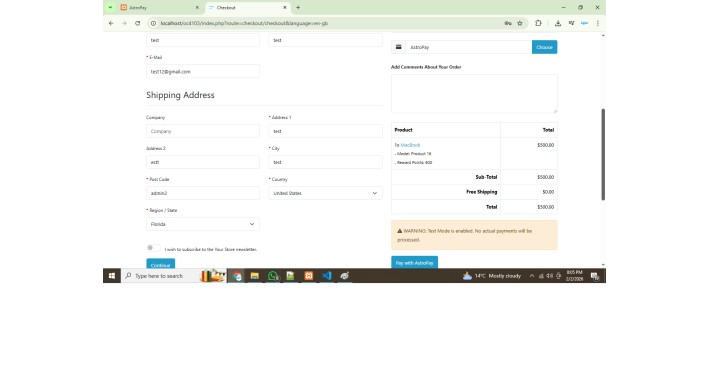
This extension integrates the AstroPay payment gateway into your OpenCart 4.x store, enabling customers to pay using credit cards, debit cards, and bank transfers in Latin American markets.
## Features
- **Multiple Payment Methods**: Credit cards, debit cards, and bank transfers
- **Flexible Transaction Types**:
- Direct Sale (payment captured immediately)
- Authorization + Capture (authorize first, capture manually)
- Refund support
- **Redirect Integration**: Customers are redirected to AstroPay's secure payment page
- **Multi-Currency Support**:
- USD, EUR, GBP
- Latin American currencies: BRL, MXN, ARS, CLP, COP, PEN, UYU, PYG, BOB, CRC, DOP, GTQ, HNL, NIO, PAB, SVC, VES
- **Test/Sandbox Mode**: Test transactions before going live
- **Admin Order Management**: Capture, refund, and void transactions from the admin panel
- **Debug Logging**: Optional logging for troubleshooting
- **Geo Zone Restrictions**: Limit availability to specific geographic zones
## Installation
### Method 1: Manual Installation
1. Upload the entire `astropay` folder to your OpenCart's `extension/` directory
2. The directory structure should be: `extension/astropay/`
3. Run the SQL queries from `install.sql` in your OpenCart database (optional - tables are created automatically)
4. Log in to your OpenCart admin panel
5. Go to **Extensions → Installer**
6. Navigate to **Extensions → Payments**
7. Find **AstroPay** and click **Install**
8. Click **Edit** to configure your AstroPay settings
### Method 2: Automatic Installation
1. Log in to your OpenCart admin panel
2. Go to **Extensions → Installer**
3. Upload the `astropay.zip` extension file
4. Navigate to **Extensions → Payments**
5. Find **AstroPay** and click **Install**
6. Click **Edit** to configure your AstroPay settings
## Configuration
### Required Settings
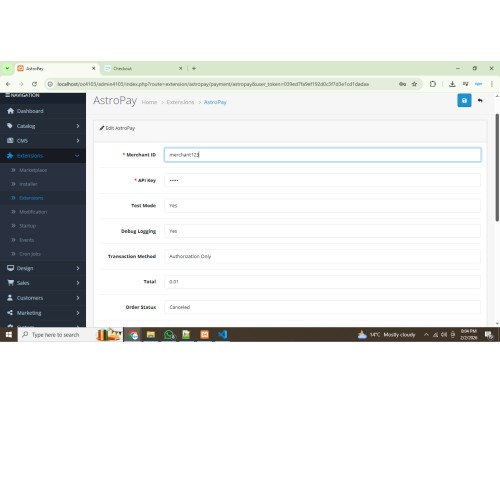
1. **Merchant ID**: Your AstroPay Merchant ID (from AstroPay merchant panel)
2. **API Key**: Your AstroPay API Key (from AstroPay merchant panel)
### Optional Settings
1. **Test Mode**: Enable to use sandbox environment for testing
2. **Debug Logging**: Enable to log all API requests and responses
3. **Transaction Method**:
- **Direct Sale**: Capture payment immediately
- **Authorization Only**: Authorize first, capture manually in admin panel
4. **Total**: Minimum order total required for this payment method
5. **Order Status**: Status for successful payments
6. **Order Status (Authorized)**: Status for authorized payments
7. **Order Status (Refunded)**: Status for refunded payments
8. **Order Status (Failed)**: Status for failed payments
9. **Geo Zone**: Restrict to specific geographic zones
10. **Status**: Enable/disable the payment method
11. **Sort Order**: Display order in payment method list
## Getting AstroPay Credentials
1. Sign up for a merchant account at [AstroPay](https://www.astropay.com)
2. Complete the verification process
3. Access your merchant dashboard
4. Navigate to **Settings → API Keys**
5. Note your **Merchant ID** and **API Key**
6. In test mode, use sandbox credentials provided in the documentation
## Payment Flow
1. **Checkout**: Customer selects AstroPay at checkout
2. **Order Created**: Order is created with "Pending" or "Authorized" status
3. **Redirect**: Customer is redirected to AstroPay's secure payment page
4. **Payment**: Customer completes payment on AstroPay's page
5. **Callback**: AstroPay sends payment confirmation back to your store
6. **Order Update**: Order status is updated based on payment result
7. **Redirect**: Customer is redirected to success or failure page
## Admin Order Management
After a successful payment, you can:
- **View Transactions**: See all transactions for an order
- **Capture**: Capture an authorized payment (Authorization Only mode)
- **Refund**: Process partial or full refunds
- **Void**: Cancel an un-captured authorized payment
### Accessing Order Management
1. Go to **Sales → Orders**
2. Click on an order paid with AstroPay
3. Click the **AstroPay** tab to view payment details and manage transactions
## Testing
### Test Mode
1. Enable **Test Mode** in the extension settings
2. Use AstroPay sandbox credentials
3. Make test payments to verify the integration
4. Check **System → Logs** for debug information
### Test Cards
Use the test cards provided in AstroPay's sandbox documentation:
- Successful payment cards
- Declined payment cards
- Insufficient funds cards
## Troubleshooting
### Payment Not Processing
1. Verify Merchant ID and API Key are correct
2. Check if test mode is enabled but using production credentials
3. Review debug logs in **System → Logs → error.log**
4. Ensure your server can reach AstroPay's API endpoints
5. Check if currency is supported
### Order Not Updating
1. Verify callback URLs are accessible
2. Check if firewall is blocking AstroPay's webhook calls
3. Ensure database tables are created correctly
### Connection Errors
1. Check your server's SSL/TLS configuration
2. Verify cURL is enabled on your server
3. Ensure PHP can make external HTTP requests
4. Review server error logs
## Security Considerations
- **Never commit your API keys to version control**
- Keep your API Key confidential
- Use HTTPS for all payment pages
- Regularly update the extension to the latest version
- Monitor your transaction logs for suspicious activity
- Implement proper fraud detection measures
## Support
- **Documentation**: [AstroPay Merchant Documentation](https://www.astropay.com)
- **API Reference**: [AstroPay API Docs](https://www.astropay.com/api)
- **Merchant Support**: Contact through your AstroPay merchant dashboard
This extension integrates the AstroPay payment gateway into your OpenCart 4.x store, enabling customers to pay using credit cards, debit cards, and bank transfers in Latin American markets.
## Features
- **Multiple Payment Methods**: Credit cards, debit cards, and bank transfers
- **Flexible Transaction Types**:
- Direct Sale (payment captured immediately)
- Authorization + Capture (authorize first, capture manually)
- Refund support
- **Redirect Integration**: Customers are redirected to AstroPay's secure payment page
- **Multi-Currency Support**:
- USD, EUR, GBP
- Latin American currencies: BRL, MXN, ARS, CLP, COP, PEN, UYU, PYG, BOB, CRC, DOP, GTQ, HNL, NIO, PAB, SVC, VES
- **Test/Sandbox Mode**: Test transactions before going live
- **Admin Order Management**: Capture, refund, and void transactions from the admin panel
- **Debug Logging**: Optional logging for troubleshooting
- **Geo Zone Restrictions**: Limit availability to specific geographic zones
## Installation
### Method 1: Manual Installation
1. Upload the entire `astropay` folder to your OpenCart's `extension/` directory
2. The directory structure should be: `extension/astropay/`
3. Run the SQL queries from `install.sql` in your OpenCart database (optional - tables are created automatically)
4. Log in to your OpenCart admin panel
5. Go to **Extensions → Installer**
6. Navigate to **Extensions → Payments**
7. Find **AstroPay** and click **Install**
8. Click **Edit** to configure your AstroPay settings
### Method 2: Automatic Installation
1. Log in to your OpenCart admin panel
2. Go to **Extensions → Installer**
3. Upload the `astropay.zip` extension file
4. Navigate to **Extensions → Payments**
5. Find **AstroPay** and click **Install**
6. Click **Edit** to configure your AstroPay settings
## Configuration
### Required Settings
1. **Merchant ID**: Your AstroPay Merchant ID (from AstroPay merchant panel)
2. **API Key**: Your AstroPay API Key (from AstroPay merchant panel)
### Optional Settings
1. **Test Mode**: Enable to use sandbox environment for testing
2. **Debug Logging**: Enable to log all API requests and responses
3. **Transaction Method**:
- **Direct Sale**: Capture payment immediately
- **Authorization Only**: Authorize first, capture manually in admin panel
4. **Total**: Minimum order total required for this payment method
5. **Order Status**: Status for successful payments
6. **Order Status (Authorized)**: Status for authorized payments
7. **Order Status (Refunded)**: Status for refunded payments
8. **Order Status (Failed)**: Status for failed payments
9. **Geo Zone**: Restrict to specific geographic zones
10. **Status**: Enable/disable the payment method
11. **Sort Order**: Display order in payment method list
## Getting AstroPay Credentials
1. Sign up for a merchant account at [AstroPay](https://www.astropay.com)
2. Complete the verification process
3. Access your merchant dashboard
4. Navigate to **Settings → API Keys**
5. Note your **Merchant ID** and **API Key**
6. In test mode, use sandbox credentials provided in the documentation
## Payment Flow
1. **Checkout**: Customer selects AstroPay at checkout
2. **Order Created**: Order is created with "Pending" or "Authorized" status
3. **Redirect**: Customer is redirected to AstroPay's secure payment page
4. **Payment**: Customer completes payment on AstroPay's page
5. **Callback**: AstroPay sends payment confirmation back to your store
6. **Order Update**: Order status is updated based on payment result
7. **Redirect**: Customer is redirected to success or failure page
## Admin Order Management
After a successful payment, you can:
- **View Transactions**: See all transactions for an order
- **Capture**: Capture an authorized payment (Authorization Only mode)
- **Refund**: Process partial or full refunds
- **Void**: Cancel an un-captured authorized payment
### Accessing Order Management
1. Go to **Sales → Orders**
2. Click on an order paid with AstroPay
3. Click the **AstroPay** tab to view payment details and manage transactions
## Testing
### Test Mode
1. Enable **Test Mode** in the extension settings
2. Use AstroPay sandbox credentials
3. Make test payments to verify the integration
4. Check **System → Logs** for debug information
### Test Cards
Use the test cards provided in AstroPay's sandbox documentation:
- Successful payment cards
- Declined payment cards
- Insufficient funds cards
## Troubleshooting
### Payment Not Processing
1. Verify Merchant ID and API Key are correct
2. Check if test mode is enabled but using production credentials
3. Review debug logs in **System → Logs → error.log**
4. Ensure your server can reach AstroPay's API endpoints
5. Check if currency is supported
### Order Not Updating
1. Verify callback URLs are accessible
2. Check if firewall is blocking AstroPay's webhook calls
3. Ensure database tables are created correctly
### Connection Errors
1. Check your server's SSL/TLS configuration
2. Verify cURL is enabled on your server
3. Ensure PHP can make external HTTP requests
4. Review server error logs
## Security Considerations
- **Never commit your API keys to version control**
- Keep your API Key confidential
- Use HTTPS for all payment pages
- Regularly update the extension to the latest version
- Monitor your transaction logs for suspicious activity
- Implement proper fraud detection measures
## Support
- **Documentation**: [AstroPay Merchant Documentation](https://www.astropay.com)
- **API Reference**: [AstroPay API Docs](https://www.astropay.com/api)
- **Merchant Support**: Contact through your AstroPay merchant dashboard
Price
$20.00
- Developed by OpenCart Partner
- 12 Months Free Support
- Documentation Included
Rating
Compatibility
3.0.3.7, 3.0.3.8, 4.0.0.0, 4.0.1.0, 4.0.1.1, 4.0.2.0, 4.0.2.1, 4.0.2.2, 4.0.2.3, 3.0.3.9, 3.0.4.0, 4.1.0.0, 4.1.0.1, 4.1.0.2, 4.1.0.3, 3.0.4.1, 3.0.5.0
Last Update
2 Feb 2026
Created
2 Feb 2026
0 Sales
0 Comments

Login and write down your comment.
Login my OpenCart Account