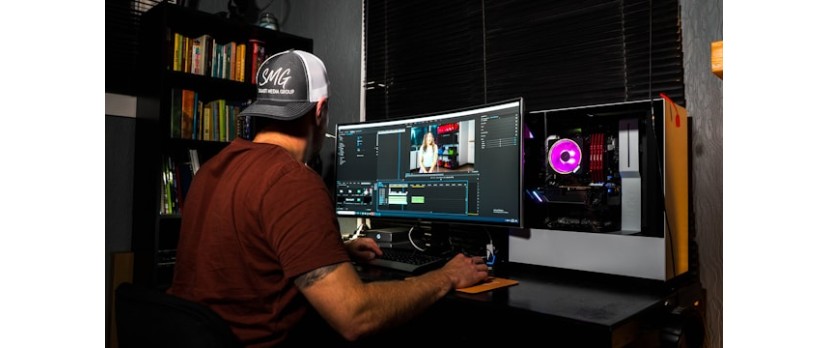
Visual styling works best when every effect reinforces the same brand identity and for ecommerce store owners, that consistency directly impacts conversions. Start with a clear look that reflects your store's aesthetic, then apply it uniformly across your product videos and promotional clips. Use subtle transitions to guide shoppers' attention toward key selling points, not distract them from your offer. Therefore, Filmora is a video editor for Mac that keeps these creative choices simple so you can spend less time editing and more time growing your store.
Build depth in your product showcases using overlays, masks, and blend modes but always with restraint so your merchandise stays the hero of every frame. Animate key elements like price callouts, CTAs, and product highlights with keyframes, keeping motion smooth and professional. Apply glow or blur only where it draws the eye to what matters most, whether that's a limited-time offer or a best-selling item. Thus, good video editing software helps ecommerce entrepreneurs keep their brand visuals consistent, cohesive, and conversion-ready across every channel.
Part 1. Video Editor for Mac: Understanding Visual Effects Tools
Visual effects shape emotion, focus, and memory across every scene. They support storytelling by adding mood, energy, and visual consistency. They are essential tools in any professional video editor for Mac. These are the main effect types mentioned below that you will use most often:
Color Effects: Correct exposure and white balance for a natural, consistent image tone. Also, apply cinematic looks to keep your brand style unified.
Lighting Effects: Add glow or vignettes to guide attention toward key details. Therefore, use light leaks sparingly to enhance mood without distractions.
Motion Effects: Use blur, shake, or zoom to create energy and momentum. Thus, add speed ramps to amplify action and improve pacing.
Artistic Effects: Use grain or textures to create a stylized filmic atmosphere. Apply sketch or mosaic effects for creative, dramatic visual variety.
Part 2. Filmora Video Editor for Mac Effects Library: Organize and Preview Tools
With Filmora, the “video edit Mac” workflow stays structured and repeatable. Use the video editing software for Mac features to browse, preview, and reuse effects.
Faster Browsing with Clear Categories
Filmora groups effects into neat categories, making discovery feel effortless. You compare similar looks quickly and stay focused on your timeline. This organization reduces scrolling and second-guessing, especially when deadlines are tight or projects include many clips.
Confident Choices Through Instant Previews
Previewing effects before applying them prevents wasted edits and revisions. So, you can judge mood, intensity, and style fit immediately. This approach keeps your timeline cleaner because you avoid stacking effects that later feel wrong for your footage.
Consistent Branding by Saving Favourites
Saving favourites lets you reuse the same looks across different projects. A good video editing program for Mac helps you maintain a consistent visual identity for brands and series. You spend less time rebuilding styles from scratch and more time improving pacing and storytelling.
Cleaner Workflow with Less Timeline Clutter
When you select the right effect early, your timeline stays organized. Fewer unnecessary layers mean fewer conflicts during color and motion tweaks. This makes later adjustments faster, because you know exactly which effects are essential and why.
Faster Repeat Projects with Reusable Style Sets
Favourites make repeat editing faster for social clips, promos, and tutorials. You can apply proven looks in seconds, then fine-tune quickly. This improves productivity without sacrificing quality, because you start from a reliable visual baseline every time.
Part 3. Filmora Mac: Add Filters, Overlays, and Stickers with Video Editor for Mac
Filmora keeps visual styling quick when you want polished results without complex menus today. This video editing software for Mac lets you preview, then drag effects onto clips. Follow these steps mentioned below to apply filters, overlays, and stickers:
Step 1. Import Media and Add to Timeline
Upon launching Filmora, choose the “Create new project” option, then import your footage and drag the target clip onto the timeline.

Step 2. Access the Filters Panel
Next, navigate to the “Effect” option and open the “Filters” category from the left panel to proceed.

Step 3. Apply the Filter to the Clip
Afterwards, right-click on the filter and choose “Apply” or drag-and-drop it onto the clip.

Step 4. Adjust the Filter Parameters
Here, select the applied filter on the timeline, then fine-tune settings as needed.

Step 5. Access Overlays Through the Effect Panel
Now, press the “Effect” option, then choose “Video Effects” from the left panel to further click the “Plus” icon to apply.

Step 6. Open the Stickers Library
Later, locate the “Stickers” tab, then choose a “Sticker” you want to further drag into the timeline directly. Moreover, from the right panel, make adjustments to your sticker appearance.

Step 7. Mark Items for Reuse
Now, mark frequent effects or stickers as favourites using the “Star” icon to retrieve them easily.

Part 4. Filmora Mac: Motion Effects and Keyframe Animation with Video Editor for Mac
Motion effects add energy, but keyframes keep movement controlled and intentional. In Filmora for Mac, you can animate scale, rotation, and position without complex graphs. This helps text callouts, icons, and stickers follow the action smoothly. Moreover, use keyframes when you need precise timing and consistent branding in a video editing software for Mac workflow, so follow the guide below:
Step 1. Place Your Element on the Timeline
First, import your media, then place the clip or element on the timeline. After that, select text, graphic, or sticker layers above your main video track.

Step 2. Open Customize Keyframing Controls
Next, double-click the element, then open “Animation” to access the customized keyframing controls. In the protruding section, locate “Position,” “Scale,” “Rotation,” and “Opacity” parameters.

Step 3. Add the First Keyframe
Now, move the “Playhead” to the start moment where the motion should begin. Next, click the “Keyframe” icon to set the first value point now.

Part 5. 6 Performance Tips for Using Heavy Effects on the Video Editor for Mac
Heavy effects can slow playback, especially on long timelines and layers. These tips, mentioned below, help your video editor Mac workflow stay smooth and responsive:
Preview Quality: Lower preview quality while editing to reduce real-time rendering load. Switch back to full quality before export for accurate final checks.
Proxy Media: Create proxy files for 4K clips to speed timeline playback. Edit with proxies, then export using originals for full resolution quality.
Render Preview: Render preview sections when effect stacks cause stutter or lag. This precomputes frames, so playback stays smooth during detailed reviews.
GPU Acceleration: Enable GPU acceleration in preferences to improve decoding and rendering speed. This helps heavy effects, especially blurs, stabilization, and noise reduction.
Close Apps: Close background apps to free memory and prevent system slowdowns. Keep only essential tools open while editing complex sections of video.
Trim First: Finish cuts first, then add heavy effects after timing feels locked. This reduces wasted processing on clips you may remove later.
Conclusion
Strong styling starts with one clear look and steady pacing. Preview effects first, then apply only what supports each scene purposefully. Keep layers light, and render previews whenever playback begins slowing down. Also, use keyframes for smooth movement and readable titles across your edits. For a dependable video editor Mac workflow, Filmora is a reliable option.



Login and write down your comment.
Login my OpenCart Account